
Who handles the next chat? Route work and reply consistently with KaoJai.ai Automation
A customer messages your store on LINE, but the sales team is unsure who should take it. Another customer writes after closing time and has no idea when to expect a reply. When someone asks why a case went to a particular team, an admin has to piece together what happened.
With several channels, accounts and teams, these small coordination tasks add up every day.
KaoJai.ai Automation lets you decide what should happen when a message arrives: which team should handle the new case, or which preset reply to send. You can also look back and understand why the system chose that action.
Get messages from each account to the team responsible
Suppose your business has one LINE Official Account for sales and another for after-sales support. If both use the same assignment policy, staff may spend time passing cases between teams.
Set a rule for a particular channel or account:
If a message arrives on the after-sales LINE account
Then route the new case to Customer Support.
You can also choose a specific person within that team when someone is responsible for the account.
When the destination is a team, Automation uses your existing check-in and distribution settings. This reduces the need for an admin to open each chat, identify the account and select an assignee manually.
Routing applies when a new automatic case starts, so automatic case creation must be enabled. An existing open case keeps its assignment; another incoming message does not move the conversation to a different person mid-service.
Tell customers what to expect after hours
Someone messaging a closed store may not expect an immediate answer. They still want to know when your team will be back.
For example:
If a message arrives outside business hours
Then reply with “Our opening hours are 9 am–6 pm. Our team will respond during business hours.”
Use your business-hours settings or a custom weekly schedule, including time windows that cross midnight.
The after-hours reply is not repeated every time the customer adds another message during the same continuous matching period. While this rule takes precedence, chatbot responses are suppressed so the customer does not receive competing answers.
Routing and replies can use separate rules. A LINE message can create a case for Customer Support while an after-hours rule explains when the team will respond.
Answer recurring questions and acknowledge unanswered chats
Questions such as “What are your opening hours?” or “When do you ship?” come up repeatedly. Your team does not need to type the same information from scratch each time.
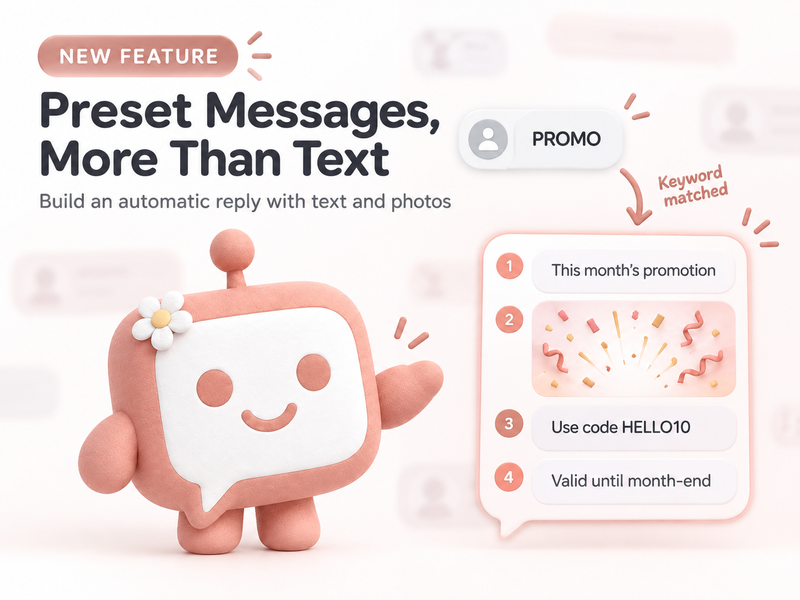
Automation supports keyword-based replies using preset messages your team has prepared:
If the message contains “opening hours”
Then reply with the “Store opening hours” preset message.
For chats without an outgoing reply within a configured period, use a no-response rule to send an acknowledgement that your team has received the message.
Both options reuse your saved replies, helping your team control the information and tone customers receive.
| What slows the team down | Example rule |
|---|---|
| Manually sorting cases by account | Route new cases from the selected account to its responsible team |
| Customers messaging a closed store | Send an after-hours reply explaining opening hours |
| Repeating the same answers | Send a preset reply when a keyword matches |
| Chats waiting without a reply | Send an acknowledgement after the configured delay |
Understand each outcome instead of guessing
Setting up automation is only part of the job. You also need to know what it did.
The Activity page shows which conditions matched, which rule was selected, and the routing or reply outcome.
For example, if a case has no assignee, you can check whether the system selected the correct team but found nobody eligible to receive the work.
That case waits unassigned in the destination team rather than silently falling back to another team. The admin can focus on getting someone ready to handle it instead of changing a rule that is already correct.
Reply outcomes are recorded too, helping you distinguish a condition mismatch from a sending issue. Provider acceptance is shown separately from proof of delivery.
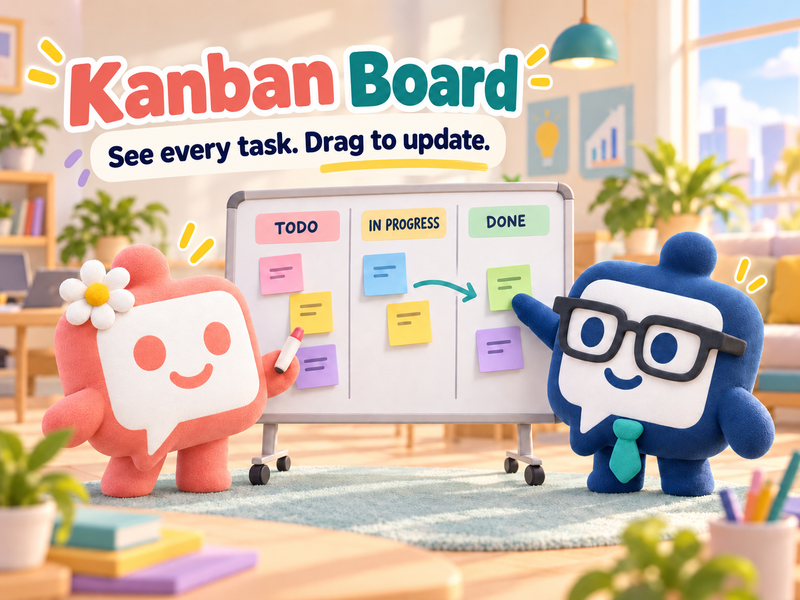
Once cases reach the team, use the Kanban board in Helpdesk to track work in progress, cases waiting for customers, and completed work. Routing and follow-through become part of the same workflow.
Test first, then add rules as you need them
You do not have to cover every possible scenario on day one. Start with the account that creates the most manual handoffs.
- Open Automation → Rules and choose a template.
- Set the conditions under If and the action under Then.
- Use the test panel to select an account and sample time, then inspect the result before enabling the rule.
Simulation does not send customer messages or change real assignments, so you can check the conditions before applying them.
If several rules could match, drag the more important rule higher in the list. The system selects the first matching routing action and the first matching reply action independently.
Frequently asked questions
Does a returning customer always go back to the same agent?
You can choose to distribute a new case again or keep the previous assignee. Each Automation routing rule can follow the business’s retention settings or choose a returning-customer policy specifically for that rule.
Can keywords route cases to different teams?
Keywords currently support preset replies. Case-routing conditions support channel, account and time.
Start with one rule that reduces handoffs, or an after-hours message that makes waiting clearer for customers. Check Activity to understand the results before expanding the setup.
Let KaoJai.ai handle repetitive coordination so your team has more time to help customers. 💚