
Kanban Board: See Every Task and Drag to Update Its Status in Helpdesk
It’s Monday morning, and your team is handling conversations across several channels. One repair is underway, another is waiting for a customer to send photos, and a new request has yet to be picked up. Opening every case just to decide what needs attention takes time.
Kanban Board is part of Helpdesk, KaoJai’s customer support module. Turn conversations that need follow-up into cases, then organize them into lanes by status. Everyone can see the same picture and drag a card to update progress from the task overview.
Start with one request you need to follow up on. You don’t have to turn every conversation into a case. When something takes more than one conversation to resolve, opening a case makes it easier for your team to pick up where you left off.
Who is it for?
People handling several tasks at once. If you answer questions, manage after-sales requests, and coordinate a service team in the same day, the board helps you see what’s new, what’s underway, and what’s waiting for a reply—without keeping it all in your head.
Teams that want to organize customers and leads into clear groups. Use customer tags and filters to focus on a group, such as leads interested in a service or customers needing after-sales support. Status lanes show how their cases are progressing. Each group gets a useful view within the same customer support system.
Requests that take several days or involve several teammates. Product claims, technician appointments, and requests for documents often need ongoing follow-up. Opening a case gives the request a reference number. Your team can give that number to the customer so they can ask about progress, and use it to find the same case when the conversation continues.
The board works for solo operators organizing their day and teams handing customer requests over to one another. Start with the work you already have, then choose filters and lanes that suit how you work.
See progress in one place
Open Helpdesk → Kanban Board, or switch to the board view from the task overview’s view controls. Cases appear in lanes for their current status, such as Open, In Progress, Waiting for Customer, Blocked, and Closed.
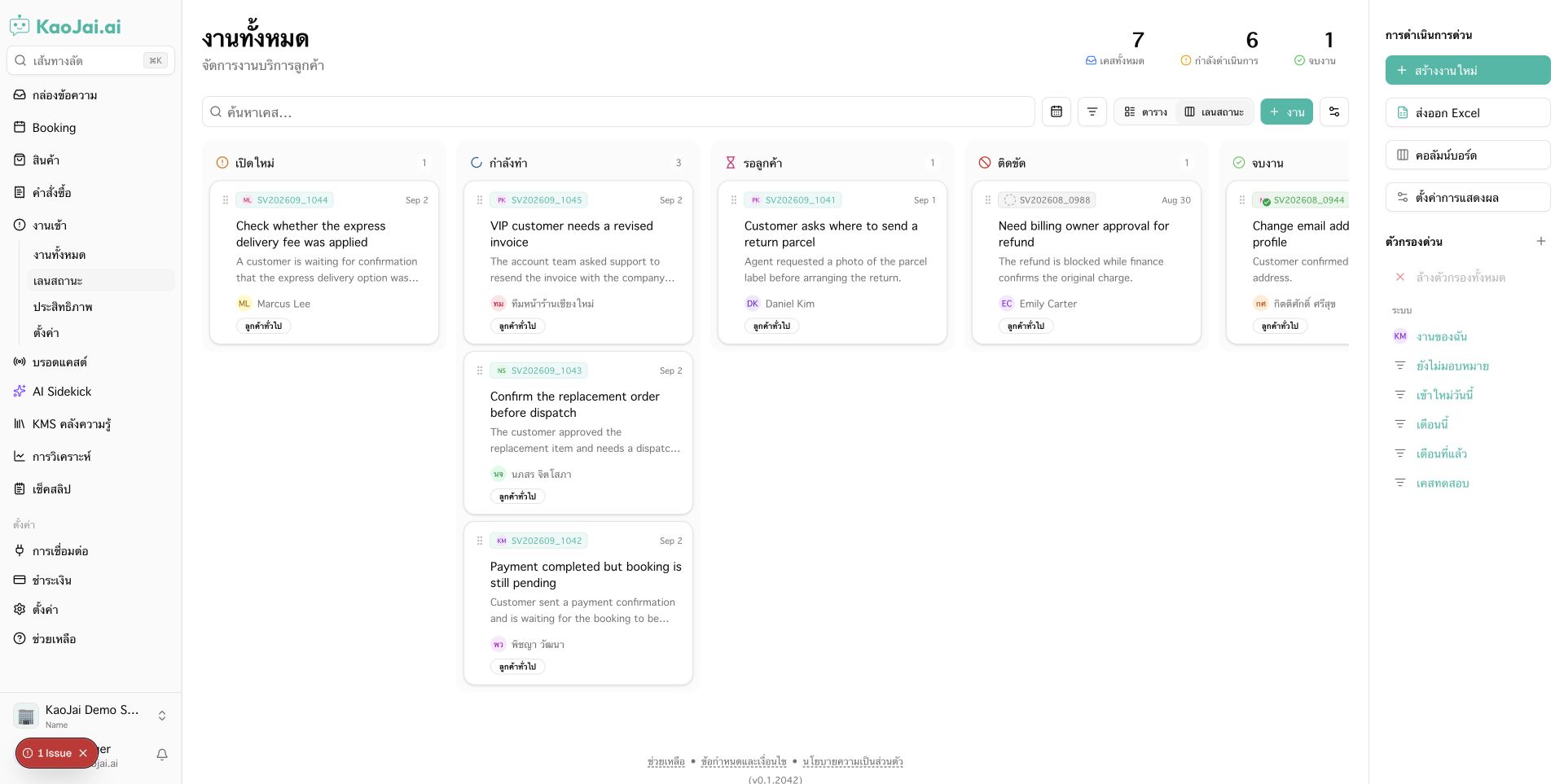
Screenshot with demo data, not real customer information. The interface shown is in Thai.
Each card shows the case number with the assignee’s avatar, the reported date, the task title, a short description, and the customer. Click the case number or title to open the details.
Drag a card when the status changes
When work starts, drag the card to In Progress. If you need more information, move it to Waiting for Customer. Teammates can see the update without asking for progress in another chat.
Dragging updates the case status according to your existing permissions. Moving a card does not send a message to the customer, so your team can update internal progress without messaging them every time the status changes.
Focus on the work that needs attention
Use search and Filters to choose an assignee, customer, customer tags, case status, or reported date range. Combine conditions with AND / OR, for example to show open cases assigned to the service team or cases for customers who need extra follow-up.
Team admins can save those conditions as shared quick filters. Everyone can open the same view without setting it up again each morning. Built-in system filters remain available too.
Make the board fit your team
Team admins can show, hide, and reorder lanes in the board column settings. Hidden lanes disappear from the board; their cases remain in the system.
| What you want to see | View to use |
|---|---|
| Overall progress and moving tasks between statuses | Kanban Board |
| Case information in rows | Table |
| Work for a person, customer, or recurring set of conditions | Filters with either view |
Filters work across both table and board views. You can also copy a view’s link and share it with teammates who have permission to access the cases.
Questions your team might have
Do we have to stop using the table?
No. The overview still opens in Table view by default, and you can switch to Kanban Board whenever it suits the work.
Does dragging a card notify the customer?
No. Moving between lanes updates the internal case status using the user’s existing permissions. It does not send a customer message.
Can everyone edit the team’s quick filters?
Everyone can apply conditions to find their work. Creating or editing shared team filters and default lane settings requires an admin with configuration permission.
Open Helpdesk → Kanban Board and start with the requests your team is following up on today. If you’re new to KaoJai, visit KaoJai.ai or talk with our team about organizing your customer support work.