Customer chats often need more than a reply: a refund to follow up, a technical problem to resolve, or a request to hand over to another person.
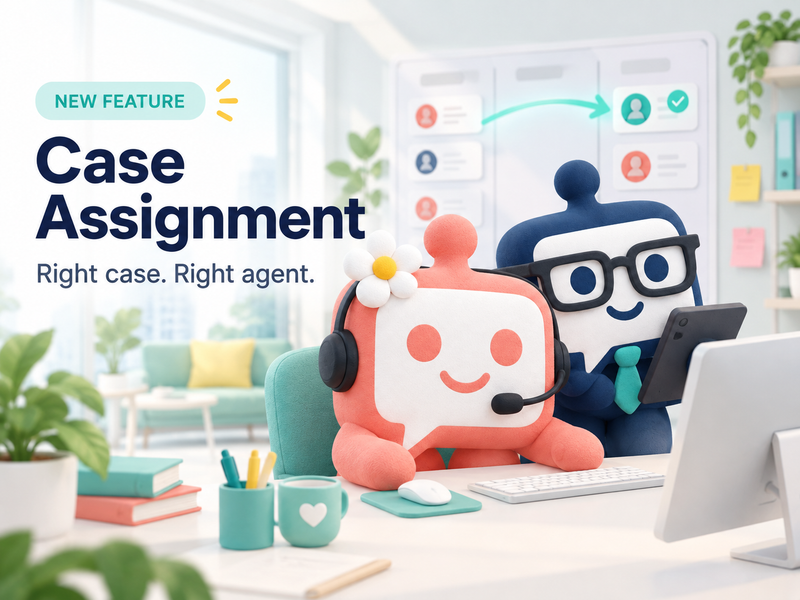
Case Assignment helps your team give that work an owner, track its progress, and follow it through to completion—all alongside the customer conversation.
What your team can do
- Turn chats into Cases. Keep a ticket number, status, and history for requests that need follow-up.
- Assign work to a team or person. Give each request a clear owner, or leave it in a team queue for a manager to allocate.
- Automate intake and assignment. Create Cases from incoming messages and distribute work to available team members. Members check in when ready to receive new work.
- Focus on the right queue. Use My Cases and My turn for personal work, or My teams to supervise a team’s workload.
- Review team performance. See workload, response times, and resolution times to understand where the team needs support.
Choose a workflow that fits
For occasional follow-up: create Cases manually for requests such as refunds or delivery problems. Everyday questions can stay as chats.
For a busy support inbox: enable automatic Case creation so incoming requests become trackable work. Add automatic assignment when you want to distribute them to members who are ready to help.
For teams with a supervisor: appoint a team manager to monitor assigned and unassigned work, answer customers, and reassign Cases within the team. Managers can focus on supervision or receive automatic assignments too.
If different channels or accounts need different teams, use Automation rules to choose the destination for new automatic cases, using the team’s existing check-in and distribution settings.
From message to resolution
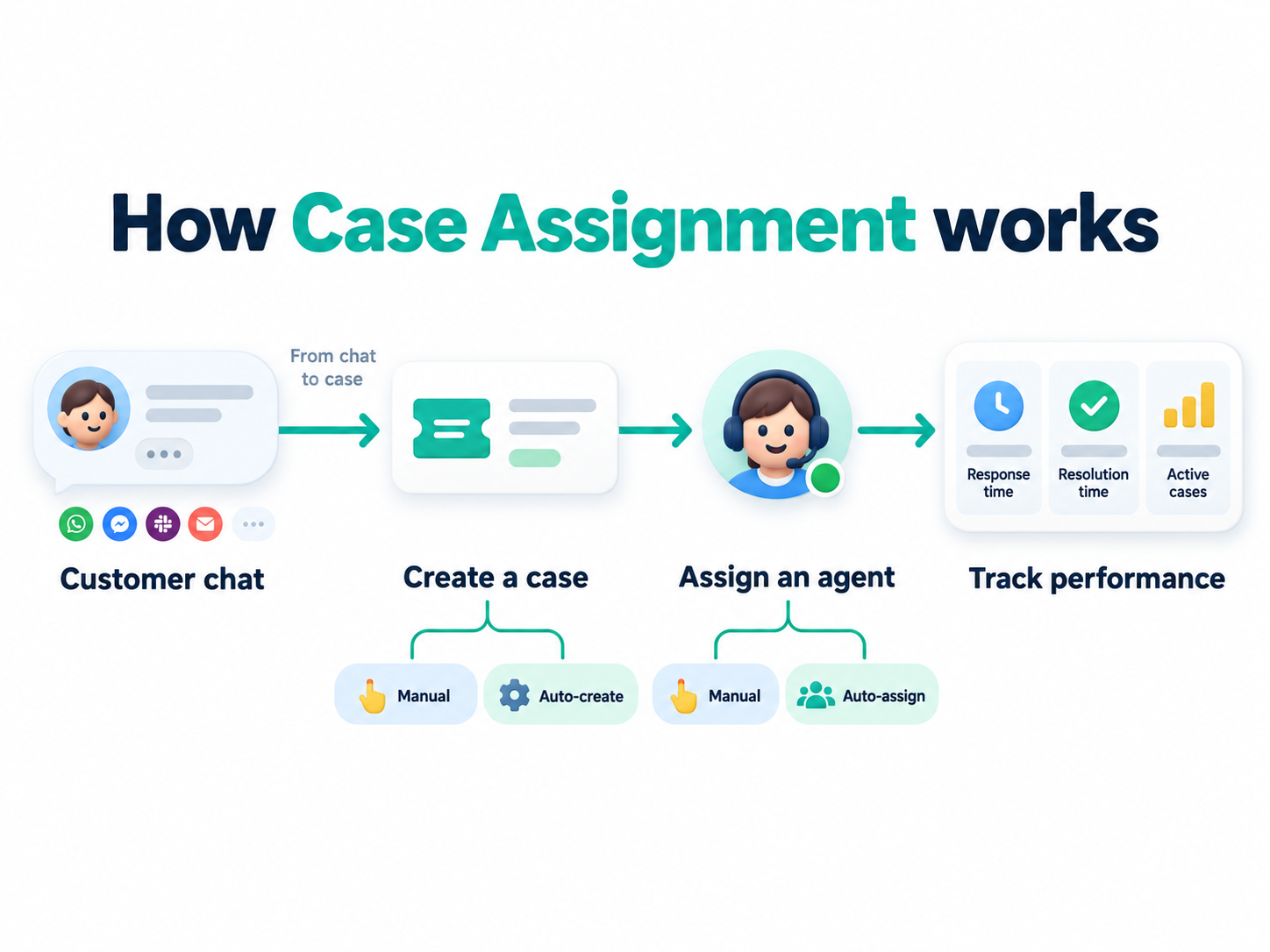
- Receive a customer message. Create a Case manually or let automatic creation capture the request.
- Assign the work. Choose a team and person, or let automatic assignment find an available member.
- Follow up. The assignee replies and updates the Case status. A team manager can review the queue and reassign work when someone needs help.
- Close and review. Close the Case when resolved, keeping its history for follow-up and performance reporting.
Roles and capabilities
| Role | Work they can access | Reply and close Cases | Assign work | Manage teams and settings |
|---|---|---|---|---|
| Owner / Admin | All work | Yes | Across teams | Yes |
| Agent | All work available to the workspace’s support agents | Yes | No | No |
| Assigned Agent — Member | Their own assignments | Yes | No | No |
| Assigned Agent — Team manager | Assigned and unassigned work in the teams they manage | Yes | Within the current team | No |
Owner/Admin sets up teams and appoints managers in Assignment settings. A team manager uses the Assigned Agent workspace role, with either Manager for supervision only or Manager receiving assignments to also receive automatic work. Human team members other than Viewers can receive assignments; Bot accounts cannot.
Turn daily work into team performance insights
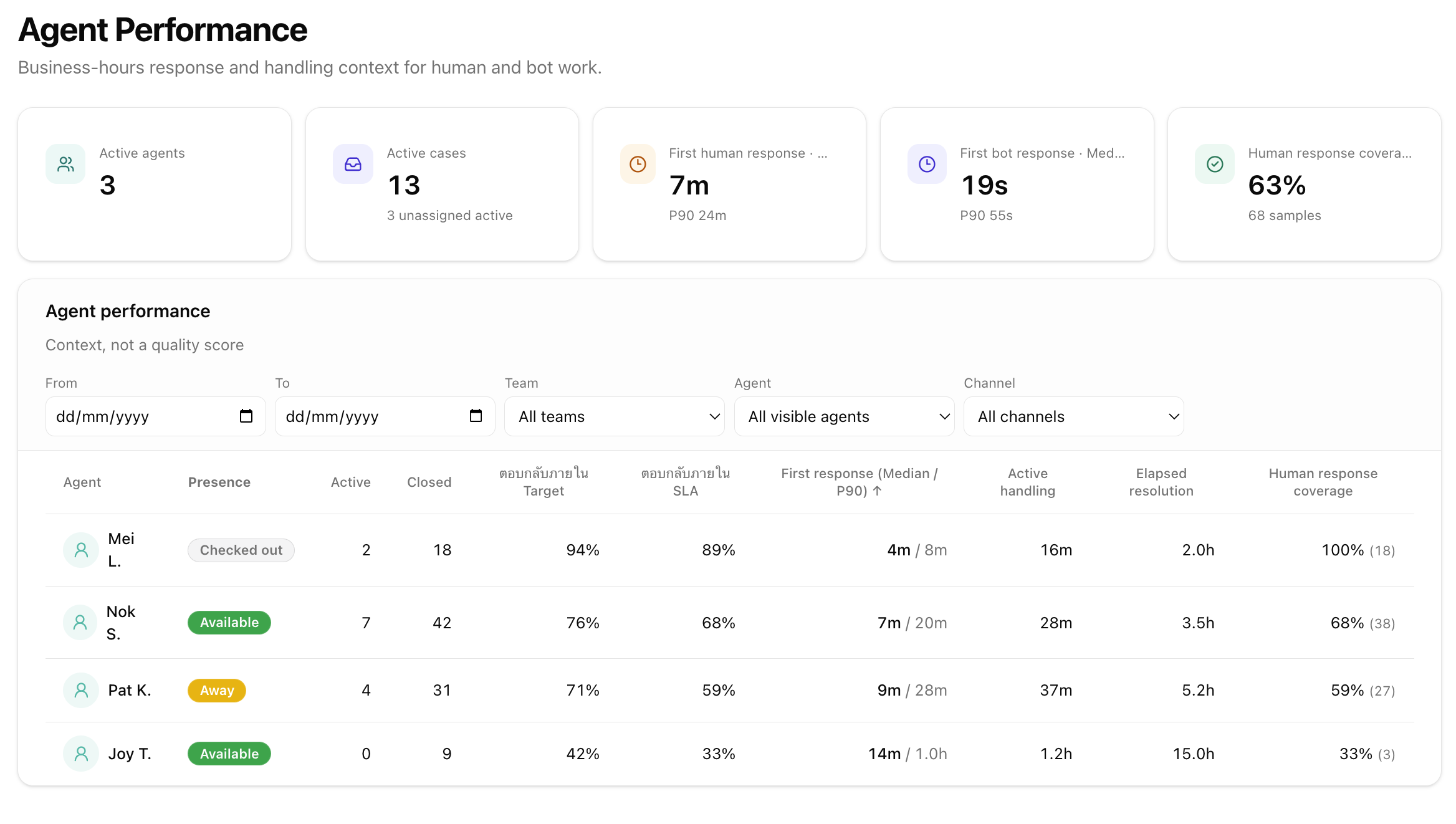
KaoJai tracks the metrics shown in this dashboard—from active and closed Cases to response times, target and SLA attainment, handling time, resolution time, and human response coverage—and uses them to calculate performance reports for your team and individual agents.
Filter by date, team, agent, or channel to spot delayed replies, balance workloads, and see where coaching or extra support would help.
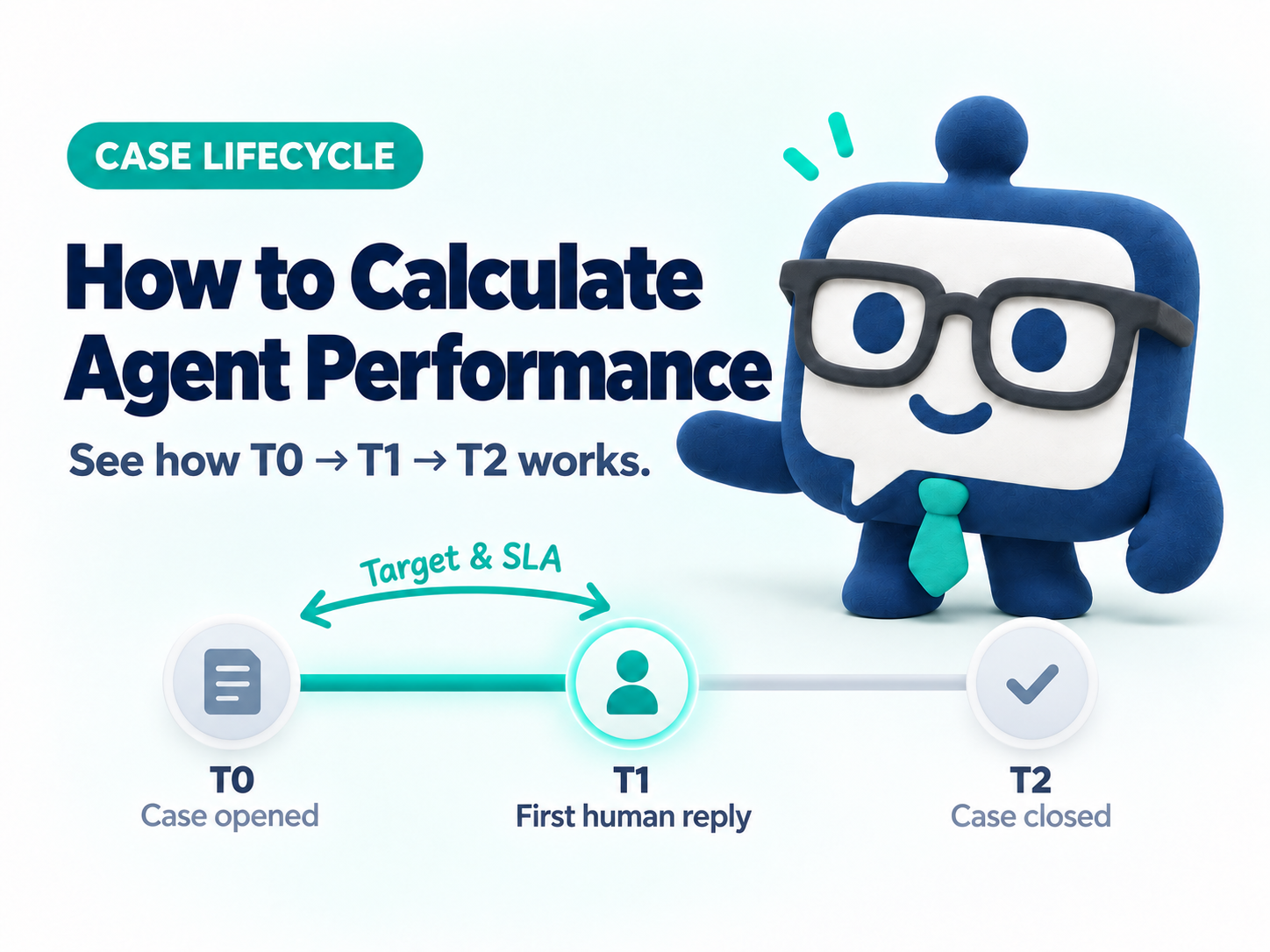
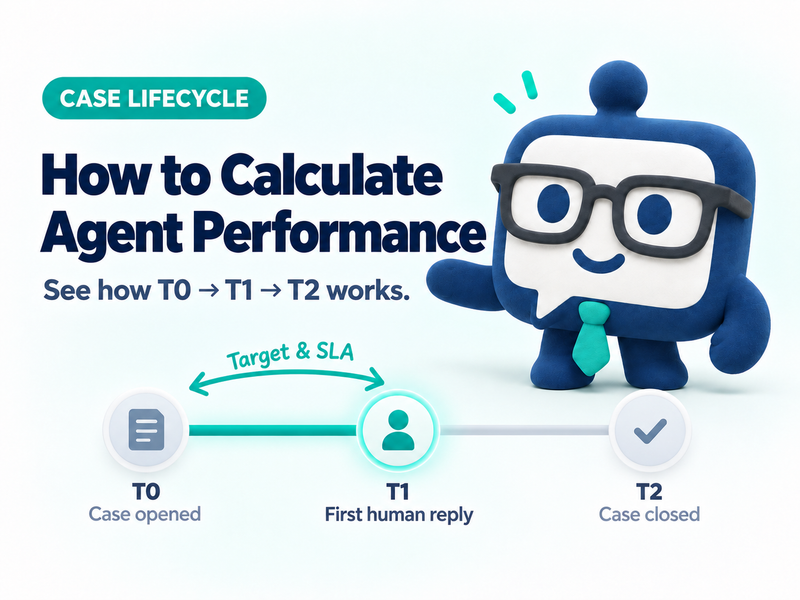
Target and SLA count business hours from case open to the first human reply, not time to close and not the bot reply.
Get started
Open Assignment settings, create your team, and choose whether to create Cases manually or automatically. Assign a manager if your team needs one, then enable automatic assignment when you’re ready.
Start with the workflow your team needs today, and keep every customer request moving toward resolution.