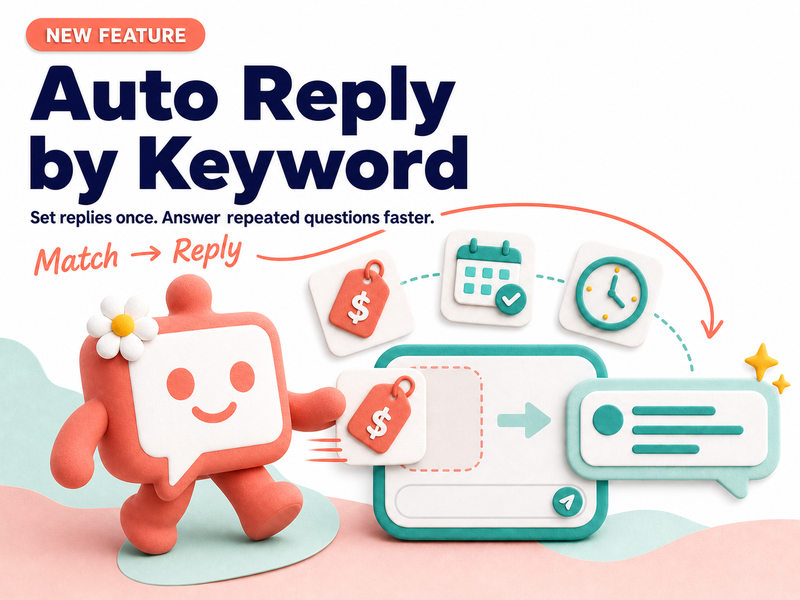
A useful customer reply is not always one paragraph. Your team may need to send a short explanation, a product photo, and the next step in a specific order. Rebuilding that reply every time slows down simple work and makes omissions more likely.
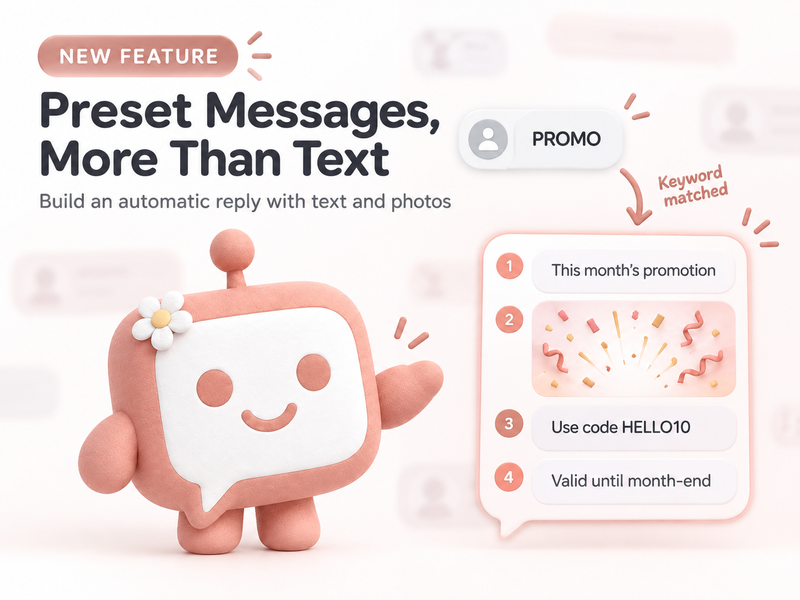
Preset Messages in KaoJai Admin now let your team prepare a sequence of text and photos, arrange it once, and reuse it directly from the inbox.
What the improved Preset Messages can do
- Combine up to four text or photo items in one preset.
- Drag items into the order customers should receive them.
- Search, pin, edit, and reuse presets from the chat composer.
- Use the same searchable message library for manual quick replies and configured automatic-reply rules.
- Index Preset Messages so they can contribute to your AI knowledge source.
| Customer situation | Suggested sequence |
|---|---|
| Product recommendation | Short introduction → product photo → price and ordering steps |
| Payment instructions | Amount due → QR or instruction image → confirmation step |
| Location details | Location name → map image → landmark and opening hours |
| Service question | Direct answer → supporting image → customer’s next action |
A useful hint: write the title as a customer question
In the Question / Message title field, use language a customer would actually type instead of an internal label that only your team recognises.
For example, use “What time do you open?” instead of “Opening hours,” or “Which payment methods do you accept?” instead of “Payment info.”
A question-style title gives the AI training data a clearer signal about which question the prepared answer addresses. It does not change the sequence your team sends; it makes the knowledge behind that sequence easier to understand.
How to set it up
- Open Chat Settings → Preset Messages.
- Choose Add message and enter a title—preferably a real customer question.
- Add Text and Photo items in the intended order, up to four items in total.
- Drag to reorder, then save.
- Open a conversation, choose Preset Messages, and review the reply before sending.
To use a preset in an automatic-reply rule, open Automation → Rules, configure the reply conditions, and choose your prepared preset before enabling the rule for live conversations.
FAQ
Can a Preset Message contain only photos?
Yes. A preset needs at least one item and may contain text, photos, or a mix of both, up to four items.
Can I change the order later?
Yes. Edit the preset, drag the items up or down, and save the new order for future use.
Does a question-style title guarantee the AI will answer correctly?
No. It contributes a clearer question-to-answer signal than a generic internal label, but the team should still use real customer wording and keep every answer accurate and current.
Prepare once, reply consistently
Start with three to five questions your team repeats every day. Put the text and photos in the clearest reading order, title each preset with the customer’s real question, and let the whole team answer faster while retaining a final review before sending.