
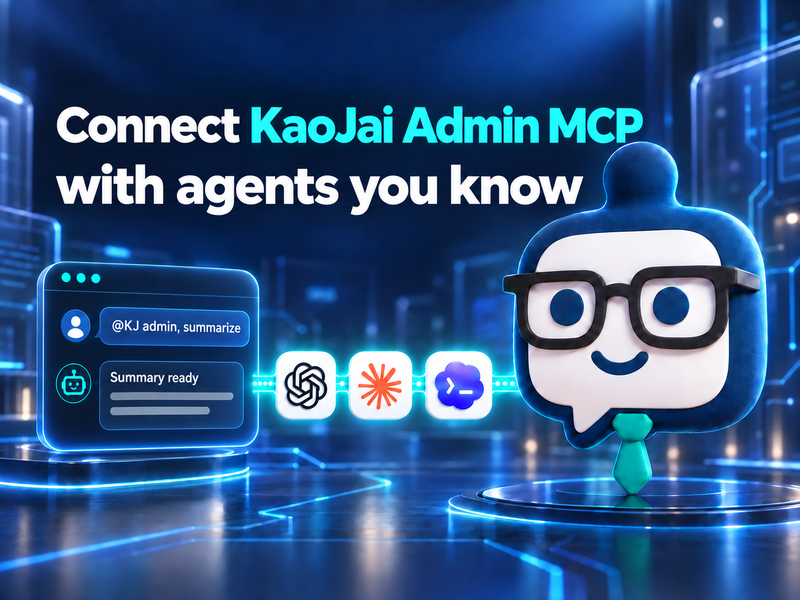

Early access: this setup may change
This manual setup is a temporary workaround. We're working with OpenAI to approve the app and make installation easier.
The illustrated example below uses ChatGPT. For Claude or Codex, see the short instructions at the end.
1. Enable MCP in KaoJai Admin
- Use Starter or higher: view plans and subscribe.
- If MCP is unavailable, request early access from KaoJai.
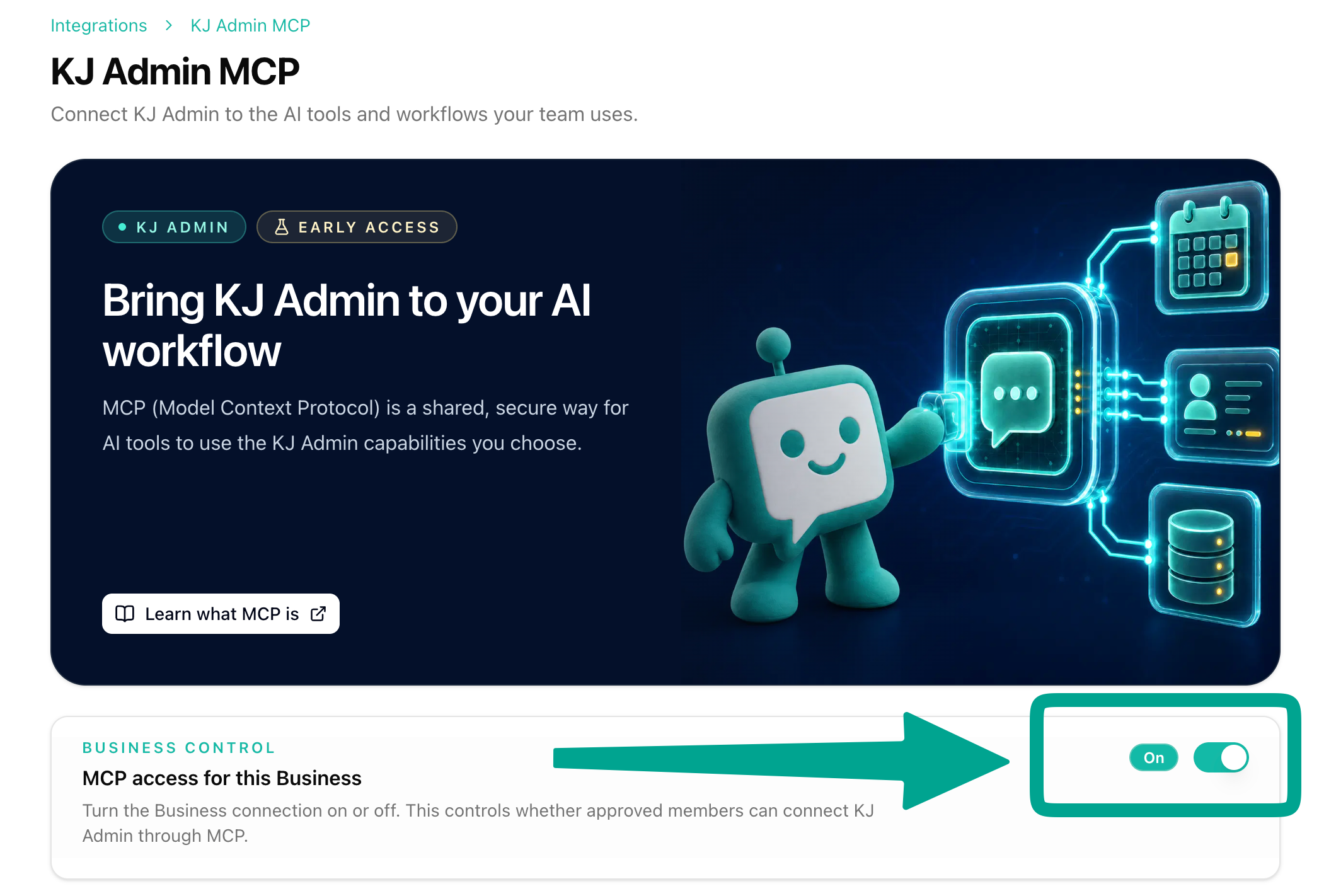
- In KaoJai Admin → Integrations → MCP, select your workspace and turn on MCP. Ask an Owner if the switch is unavailable.
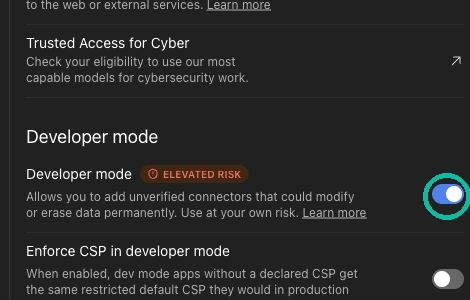
2. Turn on ChatGPT Developer mode
In ChatGPT, go to Settings → Security and login → Developer mode and turn it on.
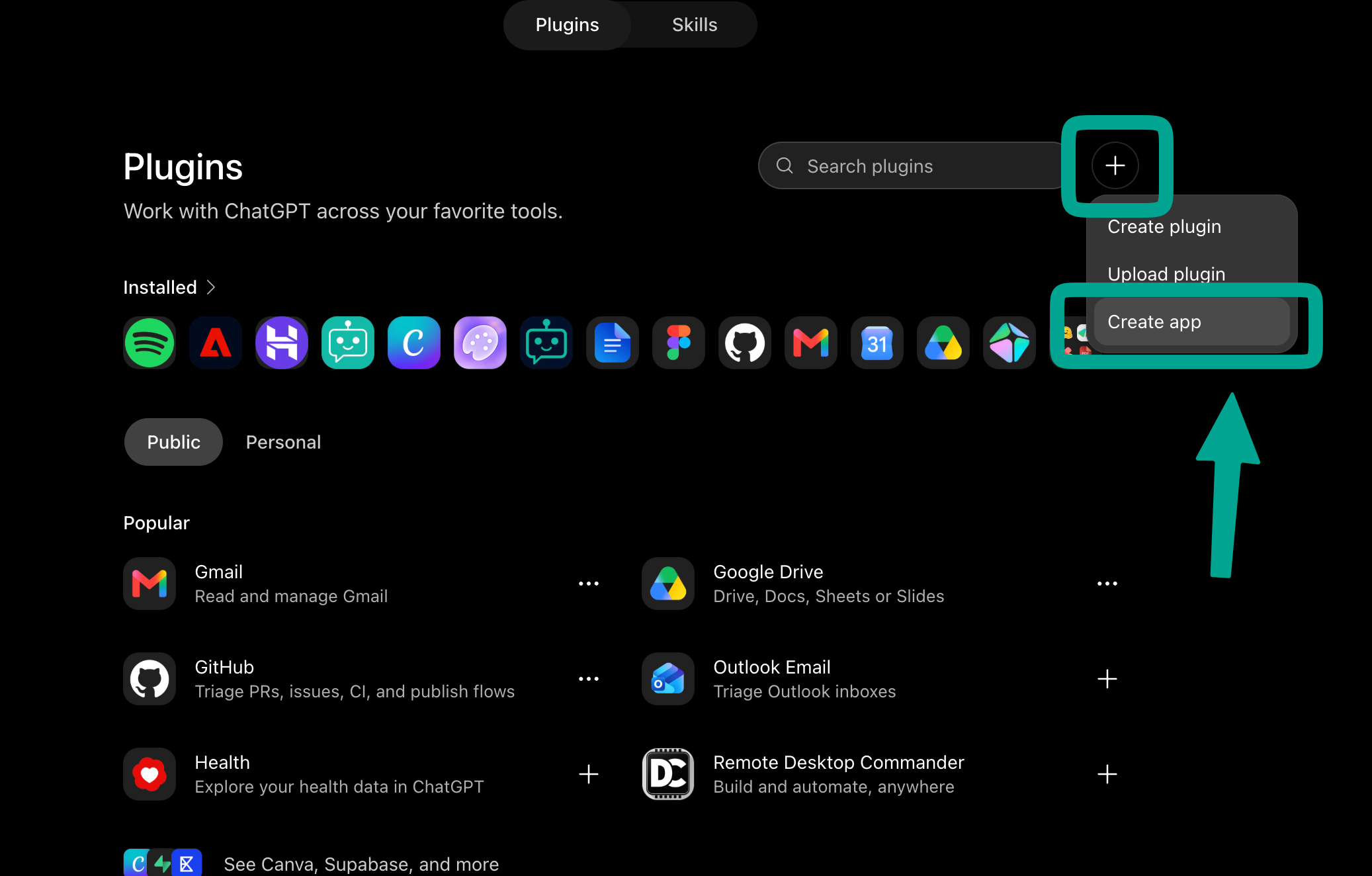
3. Create the ChatGPT app
Open ChatGPT Plugins, click +, then choose Create app.
Choose Create MCP App.
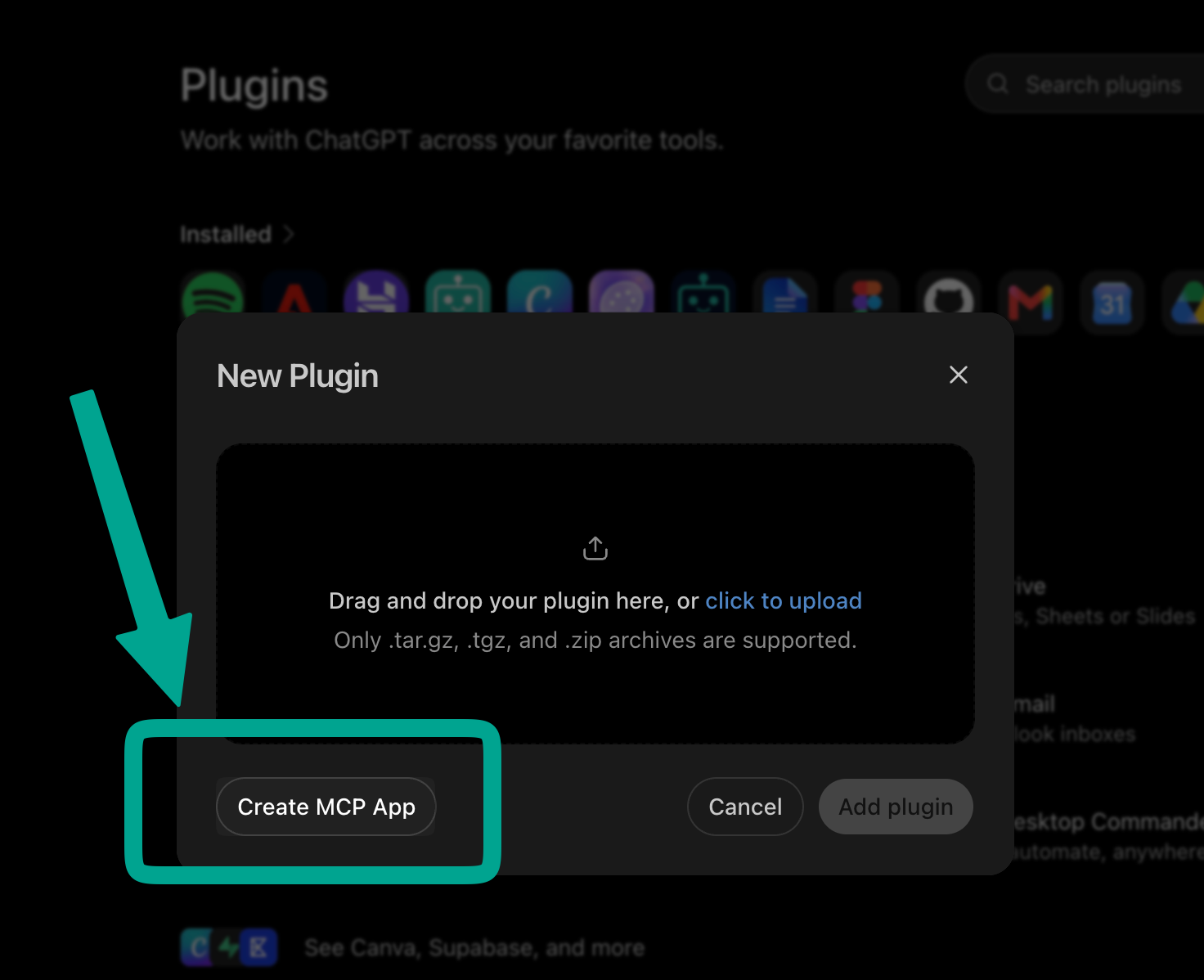
The icon is optional. To use it, download the KaoJai MCP icon (PNG), then upload it in the Icon field.


Match the numbered fields and buttons in this screenshot:
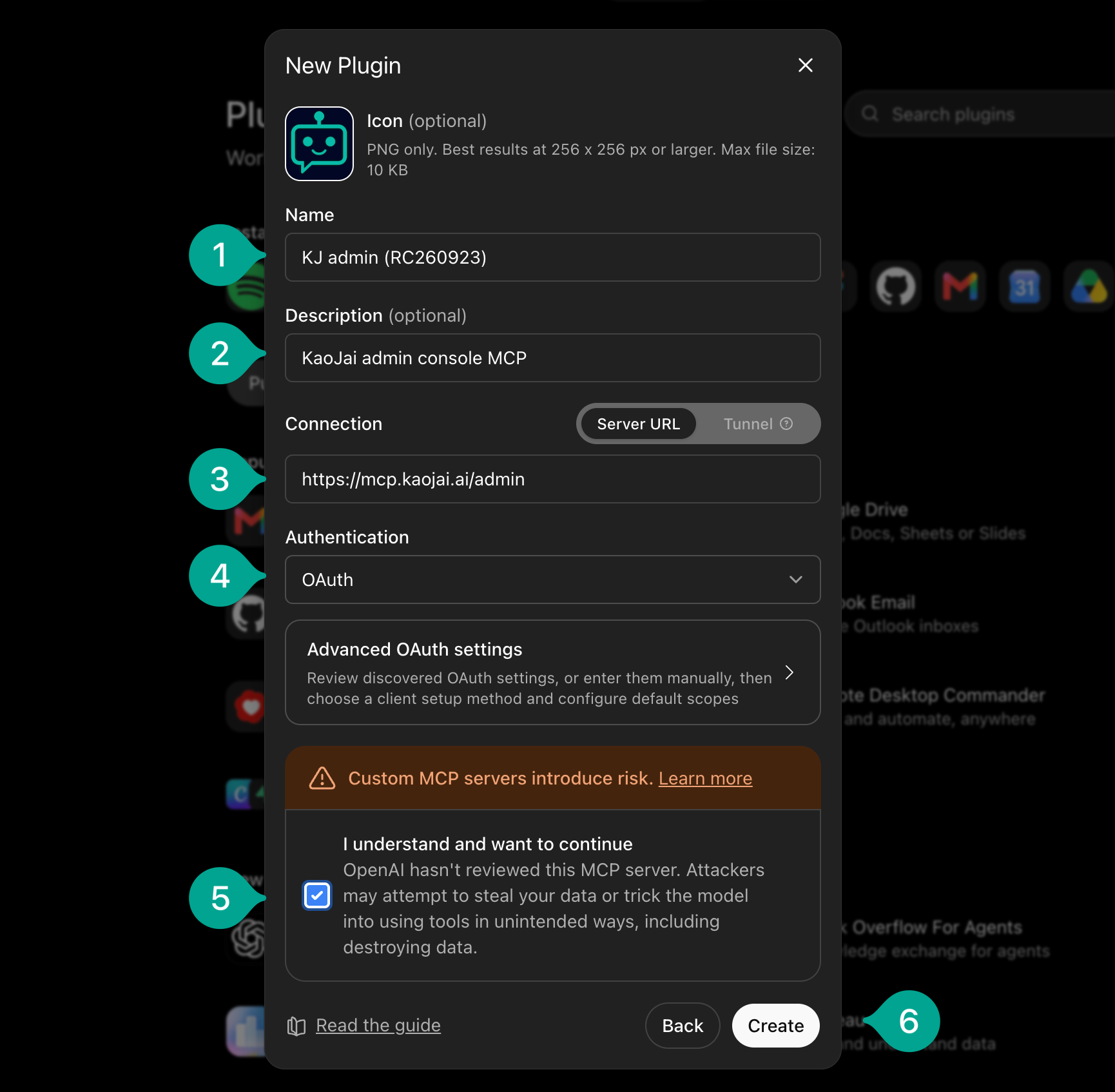
| # | Field | Enter or select |
|---|---|---|
| 1 | Name | |
| 2 | Description | |
| 3 | Server URL | |
| 4 | Authentication | Select OAuth |
| 5 | Custom MCP warning | Check I understand and want to continue |
| 6 | Create the app | Click Create |
ChatGPT discovers the OAuth settings automatically, so you do not need to enter a client ID. After the app is created, choose Sign in with KJ admin (RC260923) (or the app name you entered).
4. Connect and test
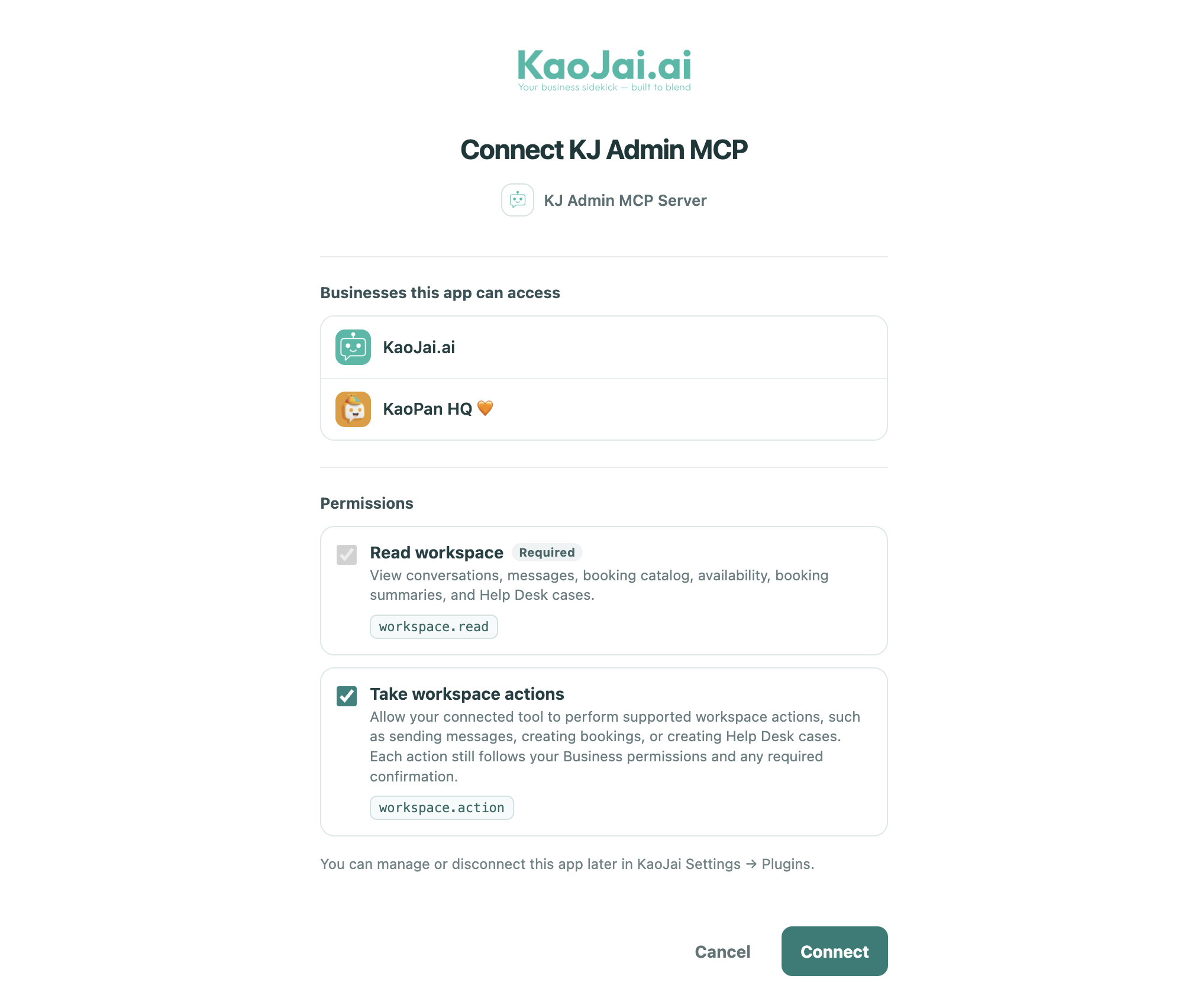
On the KaoJai page, review the businesses and permissions, then click Connect. workspace.action allows supported changes, so review tool calls before allowing them.
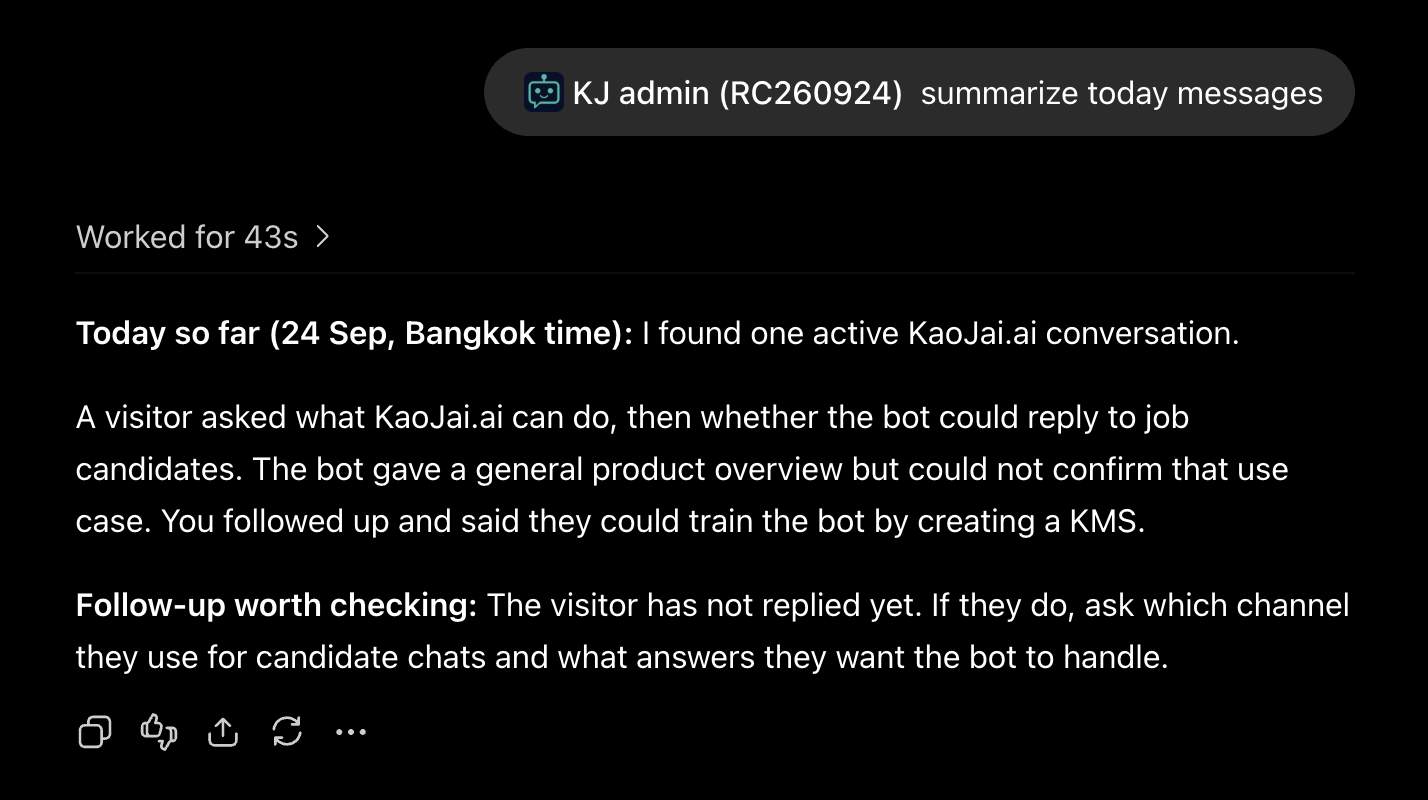
Refresh ChatGPT. In a new chat, type @kj, select the app name you entered, then ask a question such as “Summarize today’s messages.”
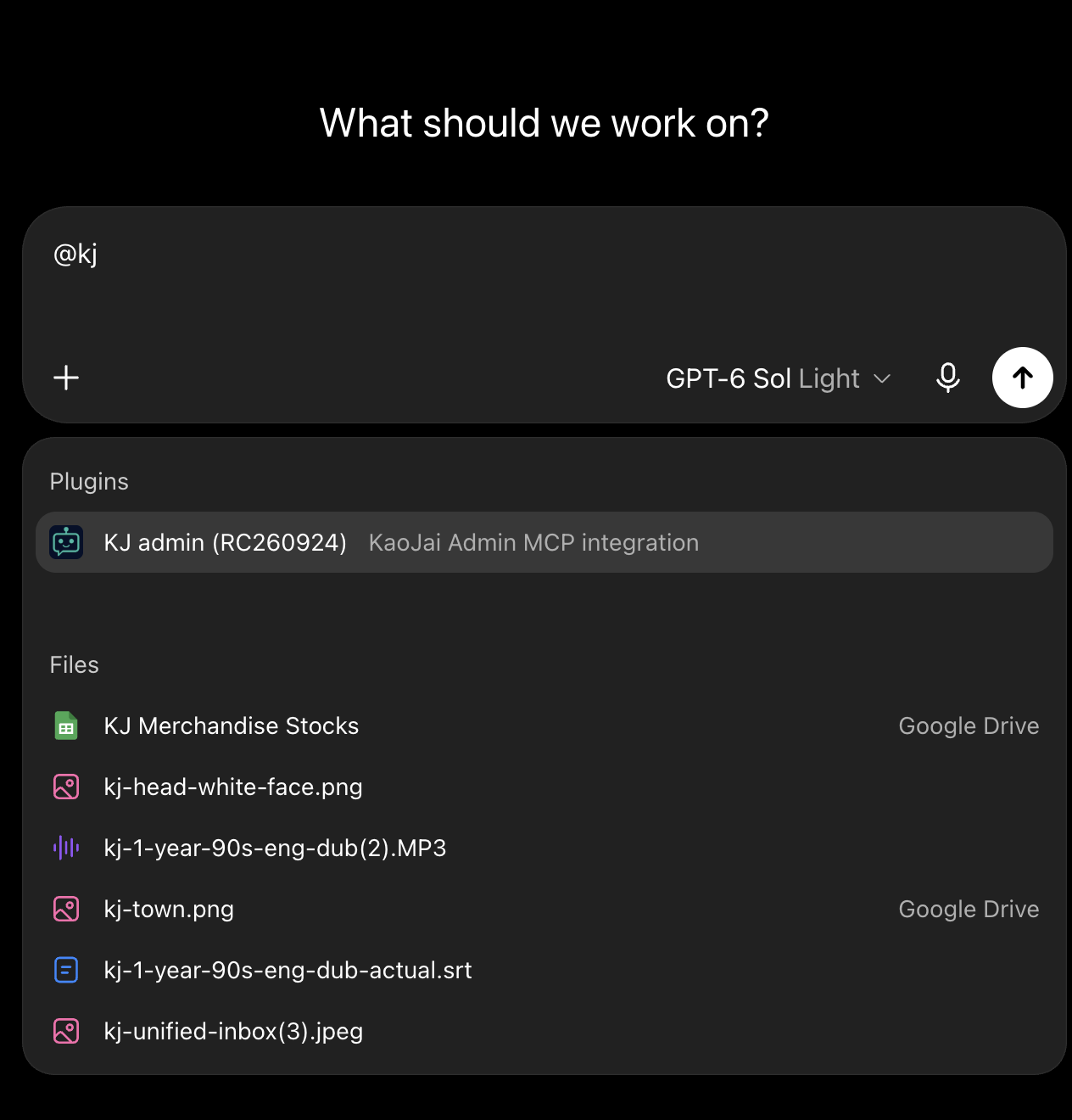
ChatGPT should answer using your KaoJai workspace. The details will depend on your data.
5. Connect Claude or Codex
Claude: Go to Customize → Connectors → + → Add custom connector. Name it KJ admin and enter https://mcp.kaojai.ai/admin. Click Add → Connect to authorize. On Team or Enterprise, an Owner must add the custom connector in organization settings first. Claude custom connector guide
Codex: Add the MCP server and sign in with the commands below. Then ask Codex to summarize your workspace data. Codex MCP guide
codex mcp add kj-admin --url https://mcp.kaojai.ai/admin
codex mcp login kj-admin
Claude and Codex connections are in early access. If a client’s OAuth flow changes, follow that client’s current guide.