Install KJ admin in ChatGPT to find conversations, check bookings, follow up on cases, and summarize your KaoJai business data in natural language. Follow these four steps, then try asking for a weekly PDF report.
Before you start
- Starter or higher: view plans.
- Only the business Owner can enable or disable MCP. Owners and Admins can connect. Access for other member roles depends on their permissions; each tool still checks the member’s current access.
- AI token usage occurs in the AI client you connect, such as ChatGPT, under that provider’s plan and terms.
- KaoJai also applies MCP usage quotas and limits. Available capacity in your AI client does not remove KaoJai’s limits on accessing data or performing actions.
1. Ask the Owner to enable MCP
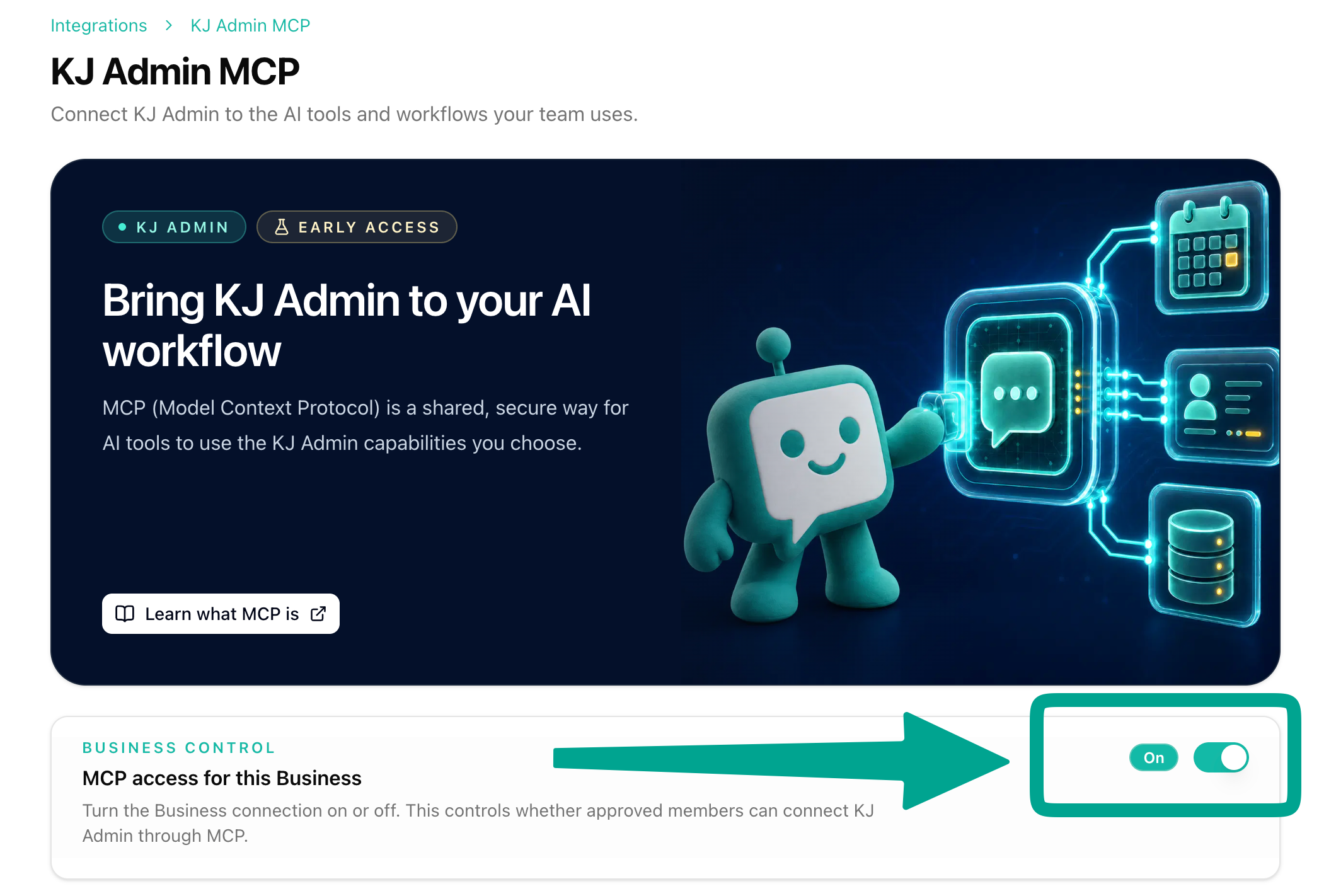
Open KaoJai Admin → Integrations → MCP, select the business you want to connect, and turn on MCP. This step requires the Owner role. Admins and other members should ask the Owner to enable it first.
2. Install the KJ admin plugin in ChatGPT
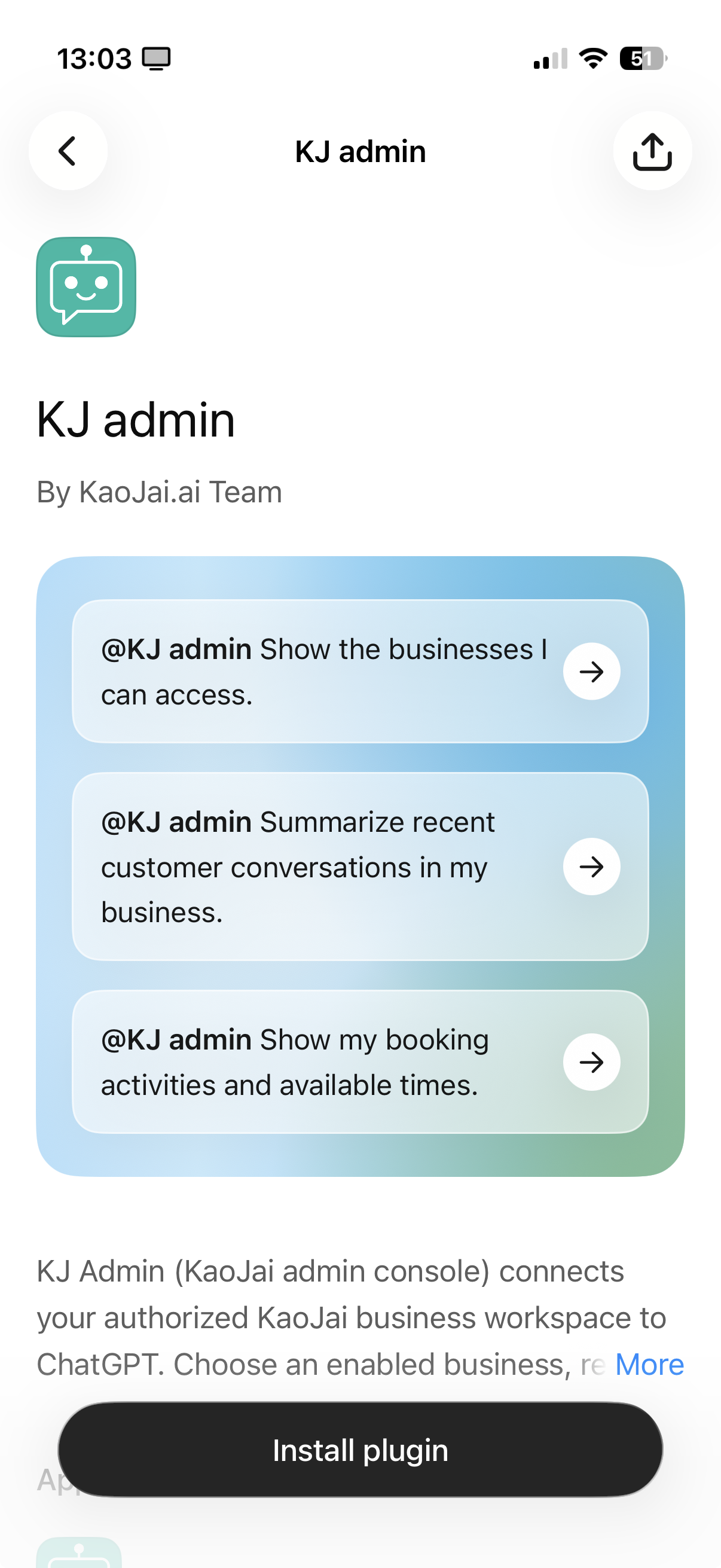
Start here → Install KJ admin in ChatGPT
Open the link and click Install plugin, then sign in with the KaoJai account that has access to your business.
3. Review and grant permissions
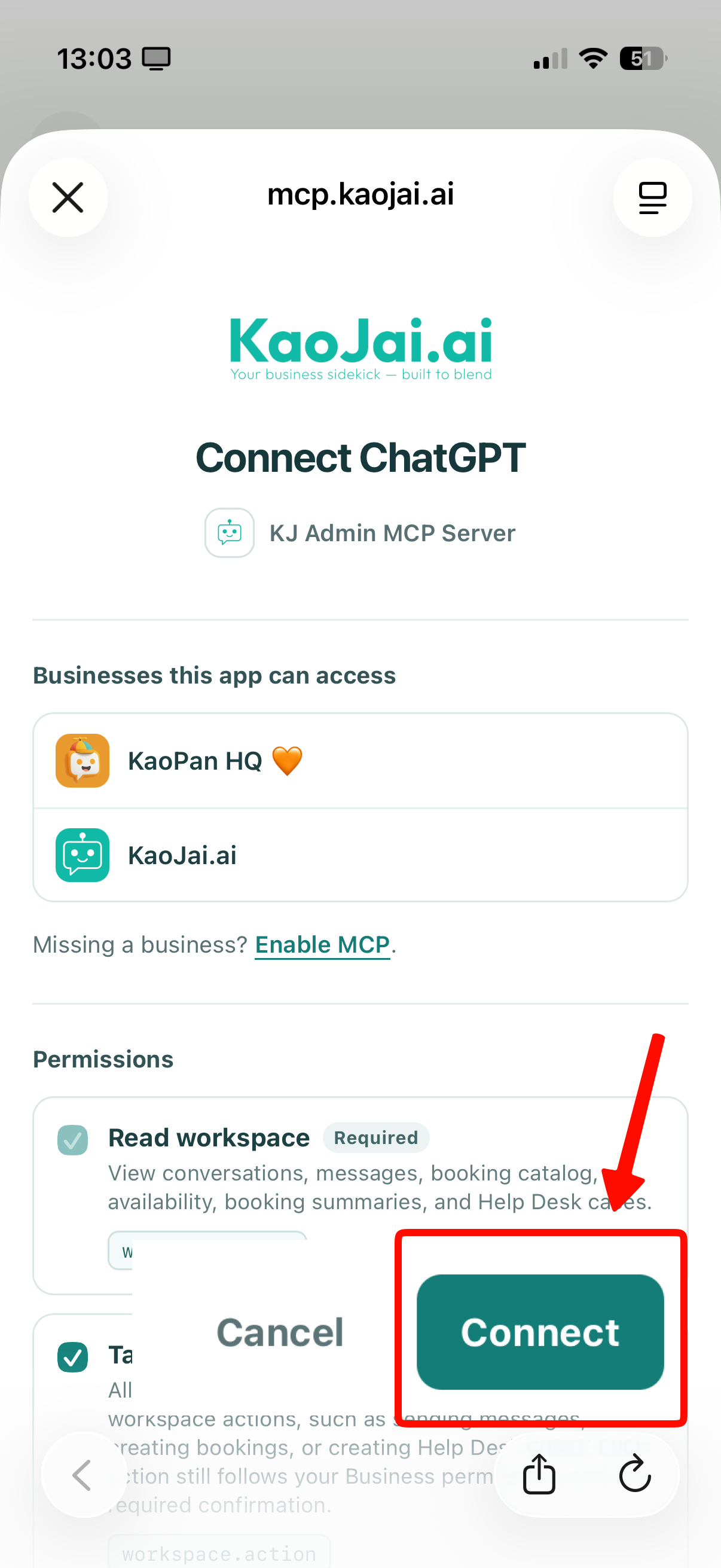
On the Connect ChatGPT page, review the listed businesses and requested permissions, then click Connect. If a business is missing, check that its Owner has enabled MCP and that you signed in with an account that can access it.
Read permissions let the app retrieve authorized data. Action permissions allow supported changes, such as sending a message. Review the recipient and exact message before confirming a send.
4. Try it in ChatGPT
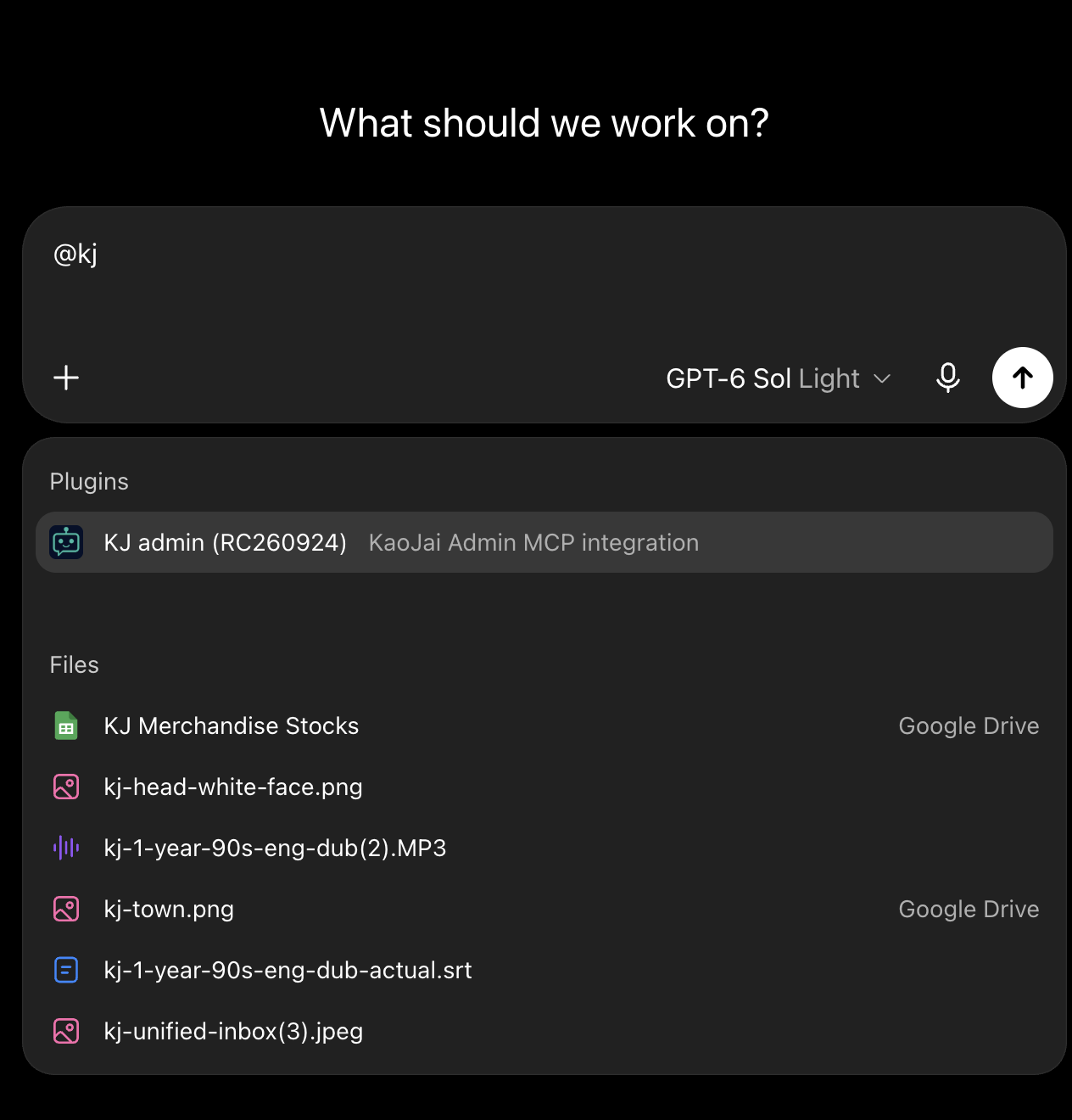
Start a new chat, type @kj, and select KJ admin. Try a request such as:
- “Summarize today’s customer messages and highlight what our team should follow up on.”
- “Show my business’s bookings and available times.”
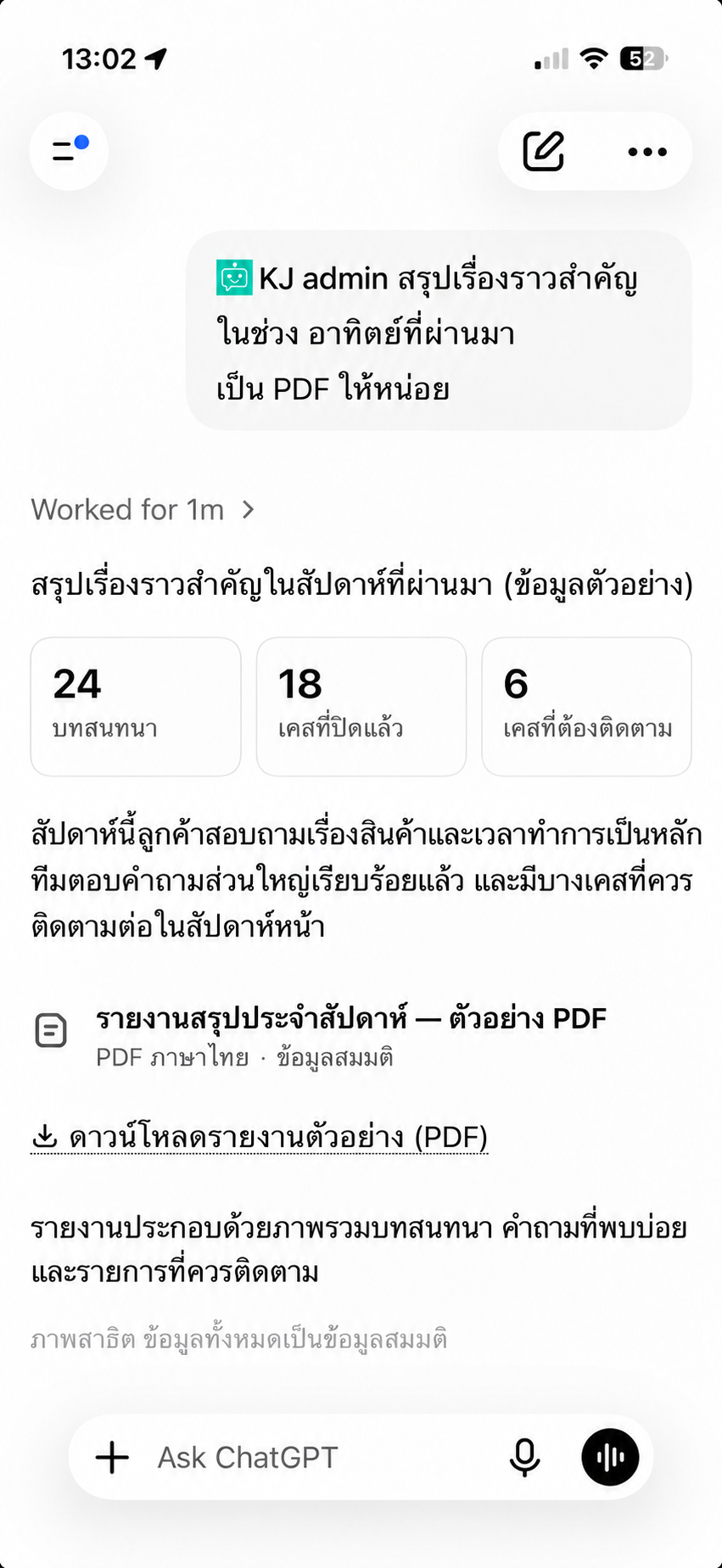
- “Summarize the important events from the past week and create a PDF report.”
If ChatGPT asks you to choose a business, select one before retrieving data. Results depend on your business data and account permissions.
The image below is an illustrative demo using fictional data. It shows a request for a weekly summary PDF, with no real business or customer information. File creation depends on the capabilities of your AI client.
See examples of finding chats, bookings, and cases with MCP for more prompts to try with your team.
Already using Claude or Codex?
See the guide to enabling MCP and connecting Claude or Codex. Explore the related articles below for more prompts and supported tasks.