This guide covers enabling KaoJai Admin MCP for your business and connecting Claude or Codex so AI can use the business data your account is allowed to access.
Updated October 29, 2026: ChatGPT now connects through the KJ admin plugin. The previous Developer mode and custom MCP app instructions have been replaced by the new KJ admin installation guide for ChatGPT.
Before you start
- Starter or higher: view plans.
- Only the business Owner can enable or disable MCP. Owners and Admins can connect. Access for other member roles depends on their permissions; each tool still checks the member’s current access.
- AI token usage occurs in the AI client you connect, such as ChatGPT, under that provider’s plan and terms.
- KaoJai also applies MCP usage quotas and limits. Available capacity in your AI client does not remove KaoJai’s limits on accessing data or performing actions.
1. Ask the Owner to enable MCP
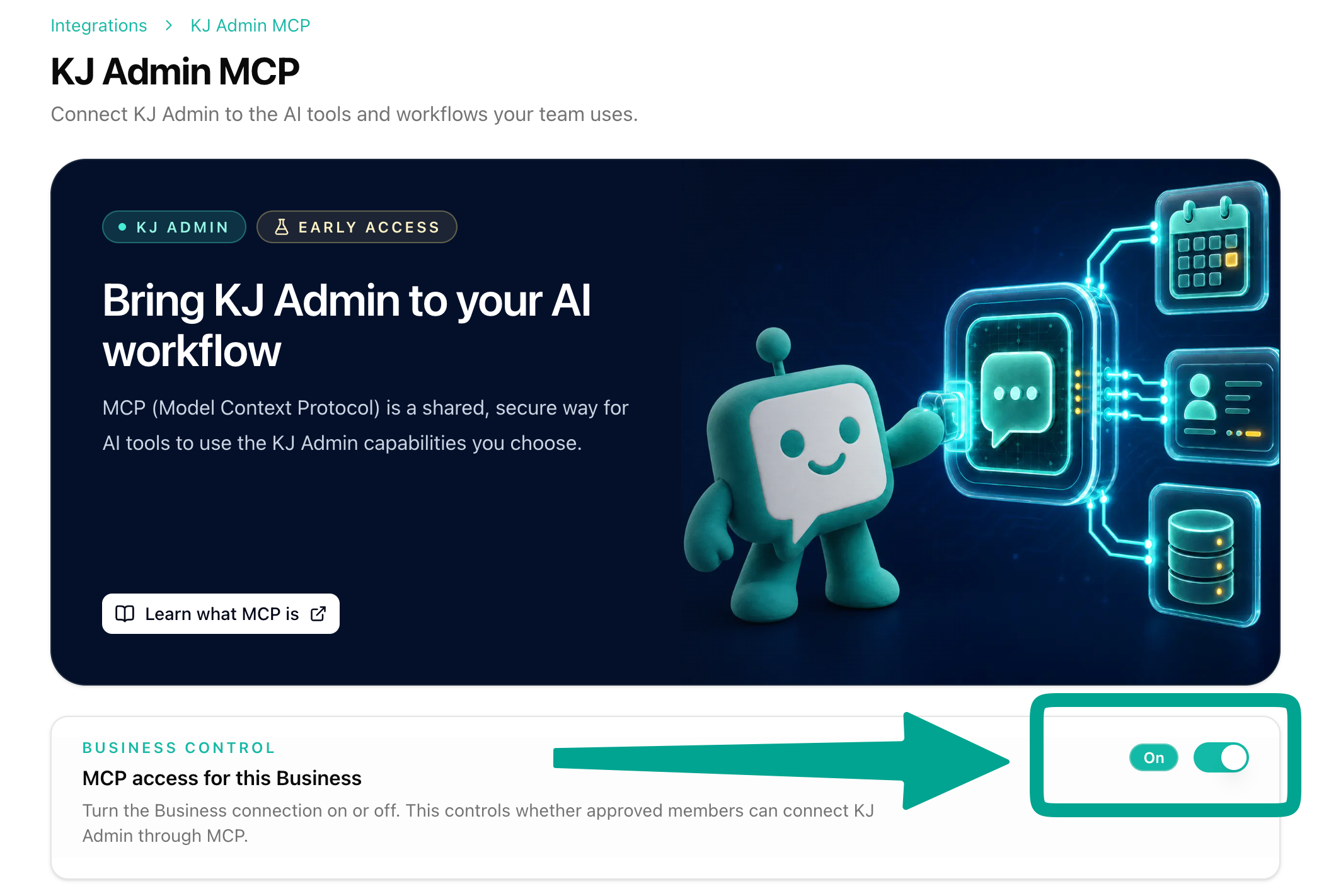
Open KaoJai Admin → Integrations → MCP, select the business you want to connect, and turn on MCP. This step requires the Owner role. Admins and other members should ask the Owner to enable it first.
Connect ChatGPT
Follow the new KJ admin installation guide and weekly report example for the current installation, permissions, and first-use steps.
Connect Claude or Codex
Claude: Go to Customize → Connectors → + → Add custom connector. Name it KJ admin and enter https://mcp.kaojai.ai/admin. Click Add → Connect to authorize. On Team or Enterprise, an Owner must add the custom connector in organization settings first. Claude custom connector guide
Codex: Add the MCP server and sign in with the commands below. Then ask Codex to summarize your workspace data. Codex MCP guide
codex mcp add kj-admin --url https://mcp.kaojai.ai/admin
codex mcp login kj-admin
Claude and Codex connections are in early access. If a client’s OAuth flow changes, follow that client’s current guide.