
Using Android? Read the Android Push Notification setup guide.
KaoJai Admin is now available as a mobile app. Download it from the official store.


This article explains how to turn on Push Notification for KaoJai.ai so you do not miss important activity such as:
- New messages from Unified Inbox
- New work from the Issue Tracker module
- Case status updates or team activity
Steps to turn on Push Notification
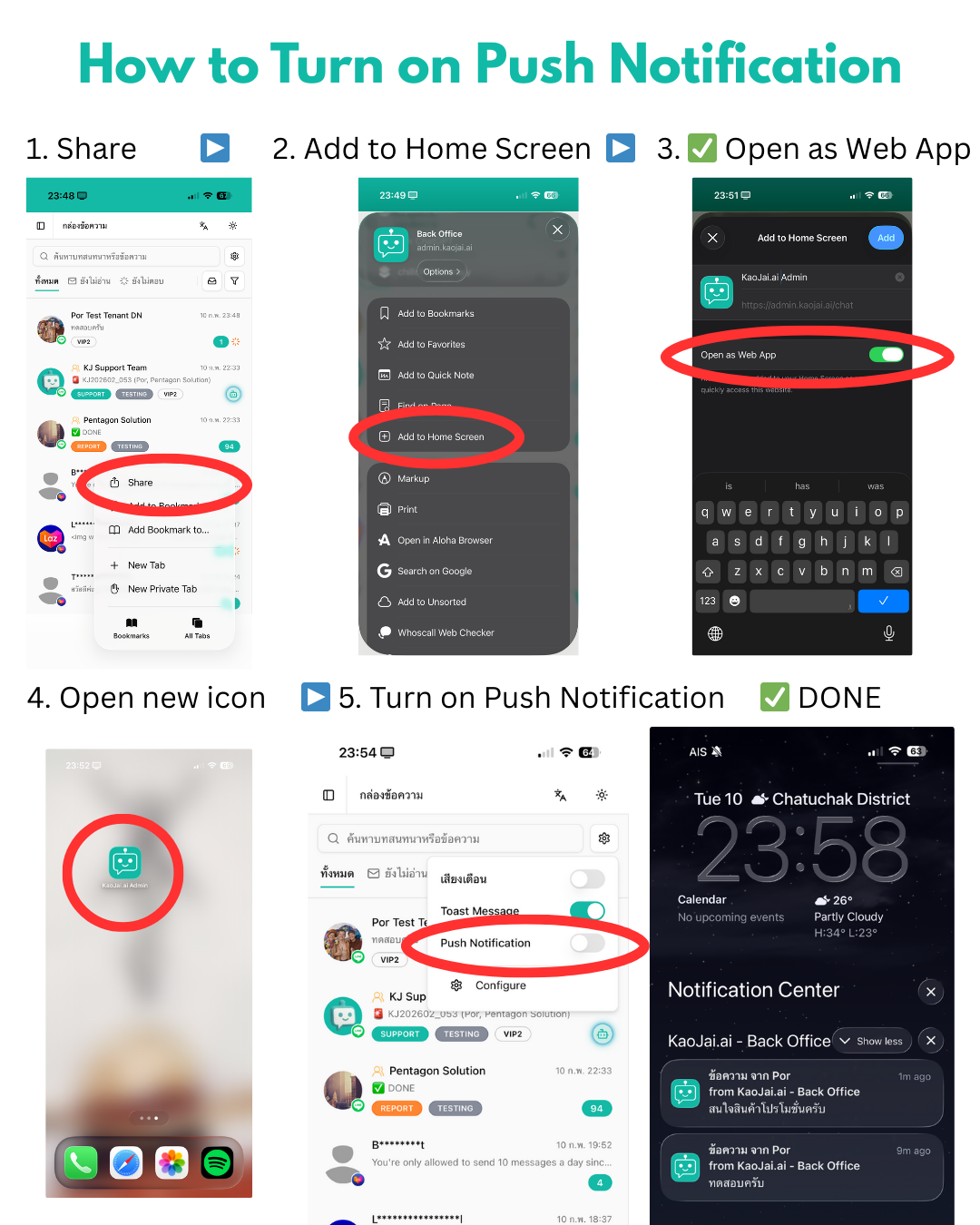
1) Tap Share in Safari
Open KaoJai.ai in Safari on iPhone. Then tap the Share button in the bottom bar.
2) Add to Home Screen
Scroll down the menu and choose Add to Home Screen. This step adds KaoJai.ai as a Web App.
3) Open as Web App
On the next screen:
- Turn on Open as Web App
- Then tap Add
👉 Push Notification works only when KaoJai.ai is opened as a Web App from the Home Screen.
4) Open the app from the new icon
Go back to the Home Screen. You will see the KaoJai.ai Admin icon. Open the app from this icon, not from Safari.
5) Turn on Push Notification in the system
Go to the settings menu in KaoJai.ai. Turn on Push Notification.
Done.