
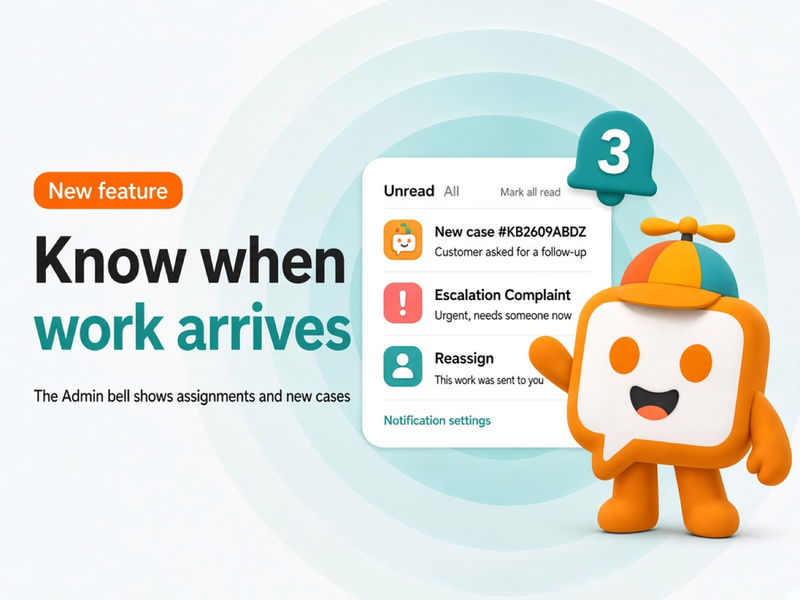
The work you still need to handle often shows up while you are already in another chat. A teammate assigns a case, or a new case arrives, and there is no single place that says something changed.
KaoJai Admin now has a notification bell at the top of the screen. Open it to see what is still unread, then click an item to go straight to that work.
What the bell is for
| What happened | In the bell | Push to your device |
|---|---|---|
| Someone assigns work to you | Yes | Yes |
| A new case is created | Yes | Yes |
| A customer sends a new message | No. The inbox still alerts you as before | Yes, within the scope you choose |
| An urgent item | Yes, and the bell turns red | Yes, even while Admin is open |
Assigning work to yourself, or removing the assignee, does not send a notification.
When several items of the same kind arrive close together, they collapse into one row with a count in parentheses, such as (3). You do not have to read every duplicate while work is coming in at once.
Open the bell, then go to the work
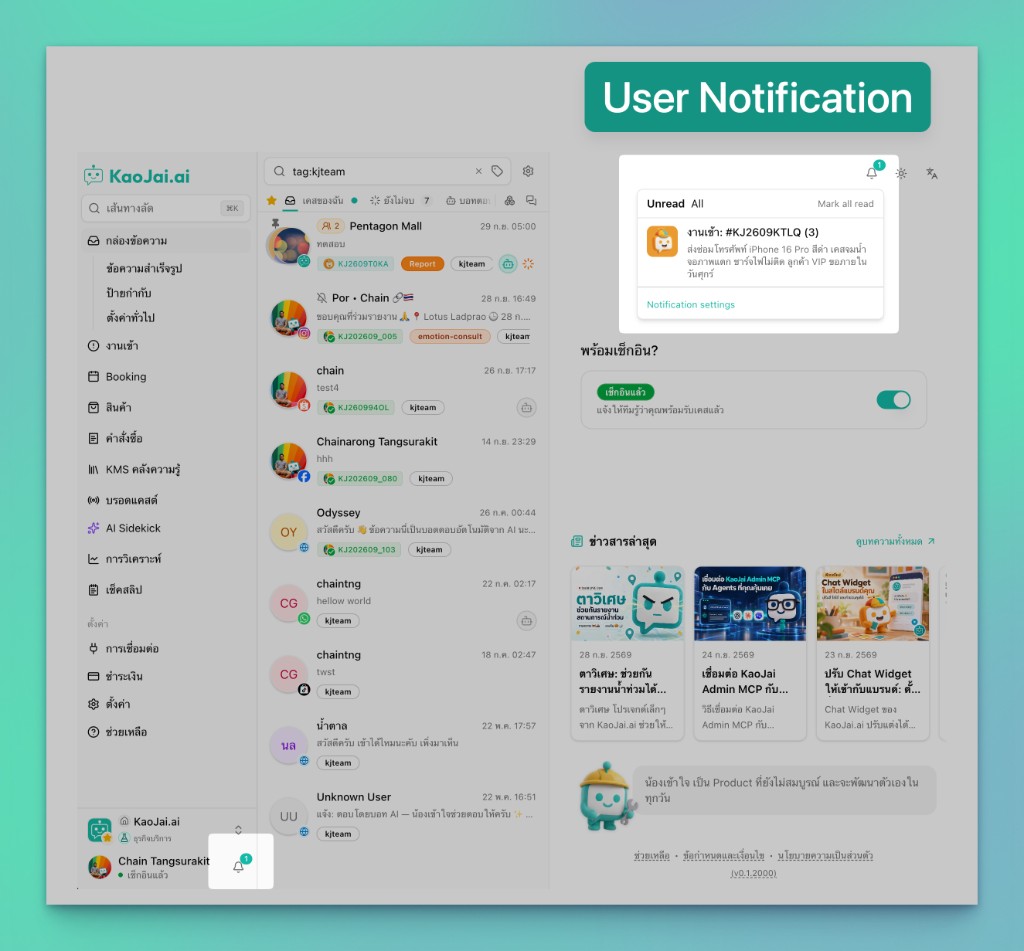
Open the bell to see unread work, then click an item to open it.
Click the bell at the top of Admin. Choose Unread for items you have not opened, or All for the latest list. Each row has a title and a short preview of what the work is about.
Click a row and it is marked read. Admin opens the related page. If that work belongs to another shop, Admin switches shop first.
To clear the whole set, click Mark all read. To change what you are alerted about, click Notification settings at the bottom of the panel.
Alert only on the work you want
Settings live at Settings / Notifications.
For customer messages, choose when a push should send:
- All
- Assigned to me and unassigned
- Assigned to me
- Off
Other types can be turned on or off separately for in-app and push. Customer messages are push only, because the inbox already has its own toast. Urgent in-app alerts stay on.
While you are already using Admin, non-urgent push stays quiet so it does not repeat what is on screen. The item still appears in the bell. Urgent items still push, so work that cannot wait is not missed.
The browser has to allow notifications before push can arrive. On iPhone or iPad, add Admin to the Home Screen first, then turn notifications on. After that, use Test Notification on the same page. If you see the test, the device is ready.
The step-by-step push setup is in the notification setup guide.
How to start
- Open the KaoJai Admin Console
- Find the bell at the top
- Open Notification settings
- Allow push, then choose the customer-message scope
- Turn the types you want on or off, then save
- Send one test notification
If the team already works with cases, this bell continues from Case Assignment. When someone sends you work, or a new case is created, you see it in the same place.
Frequently asked questions
Do new customer messages appear in the bell?
No. New messages still alert you in the inbox, and they push within the scope you set. The bell is for assignments, new cases, and urgent items.
If I assign a case to myself, will I get a notification?
No. Assigning work to yourself, and removing an assignee, does not send a notification.
Why is there a new bell item, but my device stayed quiet?
If an Admin tab is in use, non-urgent push is held back so it does not repeat what is already on screen. The item is still in the bell. Urgent items still push. If push was never allowed, turn it on from the settings page first.
In short
The bell does not replace the inbox. It tells you which piece of work just reached you, then takes you there in one click.
Open Admin and click the bell once. If you also want the device to alert you when that screen is closed, allow push and keep only the topics you actually want to hear about.