
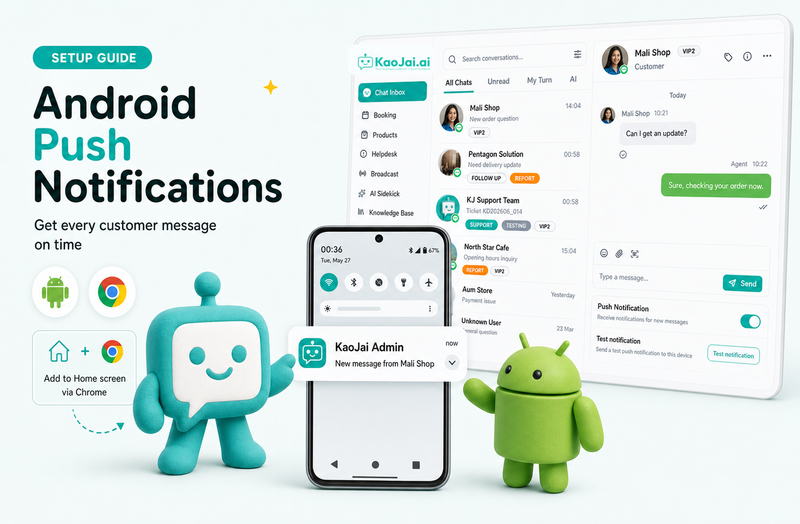
This guide is for users who want to receive notifications from KaoJai Admin on an Android phone, such as new messages, new tasks, or important updates from the system.
There are 2 parts: first, add KaoJai Admin to your phone home screen. Then open Push Notification in KaoJai Admin settings. If your phone asks for notification permission, choose Allow.
KaoJai Admin is now available as a mobile app. Download it from the official store.

Before You Start
- Use an Android phone with Google Chrome installed.
- Sign in to KaoJai Admin with your account.
- If the phone asks for notification permission, choose Allow.
Part 1: Add KaoJai Admin to Your Phone Home Screen
1. Open KaoJai Admin in Chrome
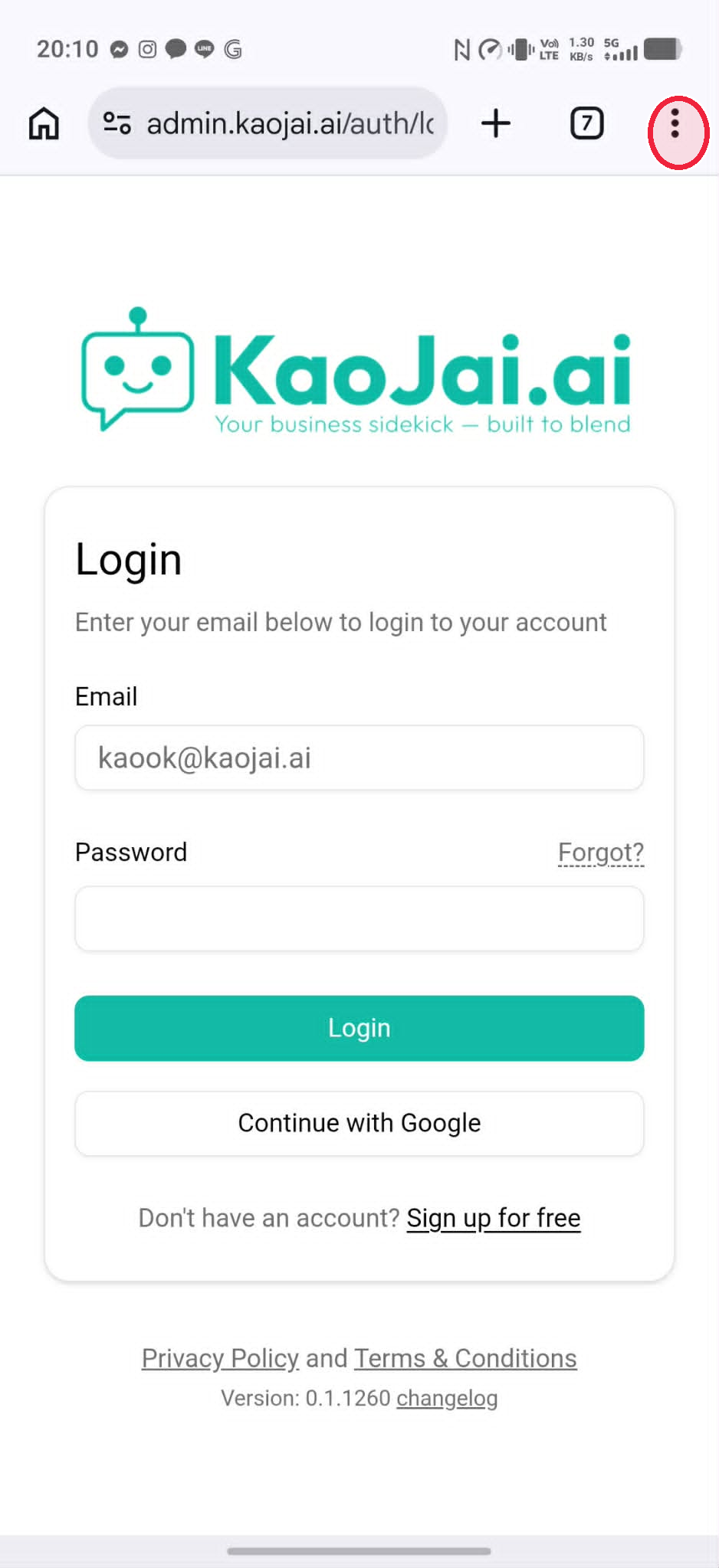
Open Google Chrome and go to admin.kaojai.ai. Then tap the three-dot menu in the top-right corner of the screen.
2. Add KaoJai Admin to Your Phone Home Screen
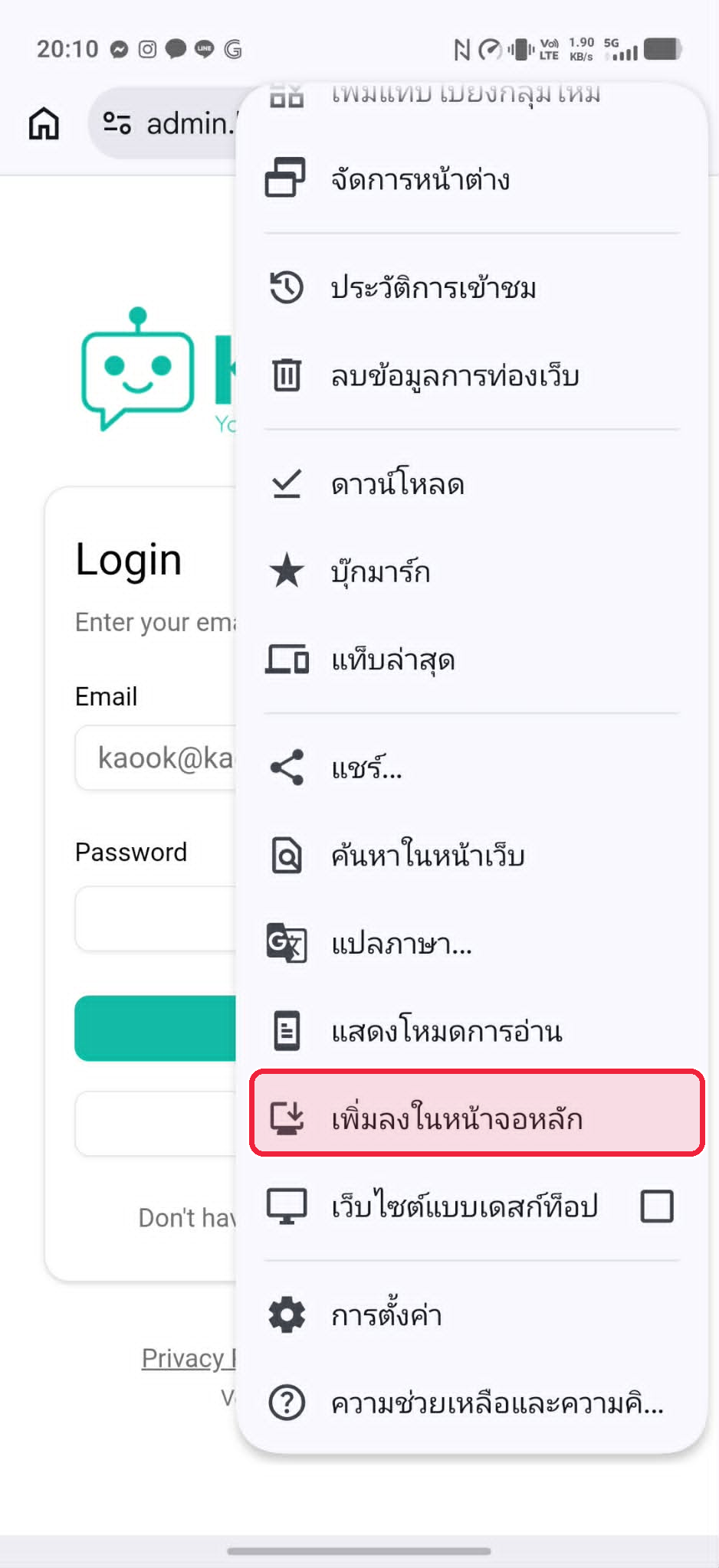
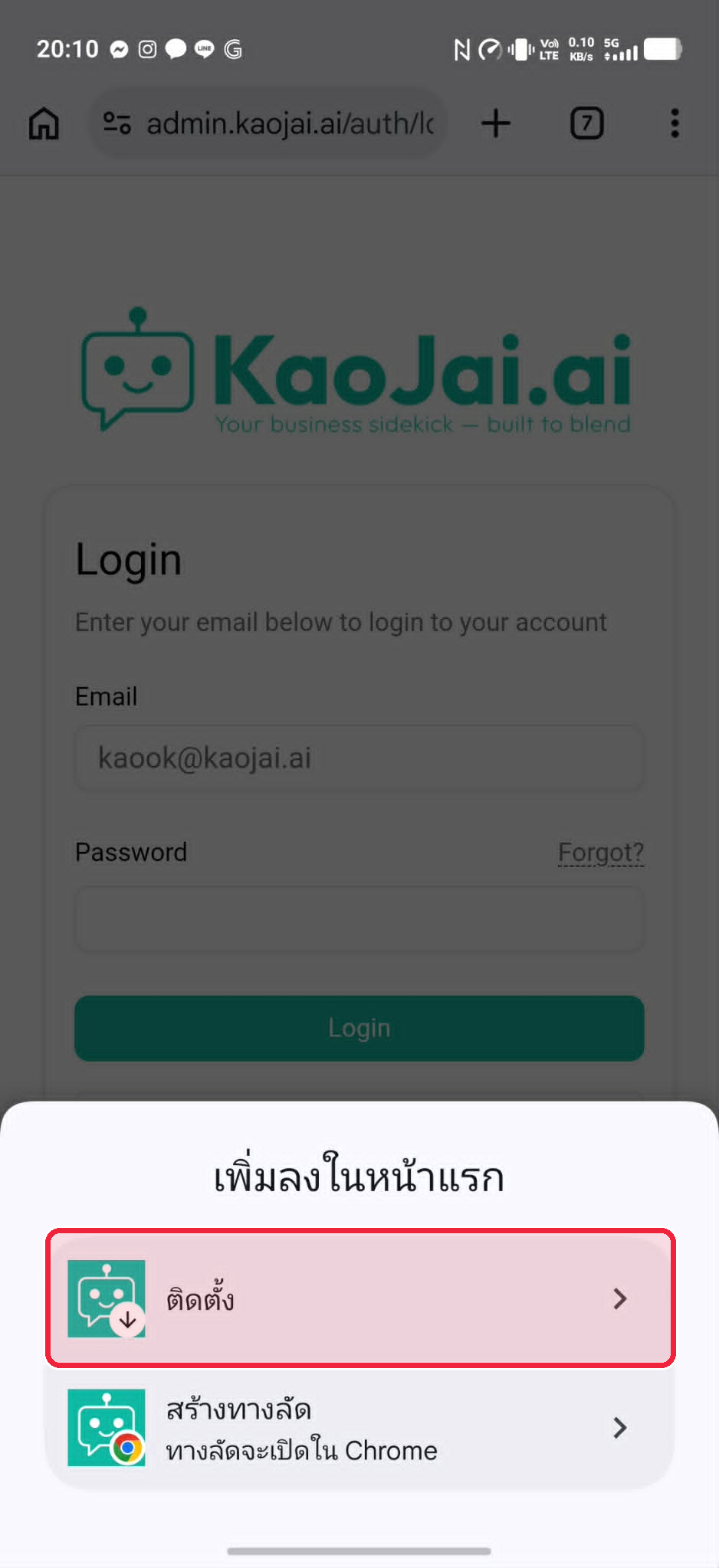
In the Chrome menu, look for Add to Home screen or Install app, then tap that option.
3. Confirm on Your Phone
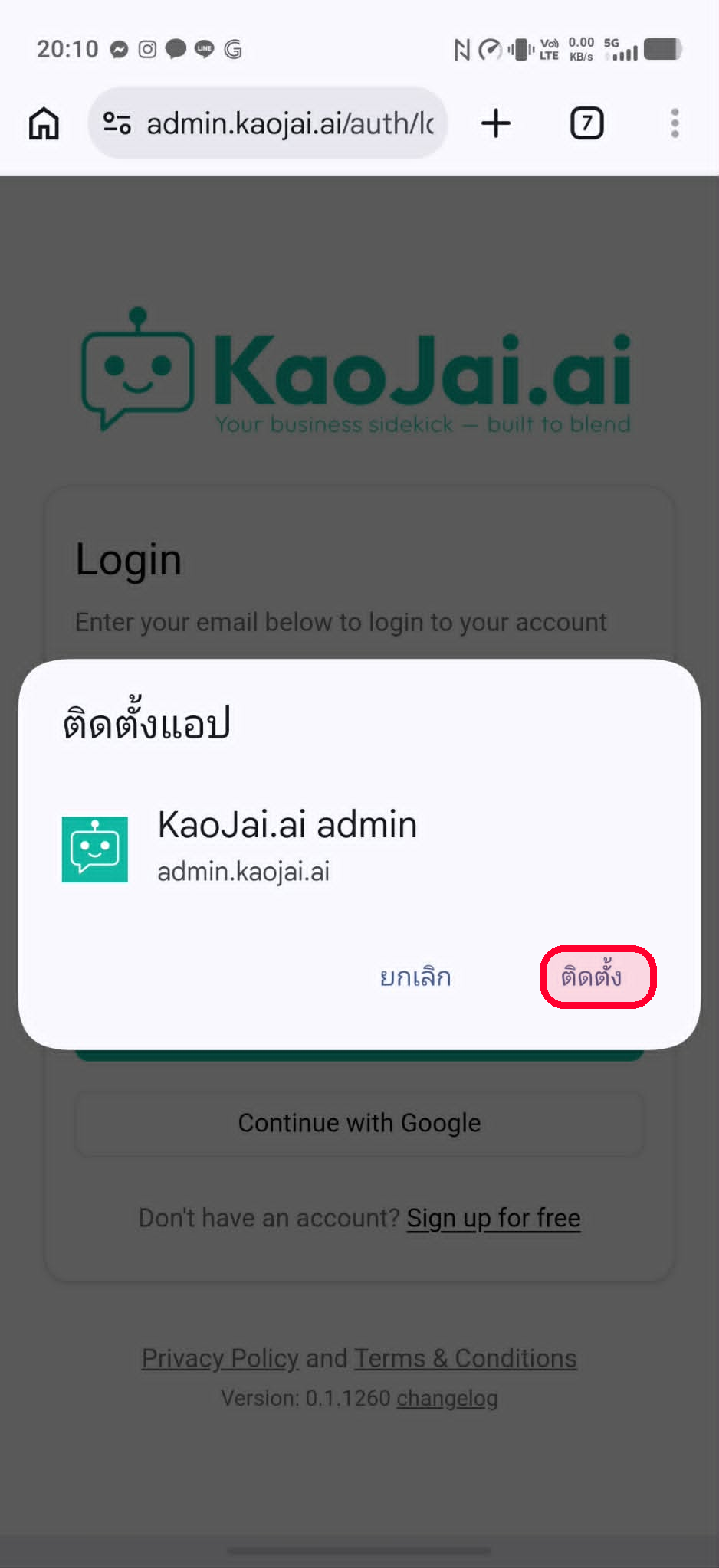
When the confirmation panel appears, tap Install. Android will add the KaoJai Admin icon to your phone automatically.
4. Check the KaoJai Admin Icon
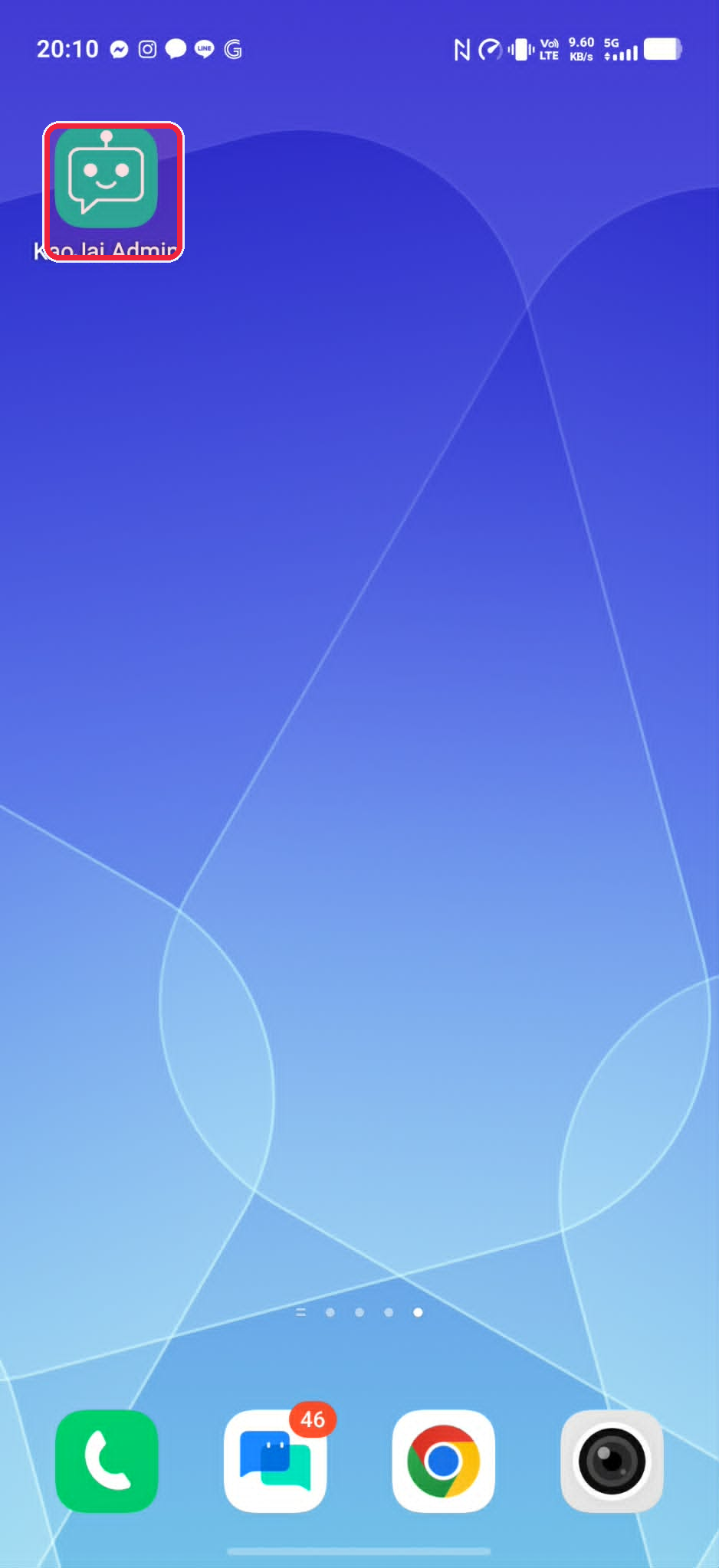
Go back to your Android home screen and look for the KaoJai Admin icon among your apps.
5. Open KaoJai Admin
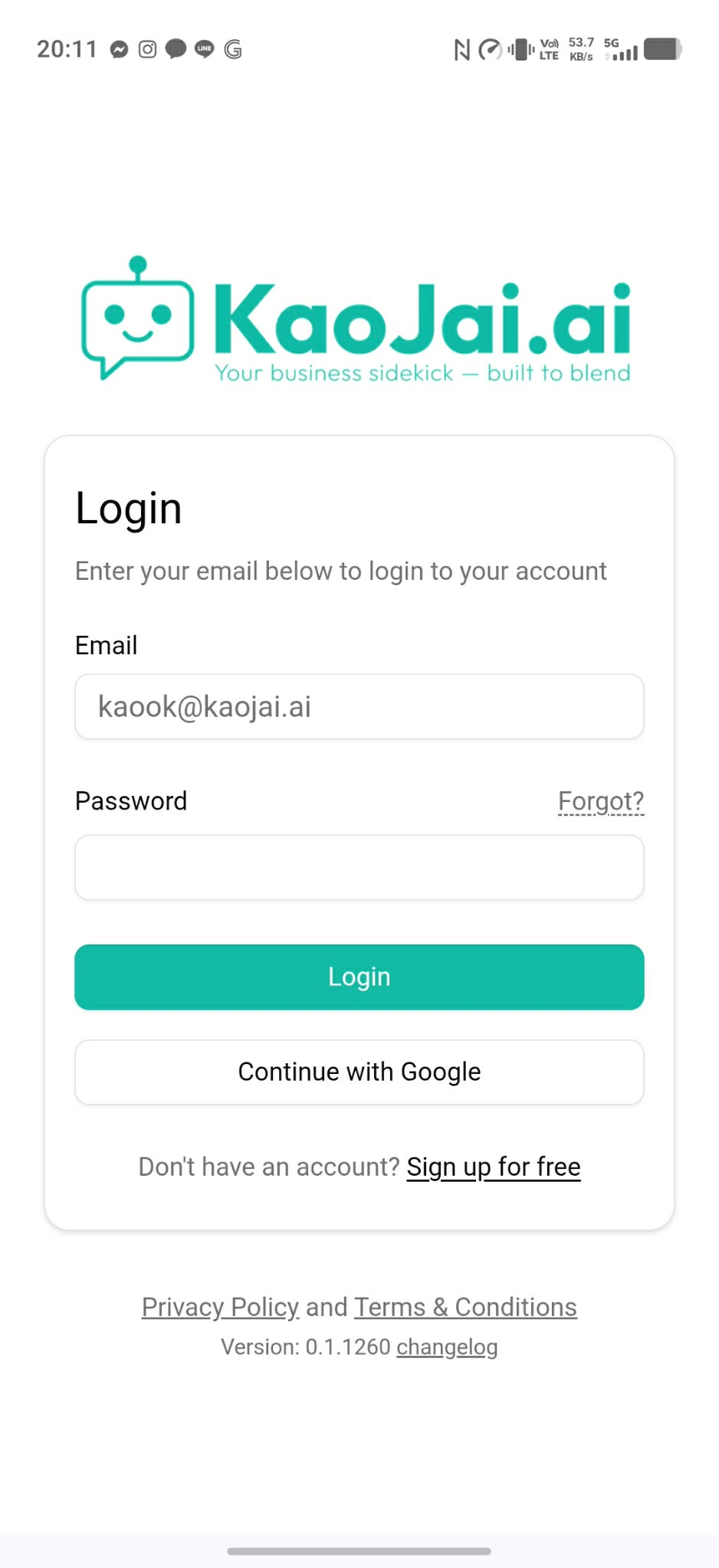
Tap the KaoJai Admin icon to open it. Then continue with the next steps to turn on notifications in KaoJai Admin.
Part 2: Turn On Notifications in KaoJai Admin
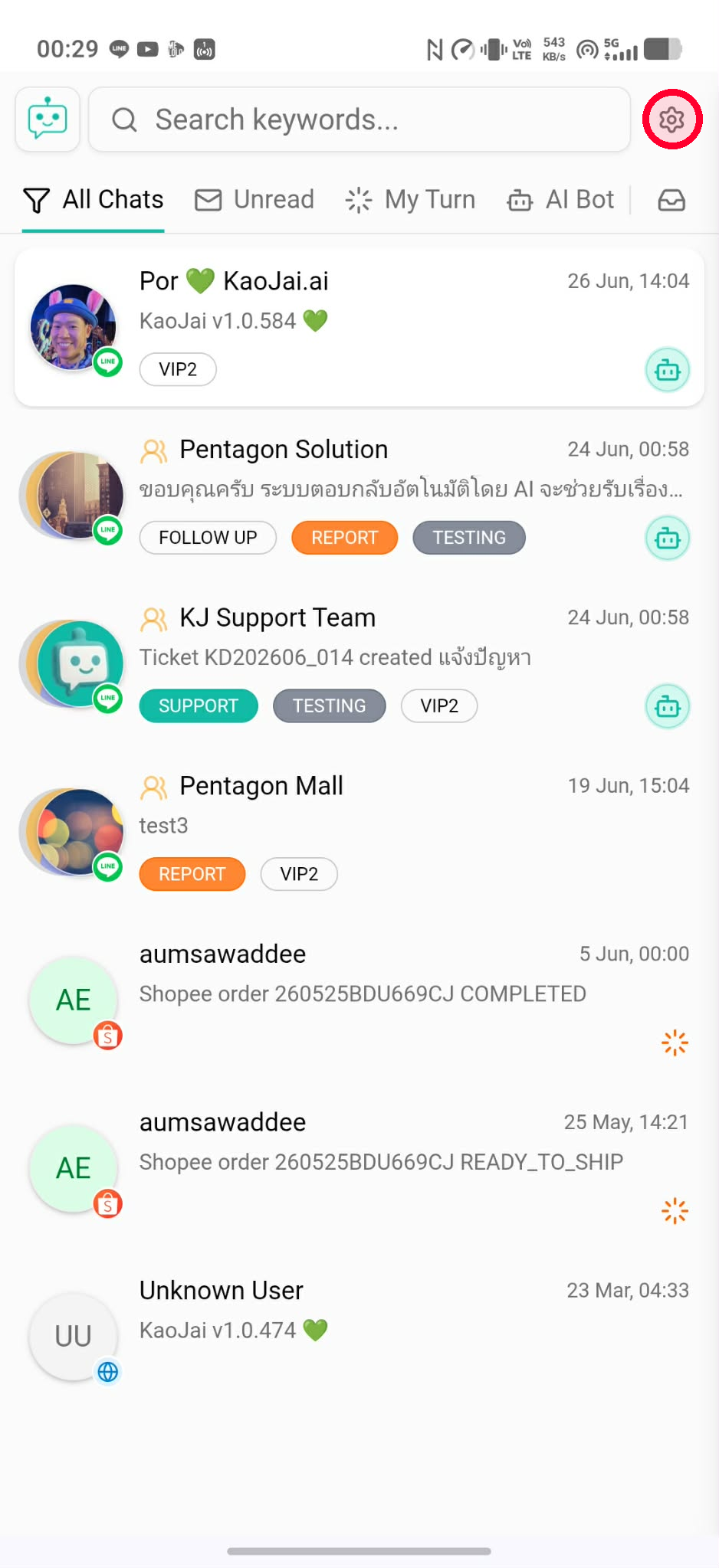
6. Open Settings
On the KaoJai Admin chat screen, tap the settings gear icon in the top-right corner.
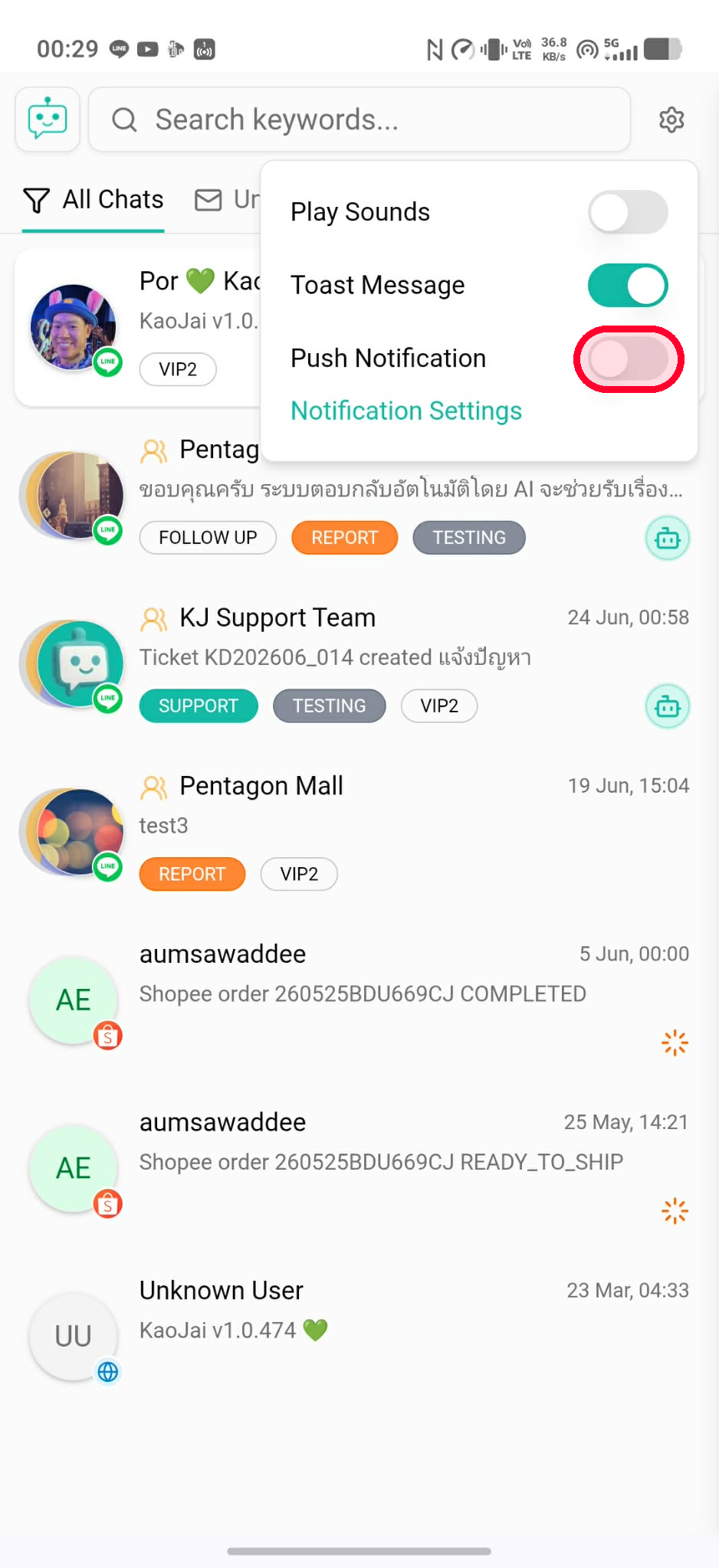
7. Turn On Push Notification
In the settings menu, tap the Push Notification switch to enable notifications on this phone.
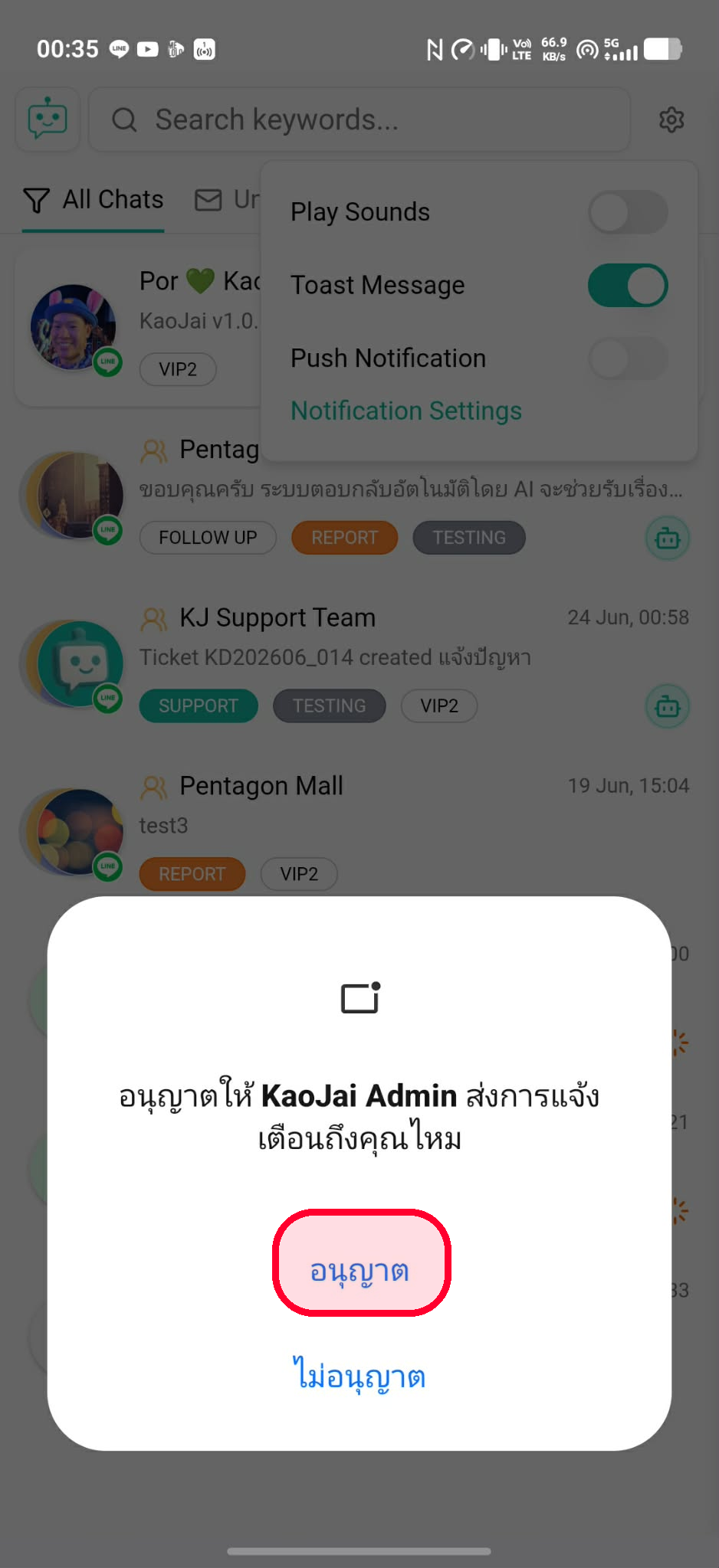
8. Allow KaoJai Admin to Send Notifications
If Android asks for permission, tap Allow so KaoJai Admin can send notifications to you.
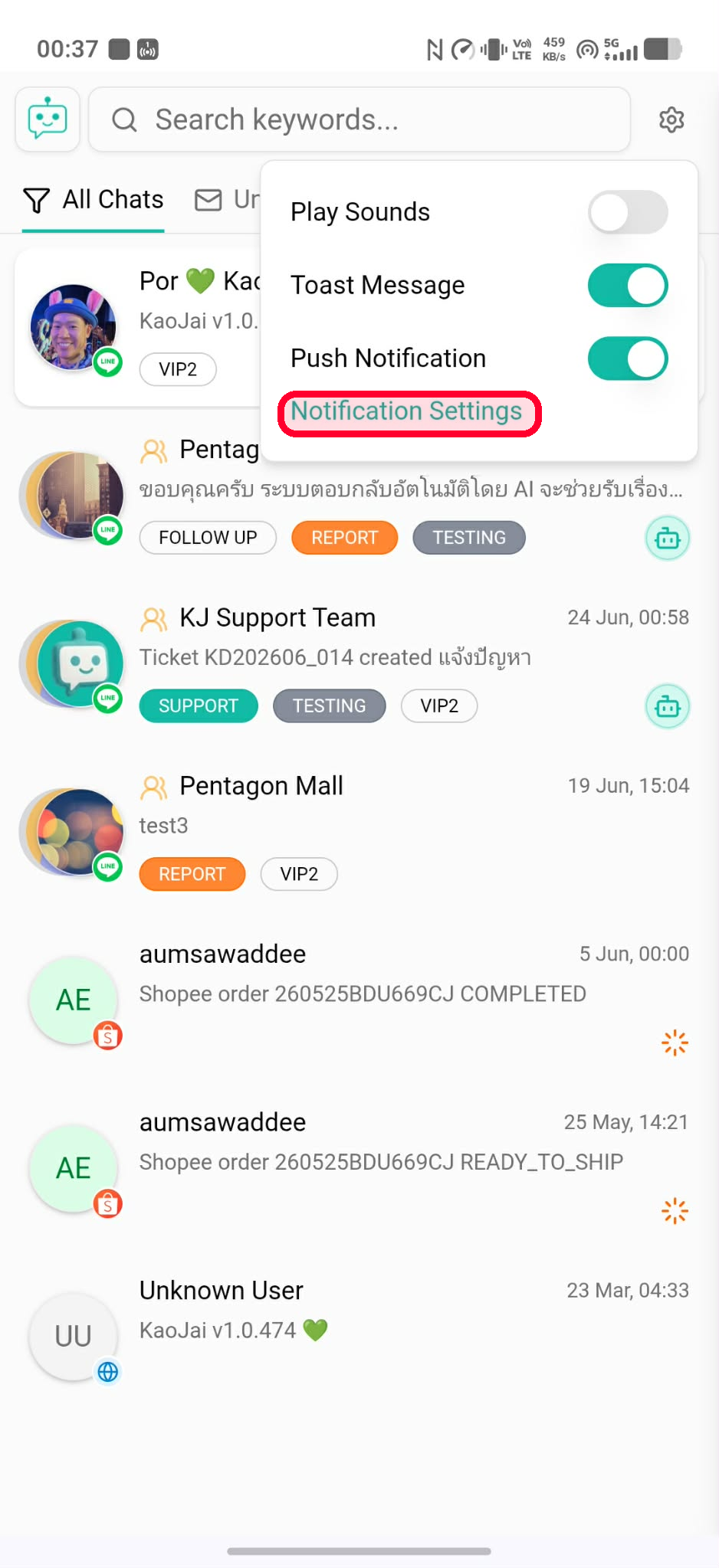
9. Go to Notification Settings
After Push Notification is turned on, tap Notification Settings to open the notification settings page.
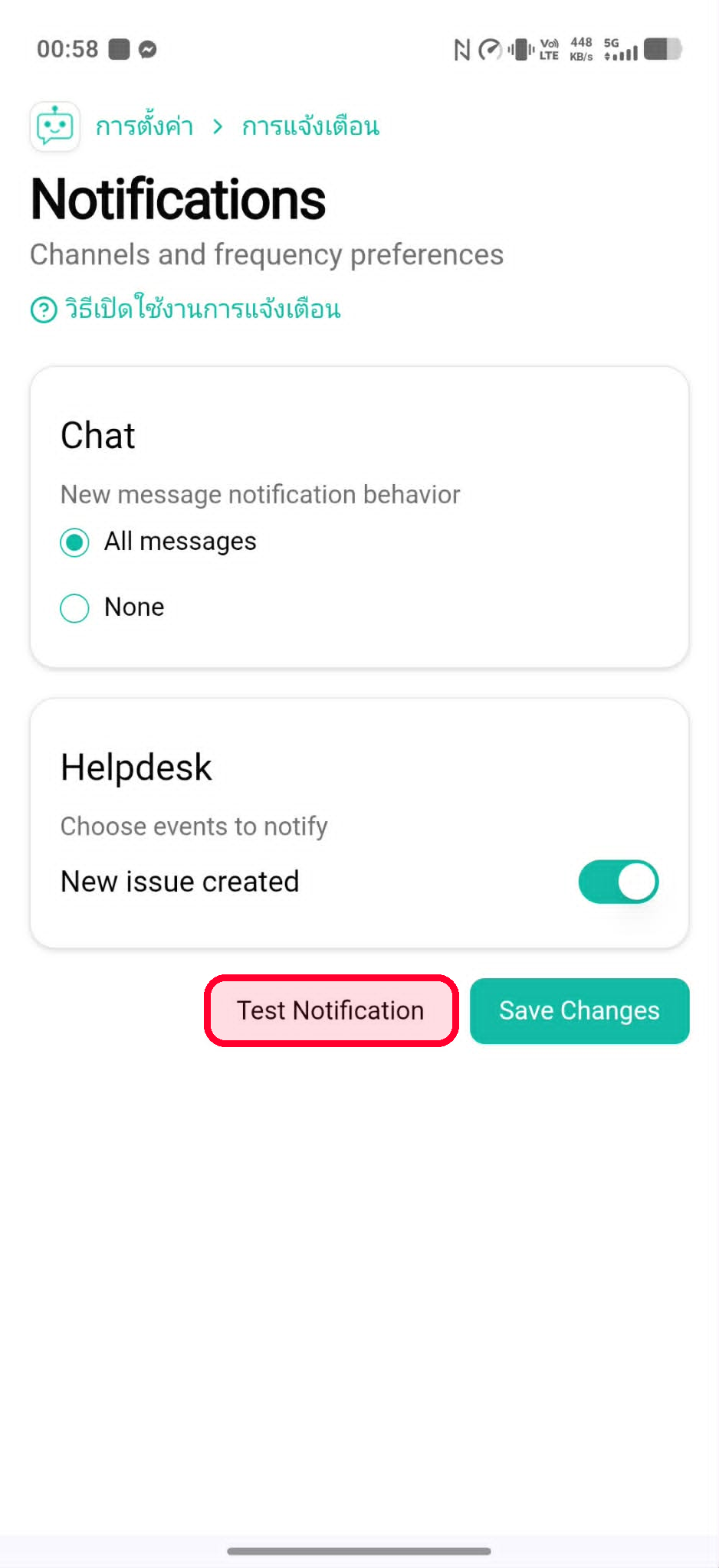
10. Test the Notification
On the Notifications page, tap Test Notification to send a test notification to this Android phone.
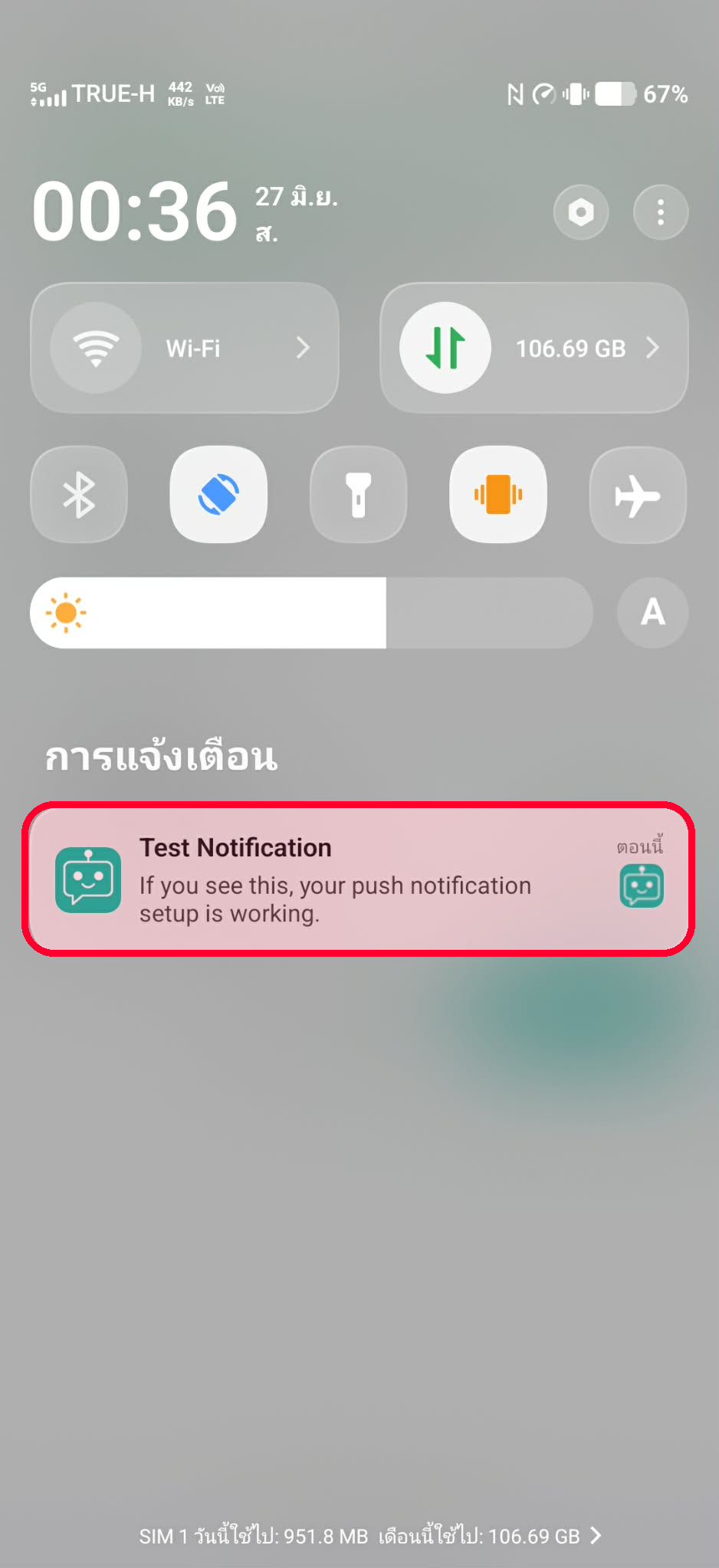
11. Check the Test Notification
If you see Test Notification on your phone, this Android phone is ready to receive notifications from KaoJai Admin.
If You Still Do Not Receive Notifications
- Make sure you opened KaoJai Admin from the icon on your phone home screen.
- Check that Push Notification is turned on in KaoJai Admin.
- Check that notifications for KaoJai Admin are not blocked on your phone.
- If you do not see Install app, refresh the page or close and reopen Chrome.
- If the icon does not appear immediately, search for KaoJai Admin from your app list or home screen.