
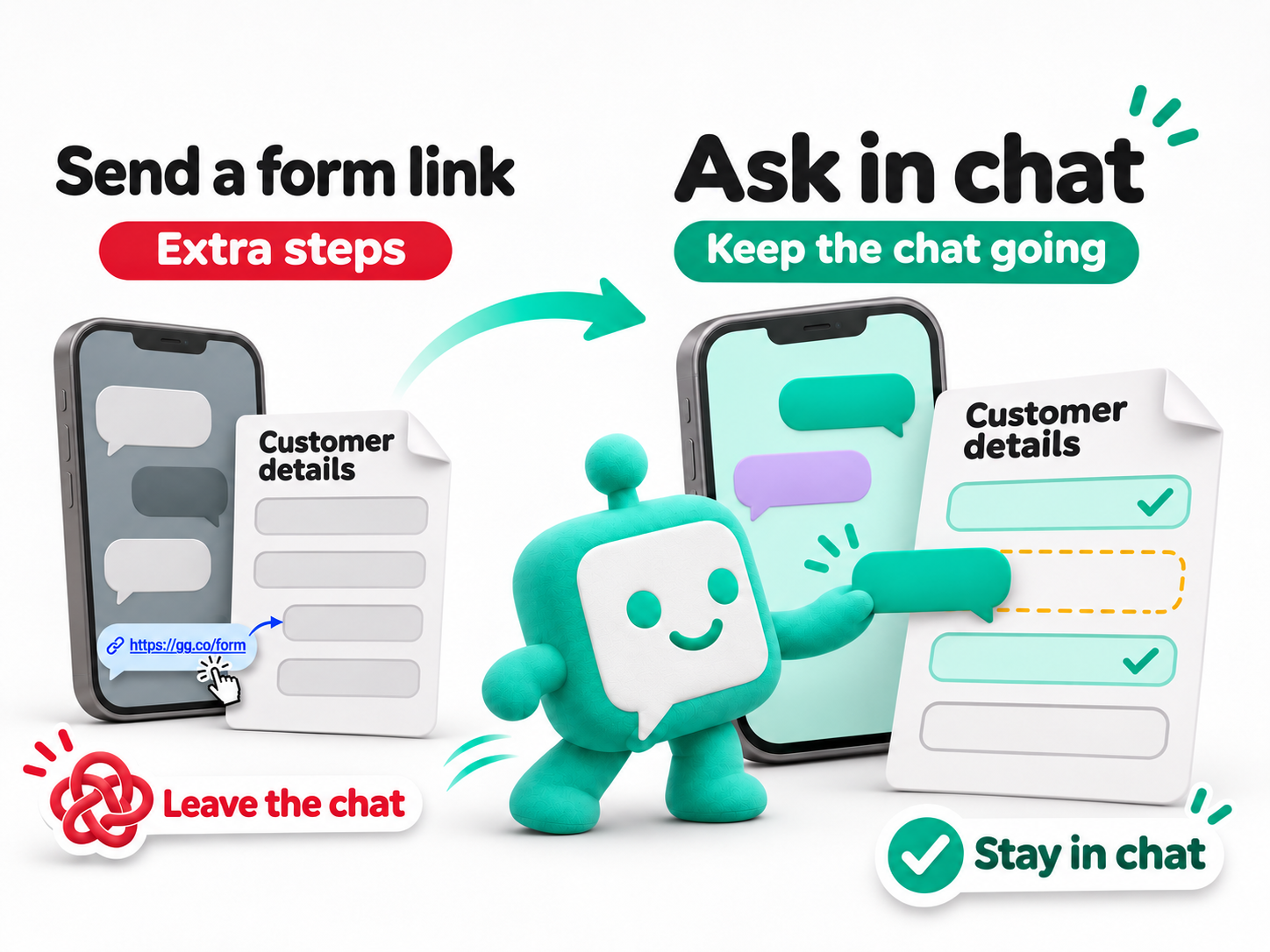
“Hi, I’m Alex from a home décor shop. Can I book a demo?” When your team replies with a form link, Alex has to leave the chat and enter the same details again. Some customers abandon the form. Others come back to the chat, where your team has to copy the details by hand.
You can now set up multiple case forms in KaoJai and let the AI chatbot collect information in the same conversation. Once it has all the required details, it saves them in a case so your team can follow up.
1. Use a different form for each kind of request
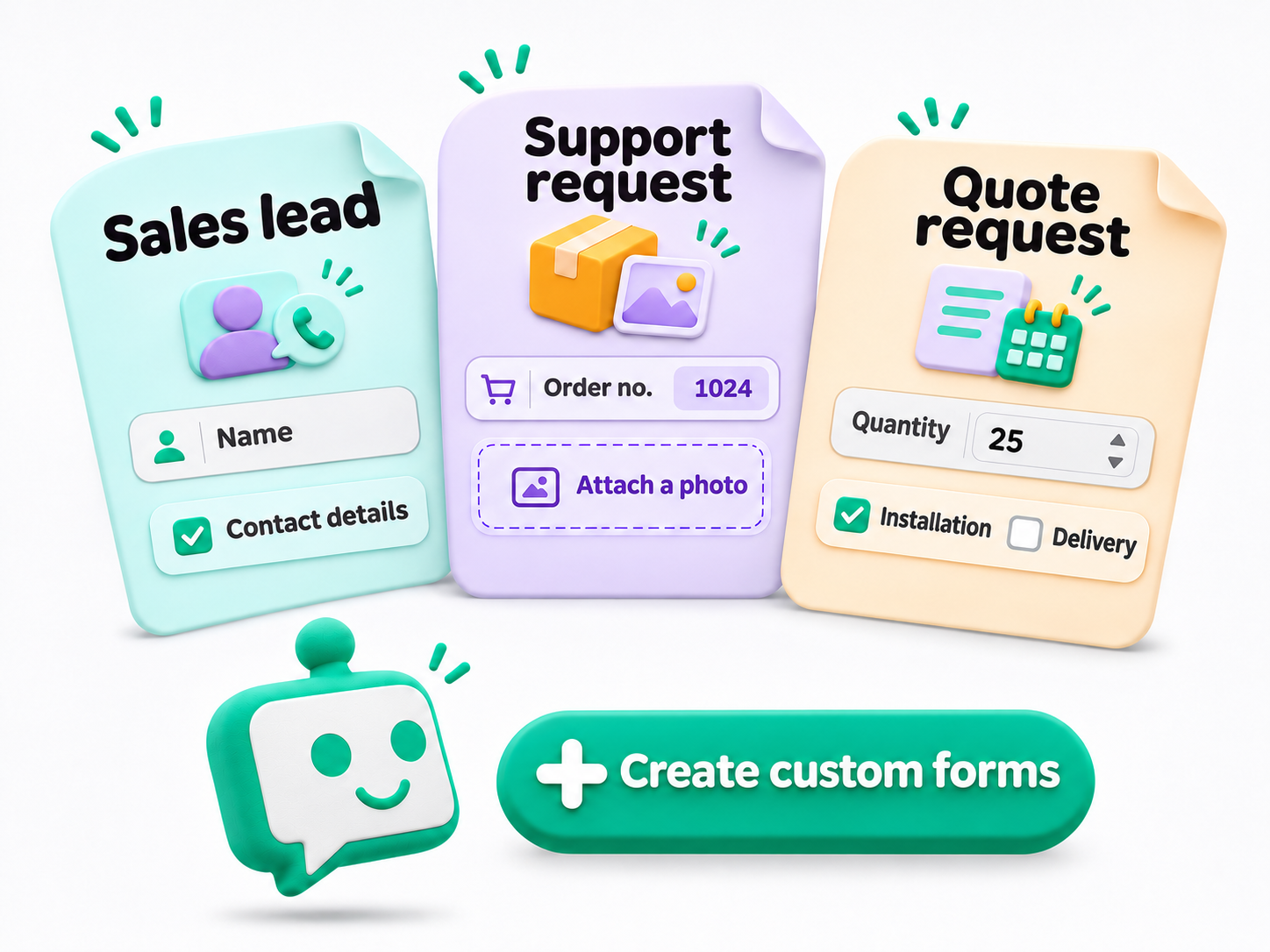
Sales leads, support requests, and quote requests each call for different information. Give each form a name and choose which fields are required.
- Sales lead — Name, business, and contact details.
- Support request — Order number, a description of the problem, and a photo.
- Quote request — Product or service, quantity, and the date it’s needed.
2. Ask only for the details that are missing
KaoJai reads the conversation and chooses a matching form from the ones you’ve enabled for AI. If Alex has already shared a name and said that 2 p.m. tomorrow works for a demo, the chatbot only needs to ask for a phone number.
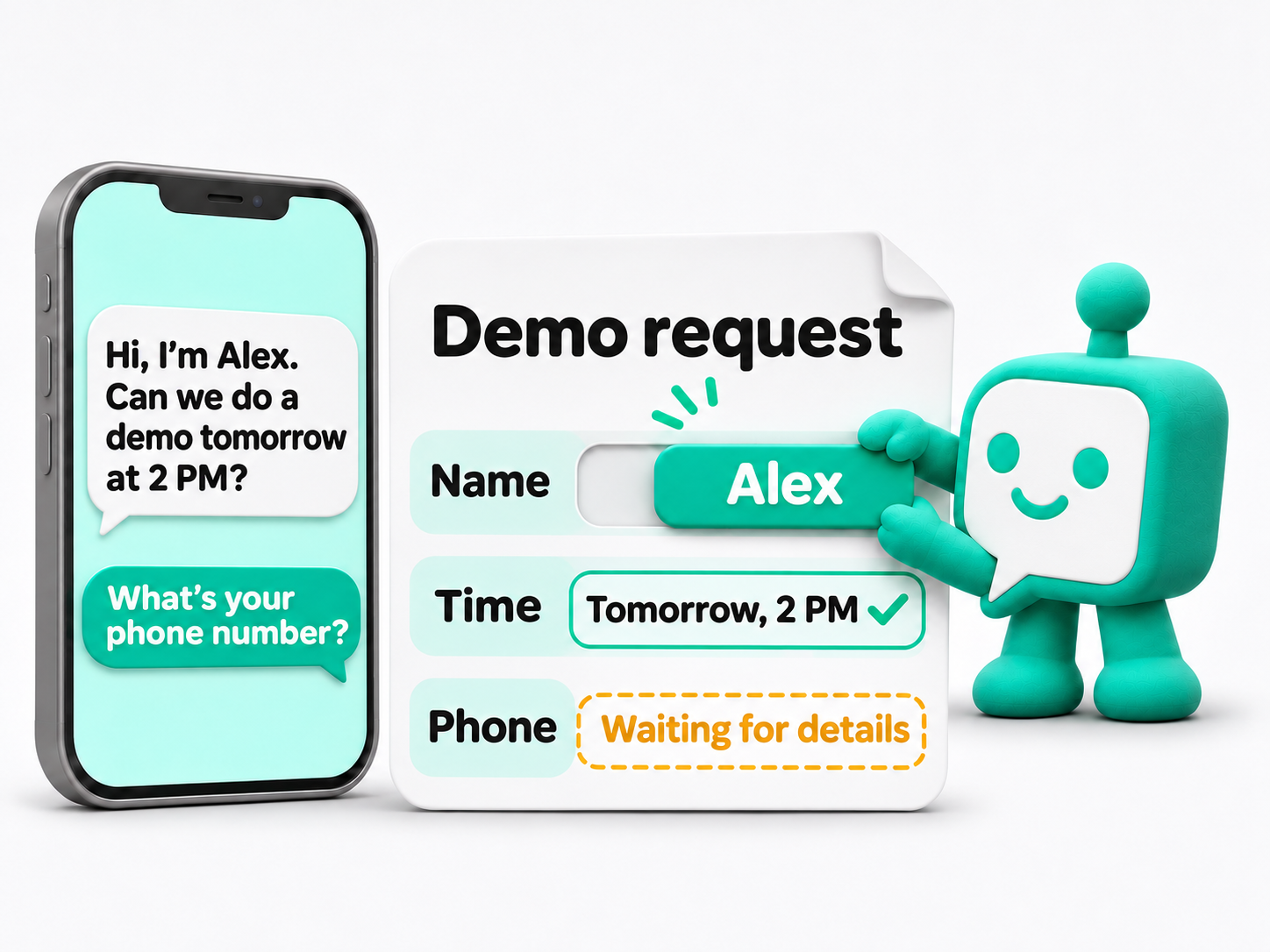
Your team can open the case in Issue Tracker to review the details and call Alex back. For a quote request, the case captures the information your team needs to prepare the quote.
3. Set up your first case form
- Go to Issue Tracker → Settings → Forms and select Create Case Type.
- Name the form, describe when to use it, and add the fields. Mark the ones the chatbot must collect before saving the case.
- Open Issue Tracker AI settings, select the case types you want to enable, and save.
Start with a request your team often has to ask follow-up questions about. Try it in chat with sample details before enabling it for customers. 💚