If your shop cannot reply to some Shopee chats or shows a chat distribution warning, check its settings first. This guide covers disabling distribution, unlinking a shop, and verifying the result before using Omnichat Bridge.
Check the warning in Shopee Seller Chat
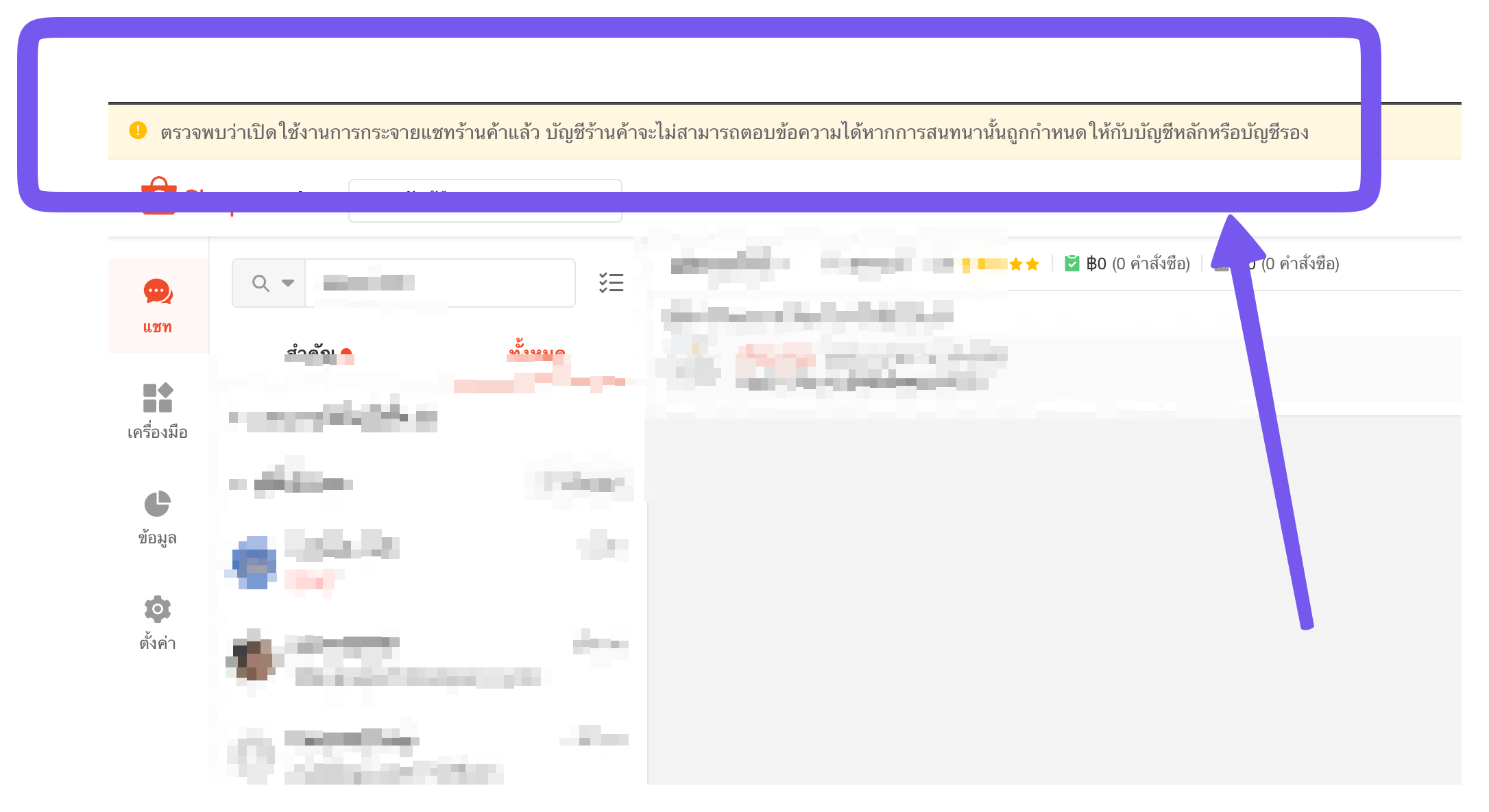
If Shopee Seller Chat shows the following warning banner, shop chat distribution is enabled:
ตรวจพบว่าเปิดใช้งานการกระจายแชทร้านค้าแล้ว บัญชีร้านค้าจะไม่สามารถตอบข้อความได้หากการสนทนานั้นถูกกำหนดให้กับบัญชีหลักหรือบัญชีรอง
English translation: “Shop chat distribution is enabled. The shop account cannot reply to messages if the conversation is assigned to a main account or sub-account.”
This setting can make Omnichat unreliable because some conversations are distributed to other accounts. The shop account signed in to Seller Chat and connected to Omnichat may then be unable to reply to those conversations, even while replies to other chats still work.
1. Turn off shop chat distribution
Use an account authorized to manage these shop settings, and check the shop name before making changes:
- Sign in with an account authorized to manage the shop and open Shopee chat distribution settings.
- On the shop chat distribution tab (ตั้งค่าการกระจายแชทในร้านค้า), find the connected shop and select ดูข้อมูลทั้งหมด (view all details). Open its details, disable chat distribution for that shop, and save the change.
- Check the member-account chat distribution tab (ตั้งค่าการกระจายแชทในบัญชีสมาชิก) to review the accounts involved. A member’s offline status does not mean shop chat distribution has been disabled.
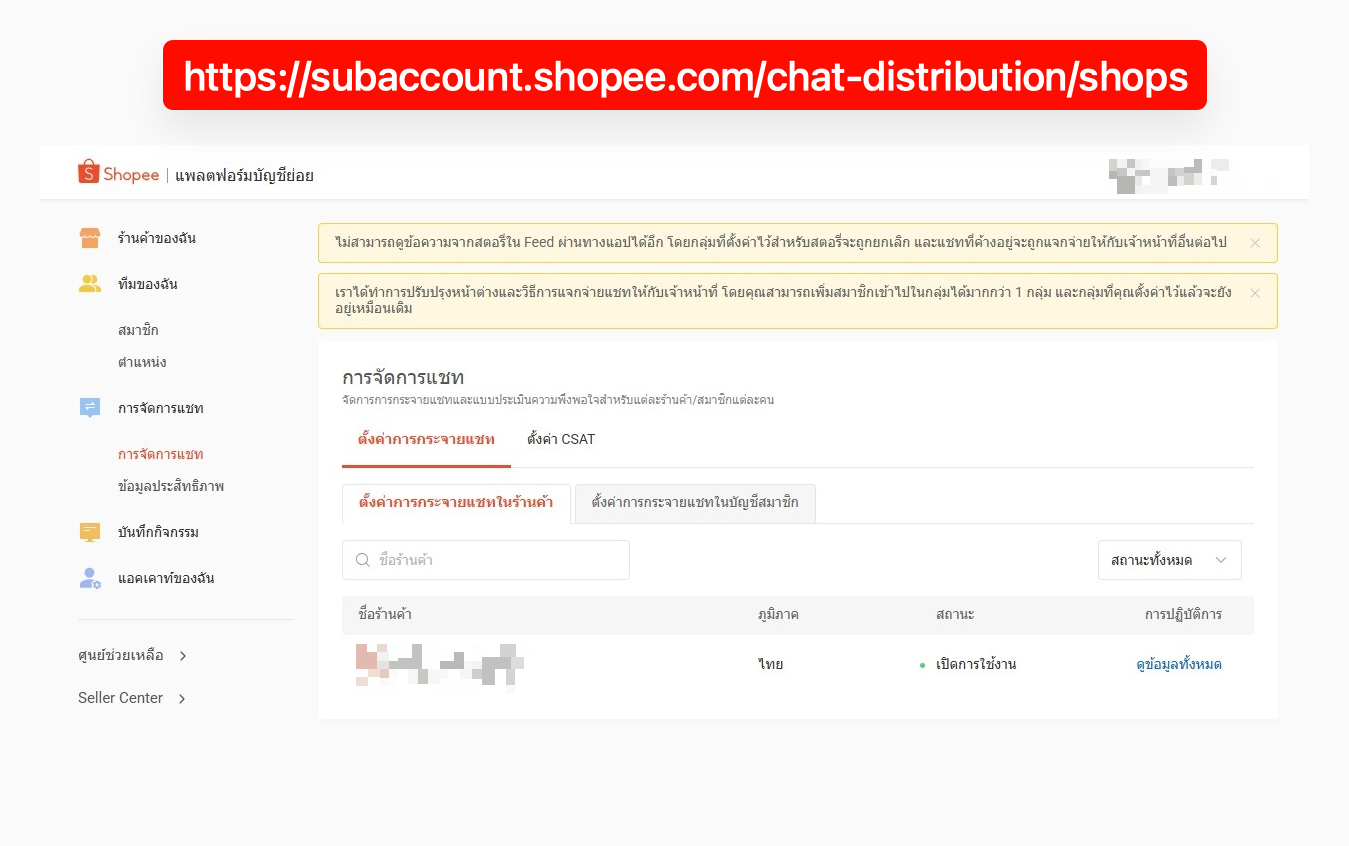
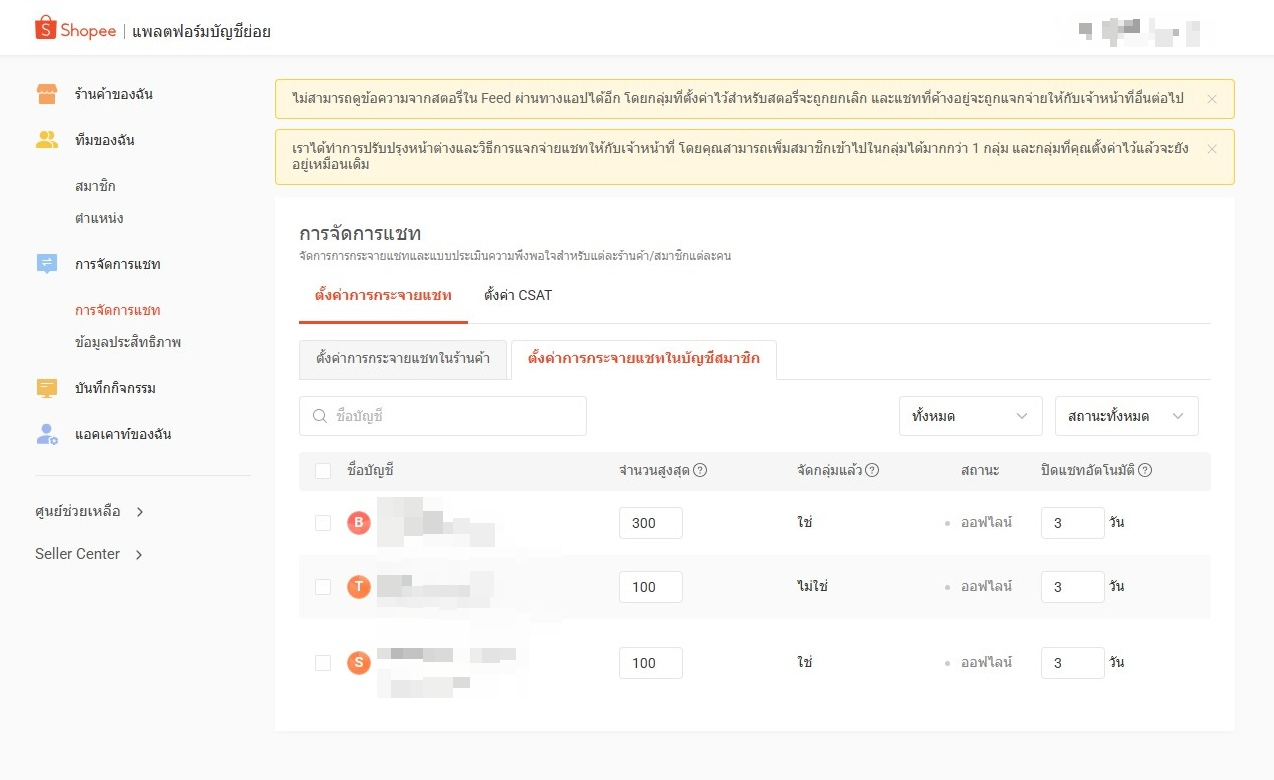
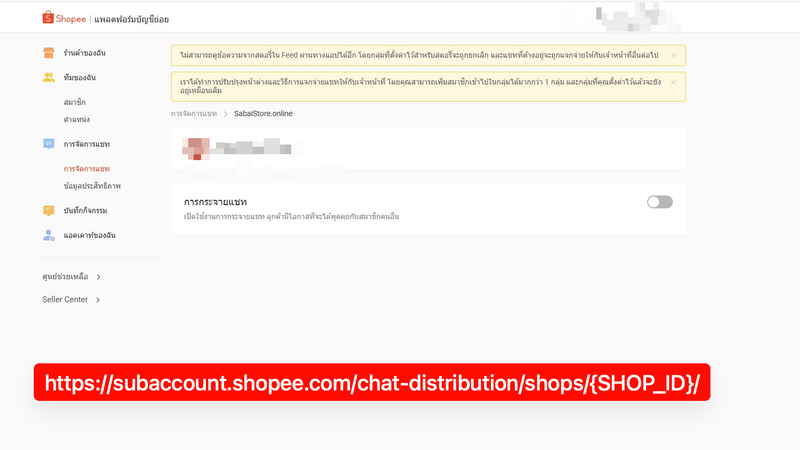
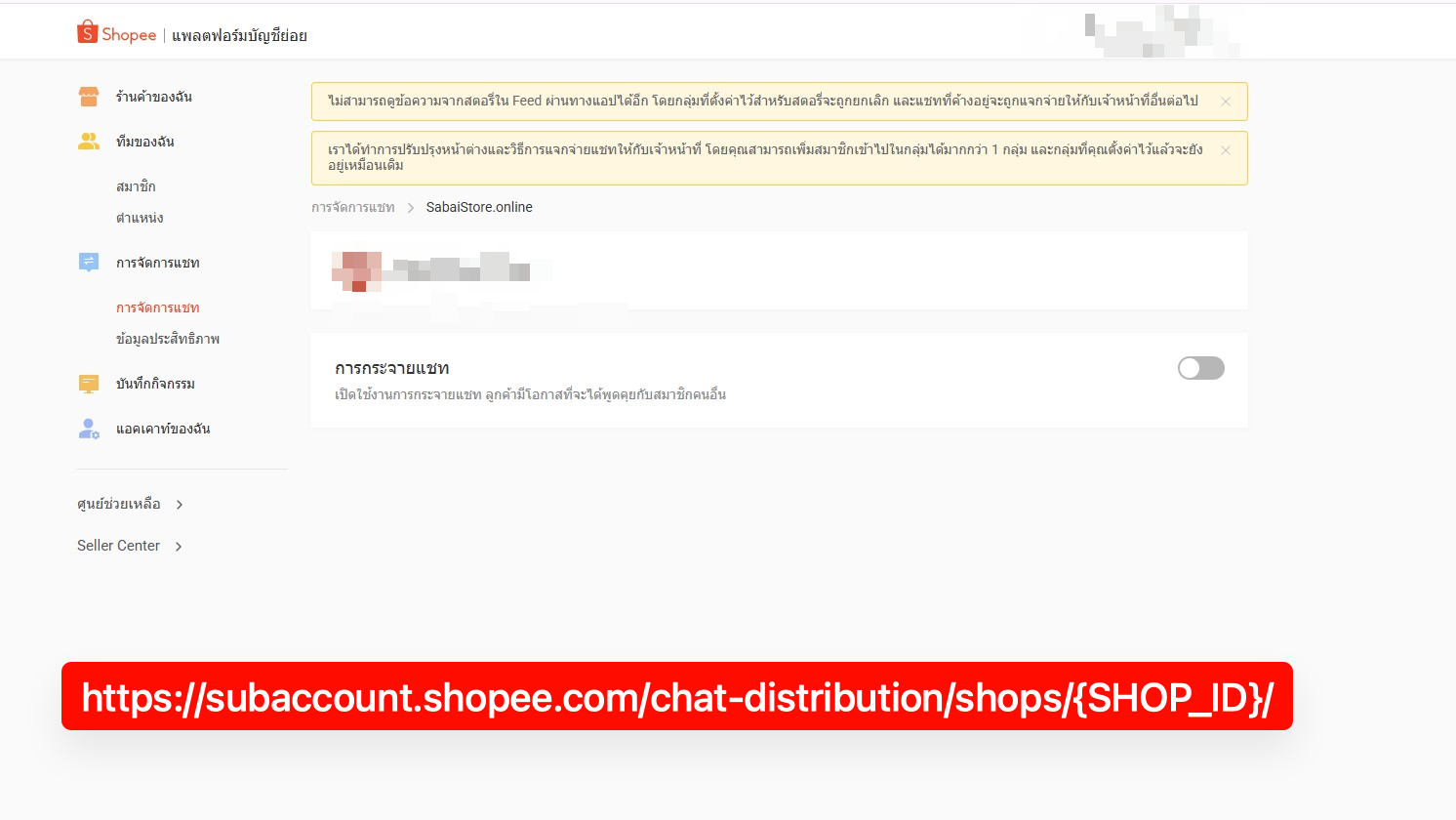
You can open the shop’s settings directly at https://subaccount.shopee.com/chat-distribution/shops/{SHOP_ID}/. Replace {SHOP_ID} with the Shopee shop ID connected to Omnichat, then turn off the Chat distribution (การกระจายแชท) switch so it is gray, as shown below.
2. Unlink the shop from the Sub-account Platform
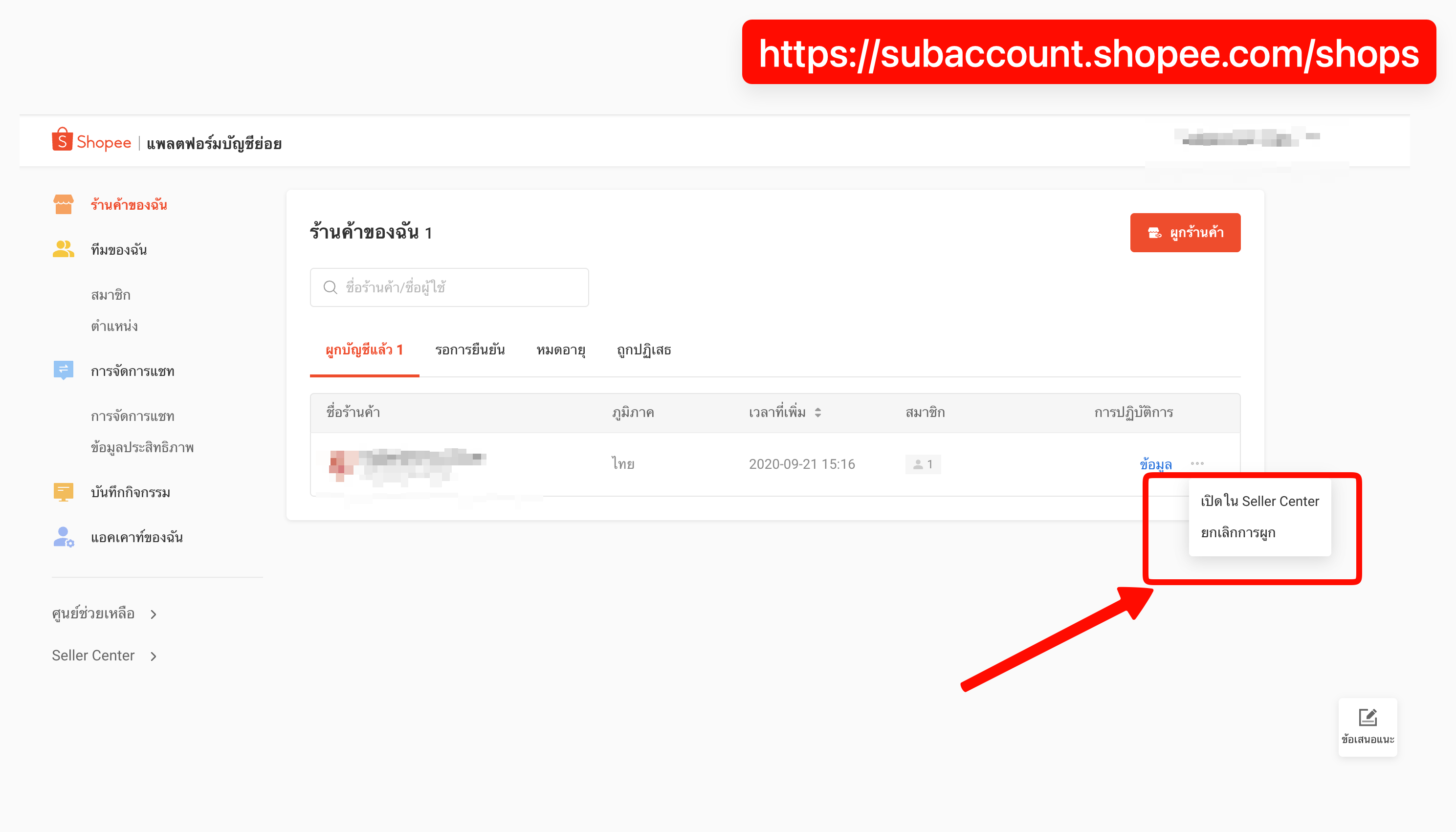
If you need to unlink the shop from the Sub-account Platform, open My Shops:
- Select ร้านค้าของฉัน (My Shops) and the ผูกบัญชีแล้ว (linked accounts) tab.
- Check the shop name, then open the … menu in the actions column (การปฏิบัติการ).
- Select ยกเลิกการผูก (unlink), and review the confirmation details before proceeding.
Unlinking the shop from the Sub-account Platform is a separate action from turning off the chat distribution switch. If your team still uses sub-accounts to manage the shop, agree on this change with the shop administrator first.
3. Verify that the warning banner disappears
- Return to Shopee Seller Chat for the same shop and refresh the page.
- Confirm that the chat distribution warning at the top has disappeared. The screenshot below marks the area to check; it is not a success screenshot because the warning is still visible.
- Check that the shop account can reply to a previously affected conversation. If you use Omnichat, also test receiving a message and replying through KaoJai Inbox again.
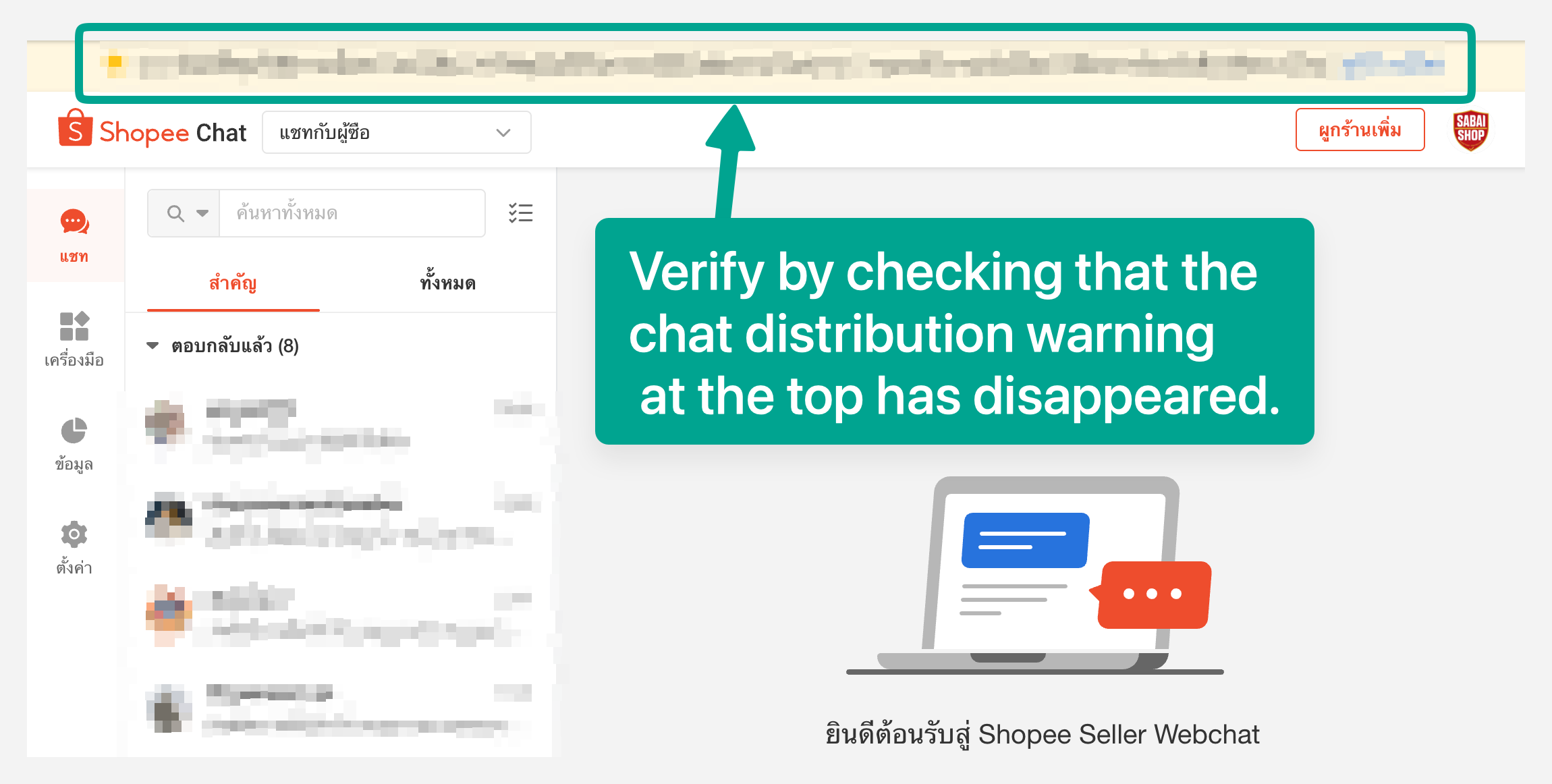
If the warning remains, check that you selected the right shop, turned off the switch, and saved the change, then refresh that shop’s Seller Chat again. A member account showing offline does not prove that chat distribution is disabled.