
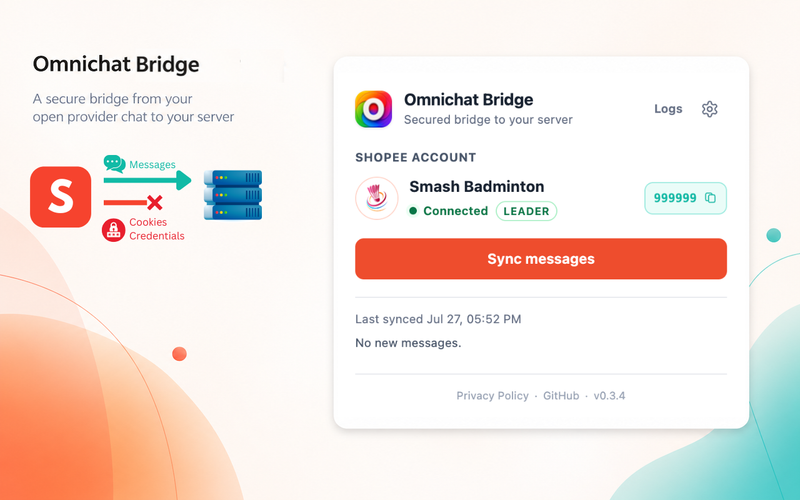
⚠️ Read this first: Omnichat Bridge is an unofficial connection. It is not a Shopee product and is not affiliated with or endorsed by Shopee.
Use it only after you have assessed the applicable platform terms and accepted the risk. It may result in warnings, restrictions, suspension, or loss of access. The code is open source for review, and this setup must be used only with an account you are authorized to operate.
A buyer messages your Shopee store while the sales team is busy in another inbox. Switching tabs sounds small, but it slows replies and scatters customer context. Omnichat Bridge forwards supported messages from an open Shopee Seller Chat tab to KaoJai Inbox without sending the seller’s password, cookies, or login tokens out of the browser.
How Omnichat Bridge works
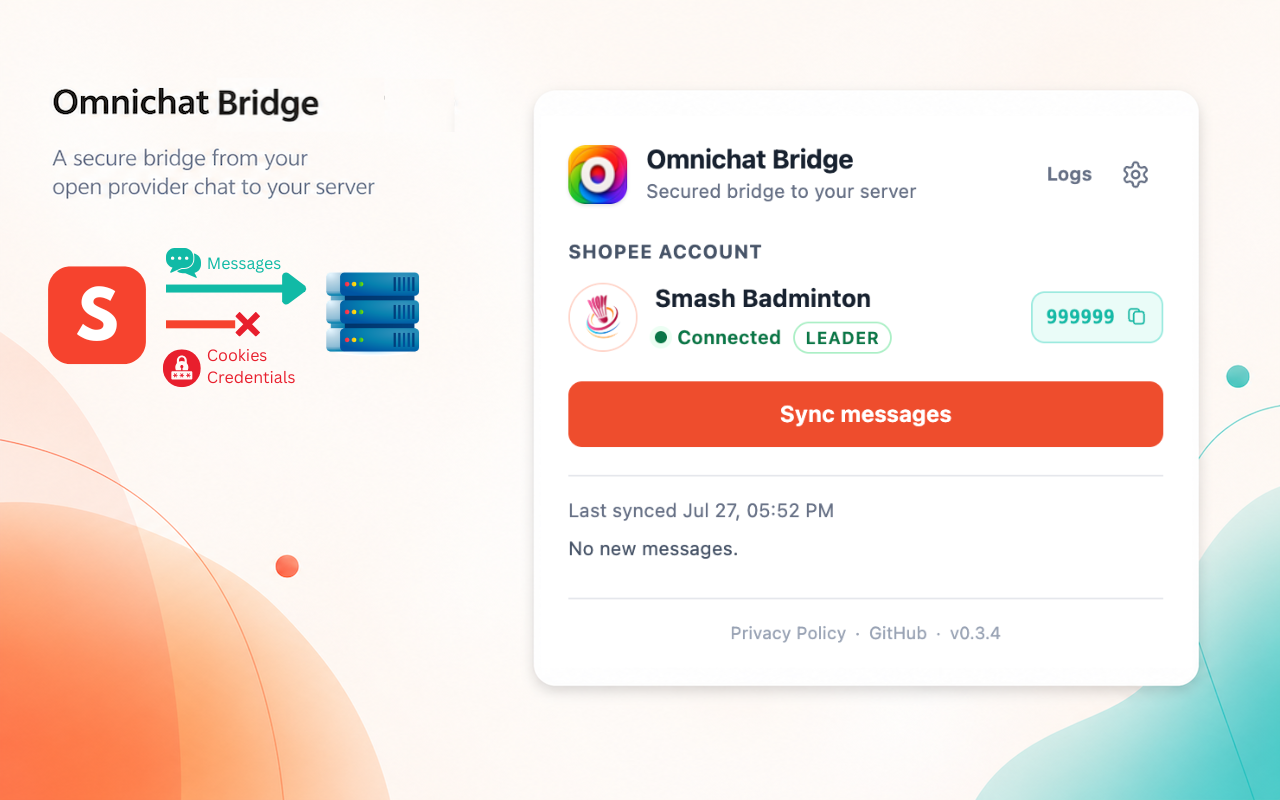
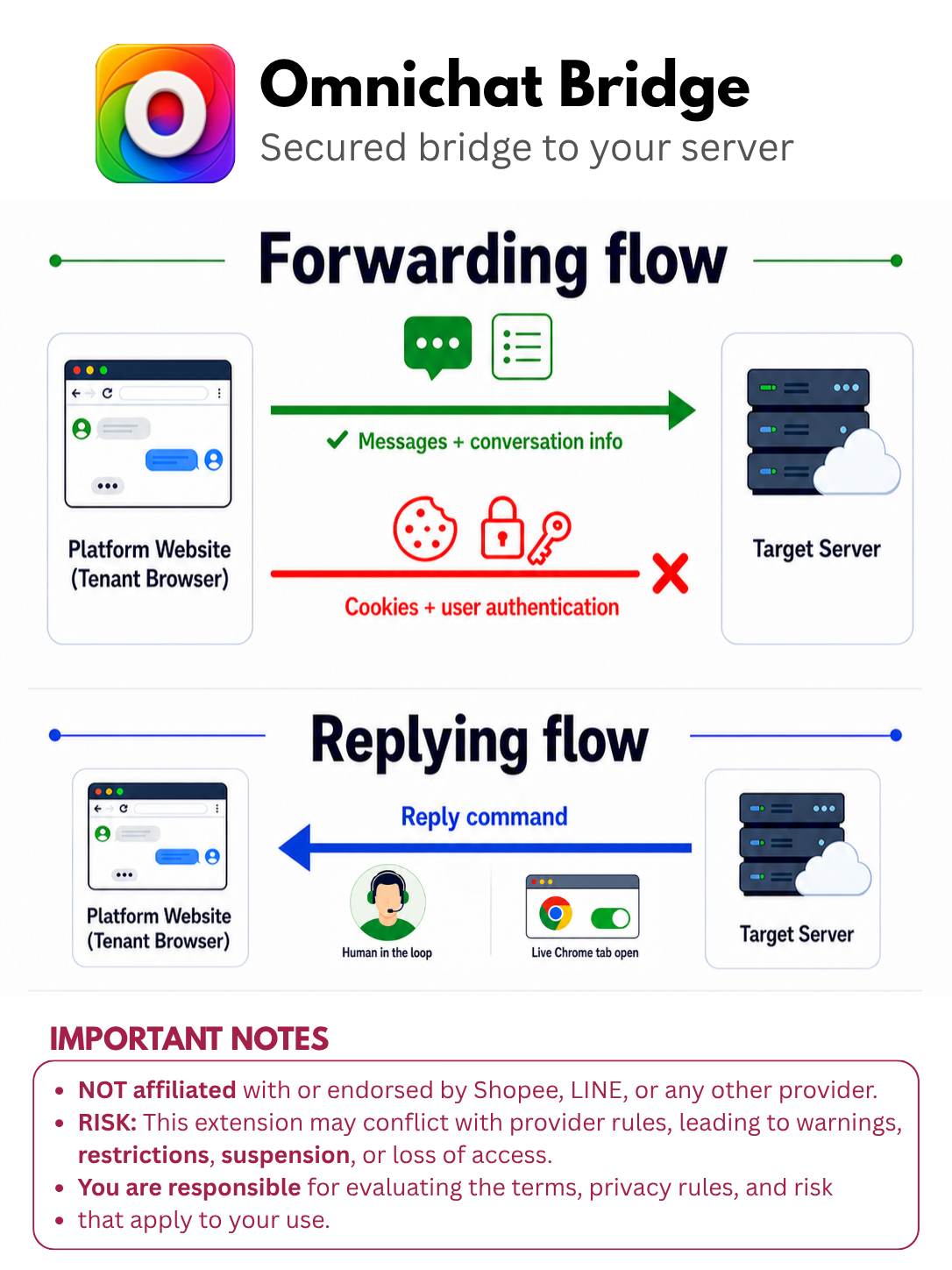
The key boundary is simple: the seller’s browser remains the place where Shopee is signed in. The extension acts as a human-in-the-loop co-pilot, forwarding supported chat events to the server you configure.
The flow is:
- The seller signs in and opens Shopee Seller Chat.
- The extension reads supported new messages from that open session and keeps unsent items in a local queue.
- It delivers a batch to the configured server over HTTPS with an HMAC signature.
- The server acknowledges receipt; only then does the extension remove those items from the local queue.
- The team works from the same conversation context in KaoJai Inbox.
If Chrome or the Seller Chat tab is closed, the bridge is closed too. It is not a remote bot that keeps replying after the seller leaves the screen.
A co-pilot inside the browser: The forwarder is active only while the seller's computer, Chrome, and Seller Chat are running. It assists the seller from inside the browser and does not send the seller's password, cookies, login tokens, or other sign-in credentials to the target server.
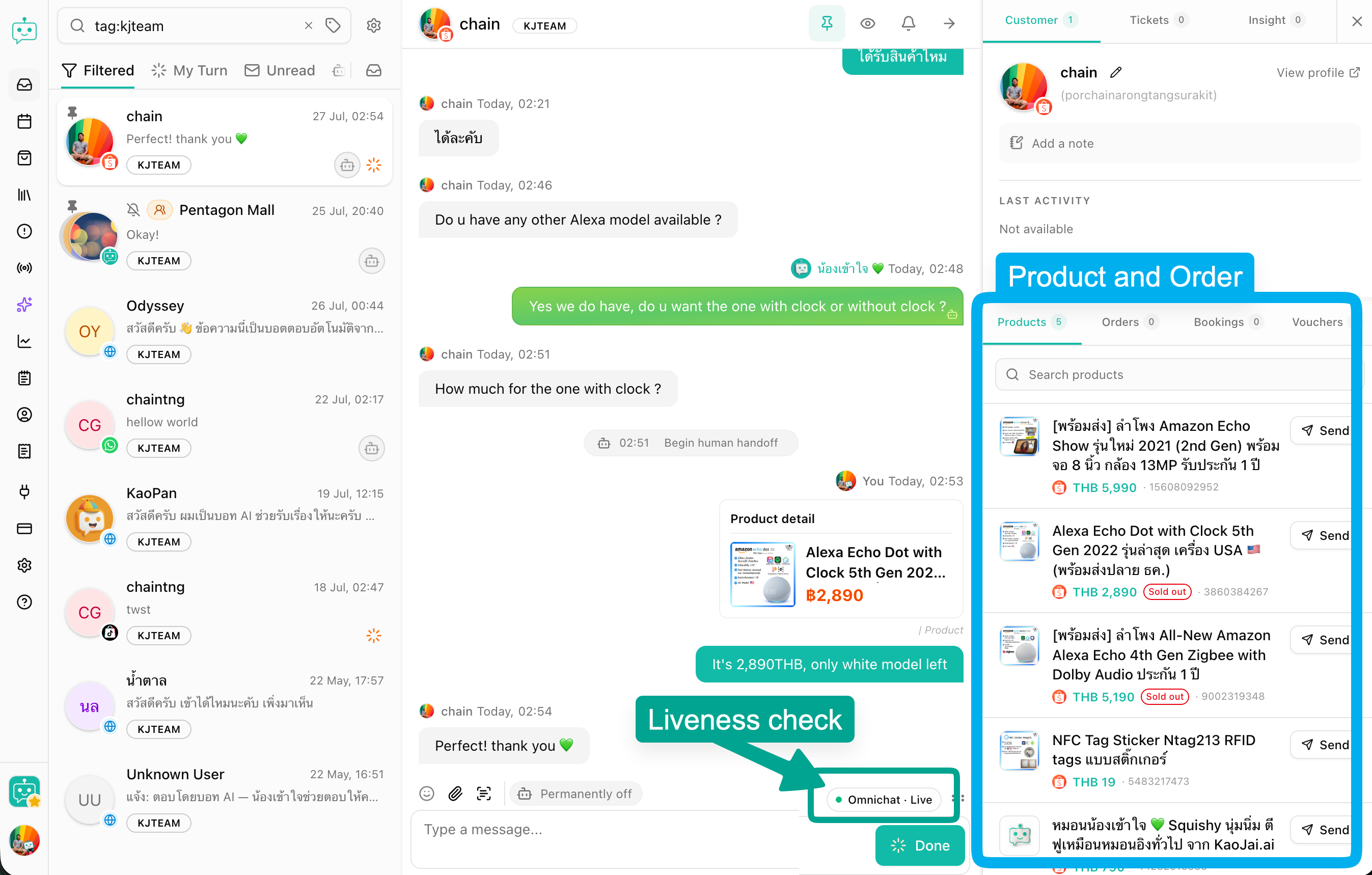
The example below shows a Shopee conversation inside KaoJai Inbox with Omnichat · Live status, team replies, and the product and order panel that helps the seller continue working from one screen.
What moves, and what never moves
| Sent to the configured server | Never stored or sent by the bridge |
|---|---|
| Supported inbound and outbound text | Shopee passwords |
| Supported image and video URLs | Cookies, tokens, or login credentials |
| Buyer IDs, display names, avatar URLs, and timestamps | Seller-session request headers |
| Conversation details needed for Inbox work | The HMAC secret alongside message data |
Each batch uses HTTPS and HMAC so the destination can verify that the request came from a configured bridge. That does not remove platform-policy risk, so a person should remain responsible for reviewing the setup and monitoring its use.
Set up Shopee message forwarding in KaoJai Inbox
Before starting, be a KaoJai workspace administrator, connect your own Shopee store in KaoJai, and use Chrome signed in to that store’s Seller Chat.
- In KaoJai Admin, go to Integrations → Shopee and connect the shop.
- In Omnichat Bridge, select Initialize to create and download
kaojai-omnichat-shopee.json. - Install the Omnichat Bridge Chrome Extension.
- Open Shopee Seller Chat using the connected store account.
- Open the extension, choose Import config, then select the downloaded file from KaoJai Admin.
- Confirm the detected Shop ID, then select Sync messages to start the initial sync and listen for new messages.
- Send a test message to the shop and confirm that it arrives in KaoJai Inbox.
Keep the config file private: it contains the bridge HMAC secret. Do not post it in a public chat, commit it to Git, or export it from the extension to a location other people can access.
If the computer owner changes or you suspect the file leaked, stop using that configuration and contact KaoJai to issue a replacement before continuing.
Operating conditions to keep in mind
- Chrome and the Seller Chat tab must remain open for realtime capture.
- The bridge may recover missed messages when it comes back online, but it is not a background service that guarantees capture while the computer is off.
- A live reply needs a connected browser with the target conversation open. If it is unavailable, the system returns an error instead of quietly queuing a remote command.
- Use only stores and workspaces that you are authorized to operate, and review Shopee policies before enabling or expanding usage.
Related resources
- Omnichat Bridge on GitHub — open-source code, architecture notes, and privacy policy.
- Shopee provider guide — sync, recovery, and data-boundary details.
- Omnichat Bridge video demo — a quick walkthrough before setup.
Background: why we built this Omnichat Bridge
Our objective was modest: help authorized sellers manage Shopee conversations in the same workflow as their team while respecting the platform’s rules.
Before building anything, we approached Shopee several times through support, human agents, and account executives to ask whether an official customer-service integration path or responsible contact was available. Each time, the response returned to the same point: Chat API (Customer Service Apps) was no longer accepting new applications and had been closed since November 18, 2024—more than one year and eight months by the time of writing. We had hoped to find a supported route, but after asking several times and receiving the same answer, we honestly felt we had run out of options and had to accept that no official path was available to us at the time.
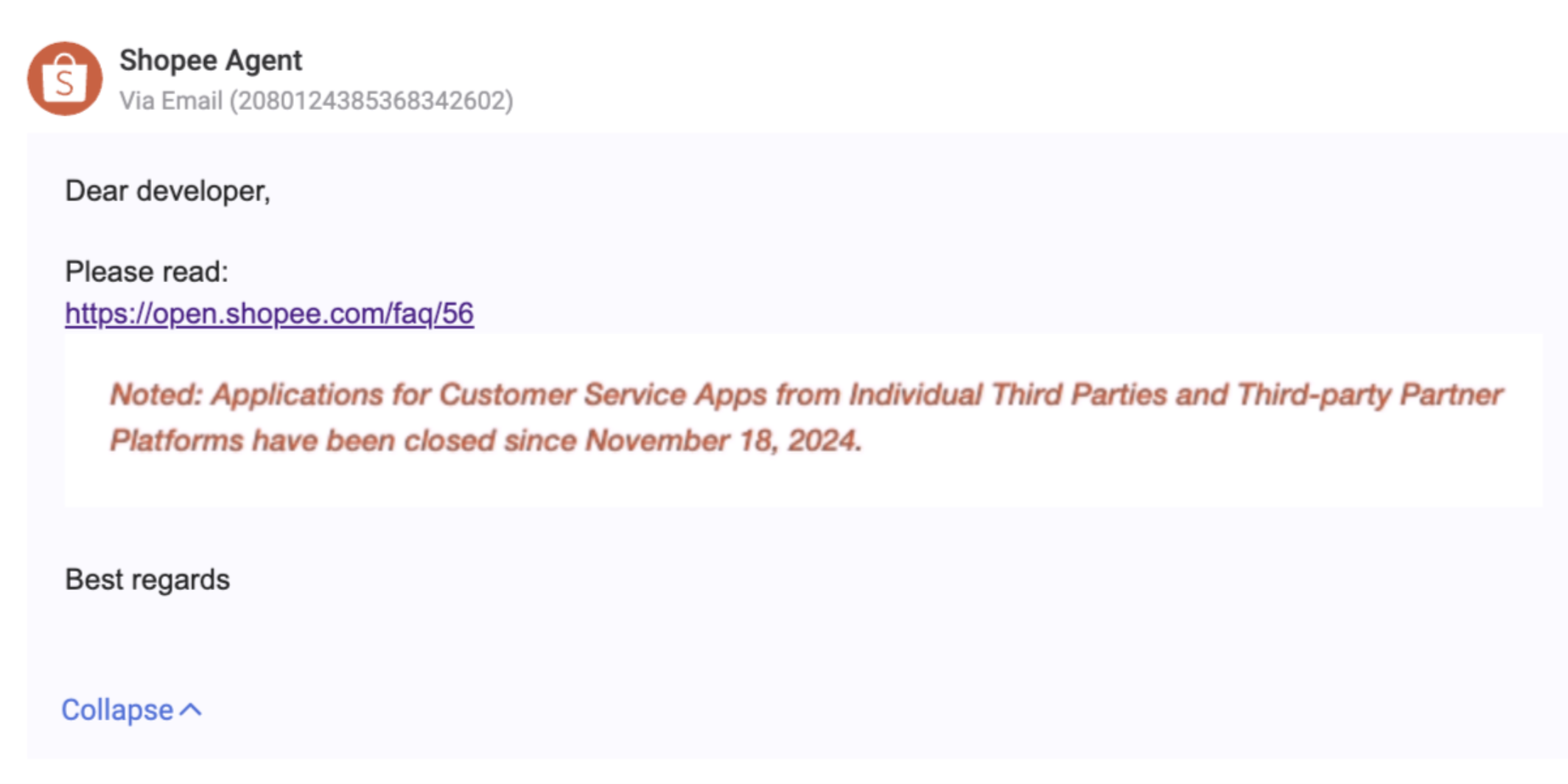
Because we could not find an official path available to us, we built Omnichat Bridge as an open-source, seller-controlled option. Its purpose is simply to reduce tab switching while making its behavior, data boundary, and risks open to review. If Shopee offers an official route for your store, please use that first.