
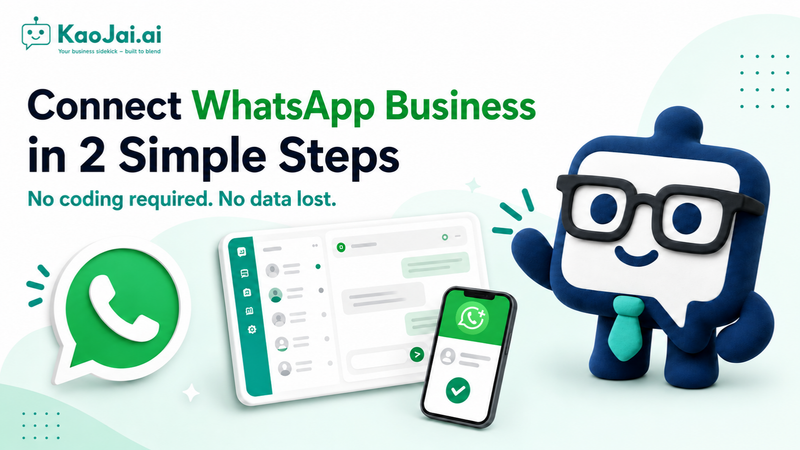
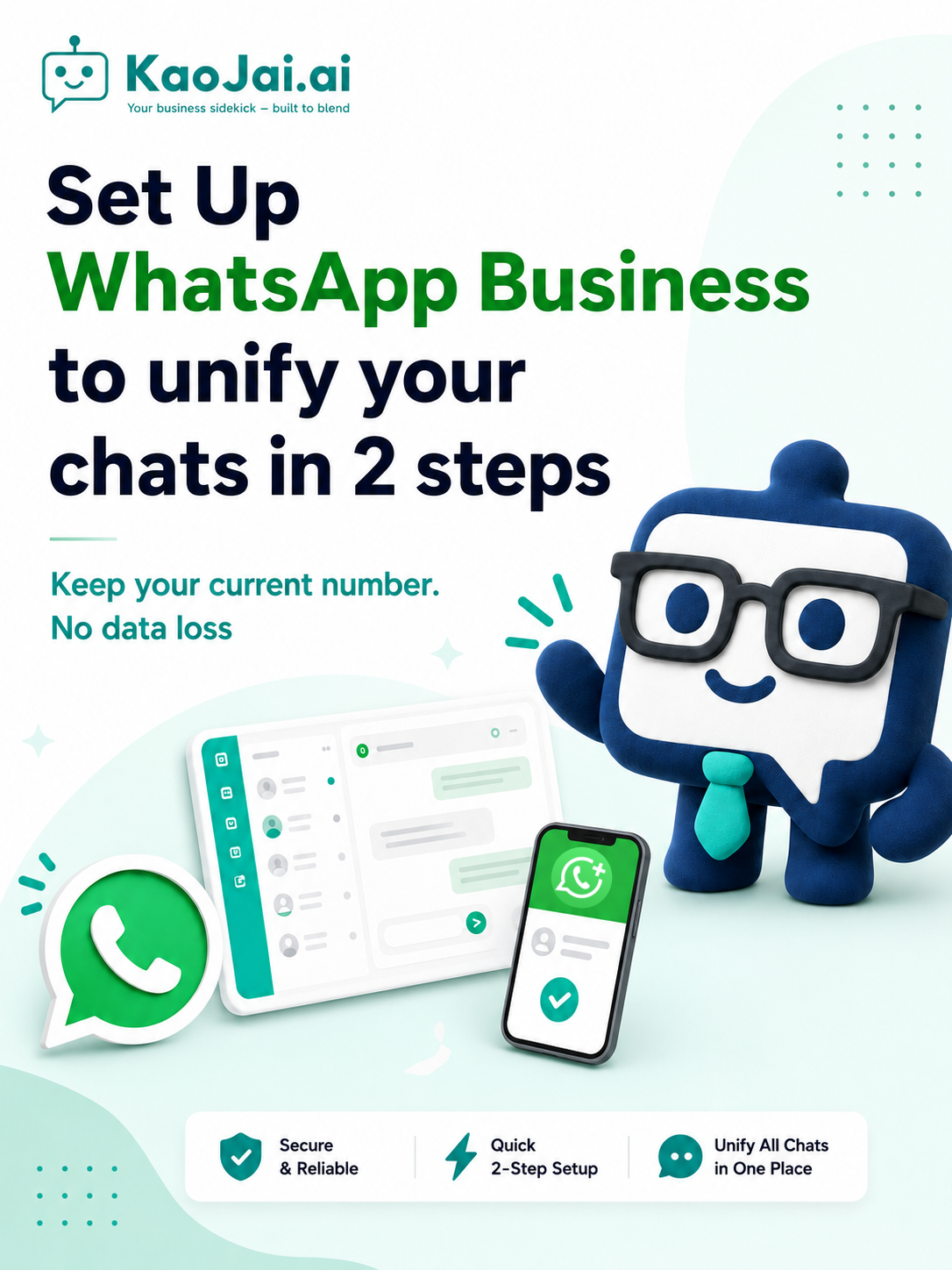
Bring your WhatsApp customer conversations into KaoJai.ai by connecting your existing number through WhatsApp Business and Meta.
This guide is for a number you already use on WhatsApp. The setup has two parts:
- Move the number to the WhatsApp Business app.
- Authorize KaoJai.ai to connect the account through Meta.
Before you start
Use a WhatsApp number and Meta Business Portfolio that your business owns or is authorized to manage. Keep your phone nearby: you will confirm the connection in WhatsApp Business by scanning a QR code shown on your computer.
1. Move your number to WhatsApp Business
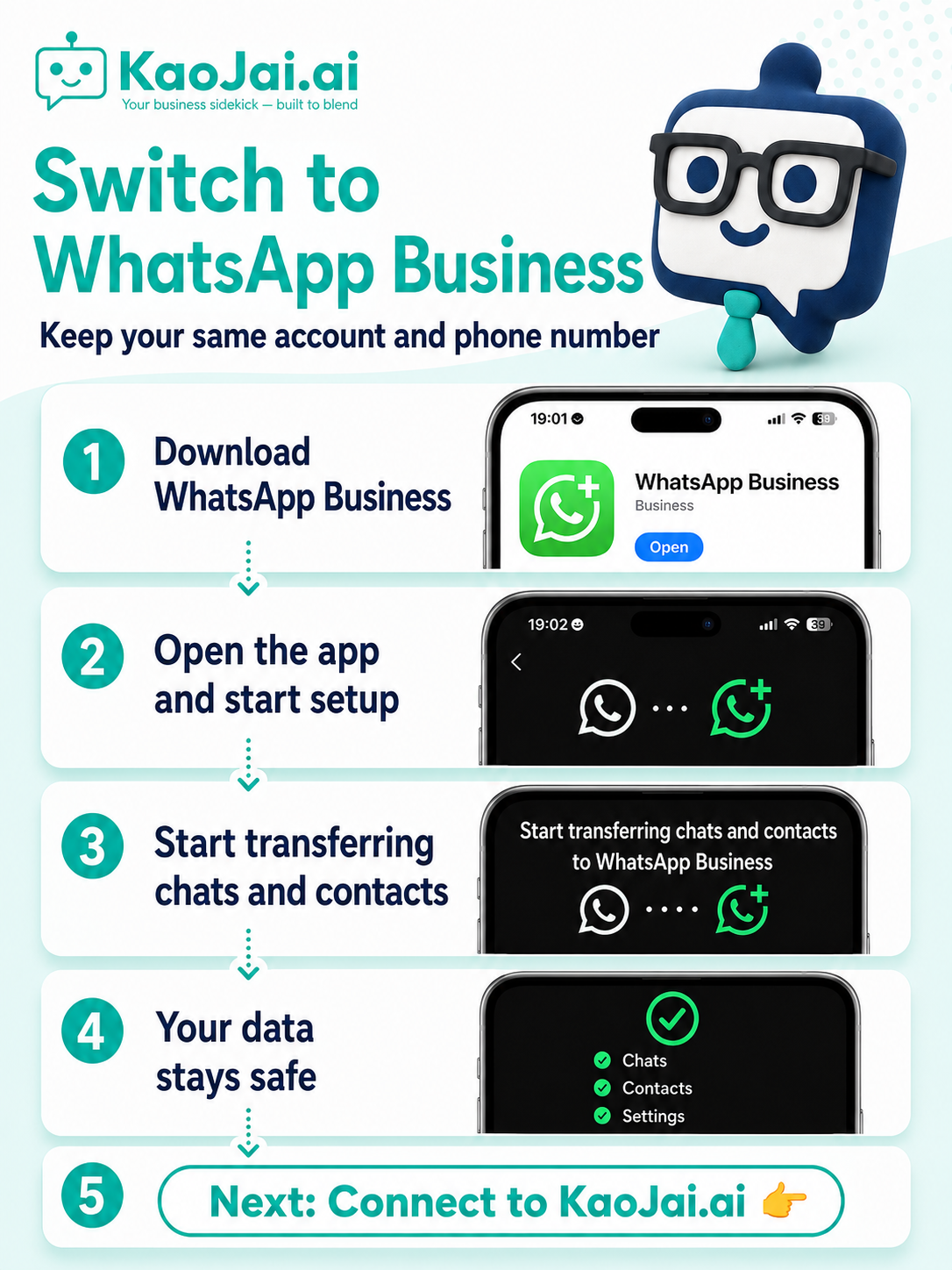
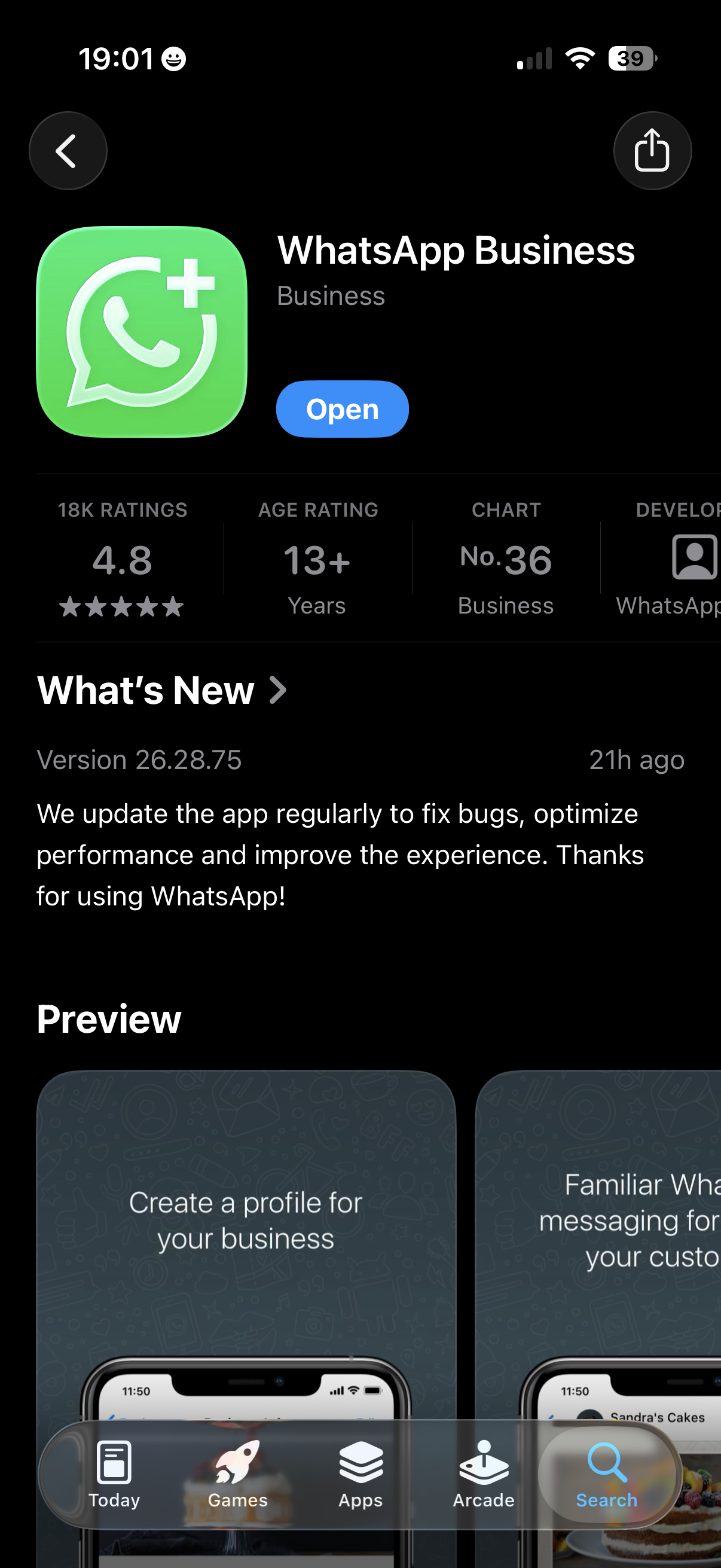
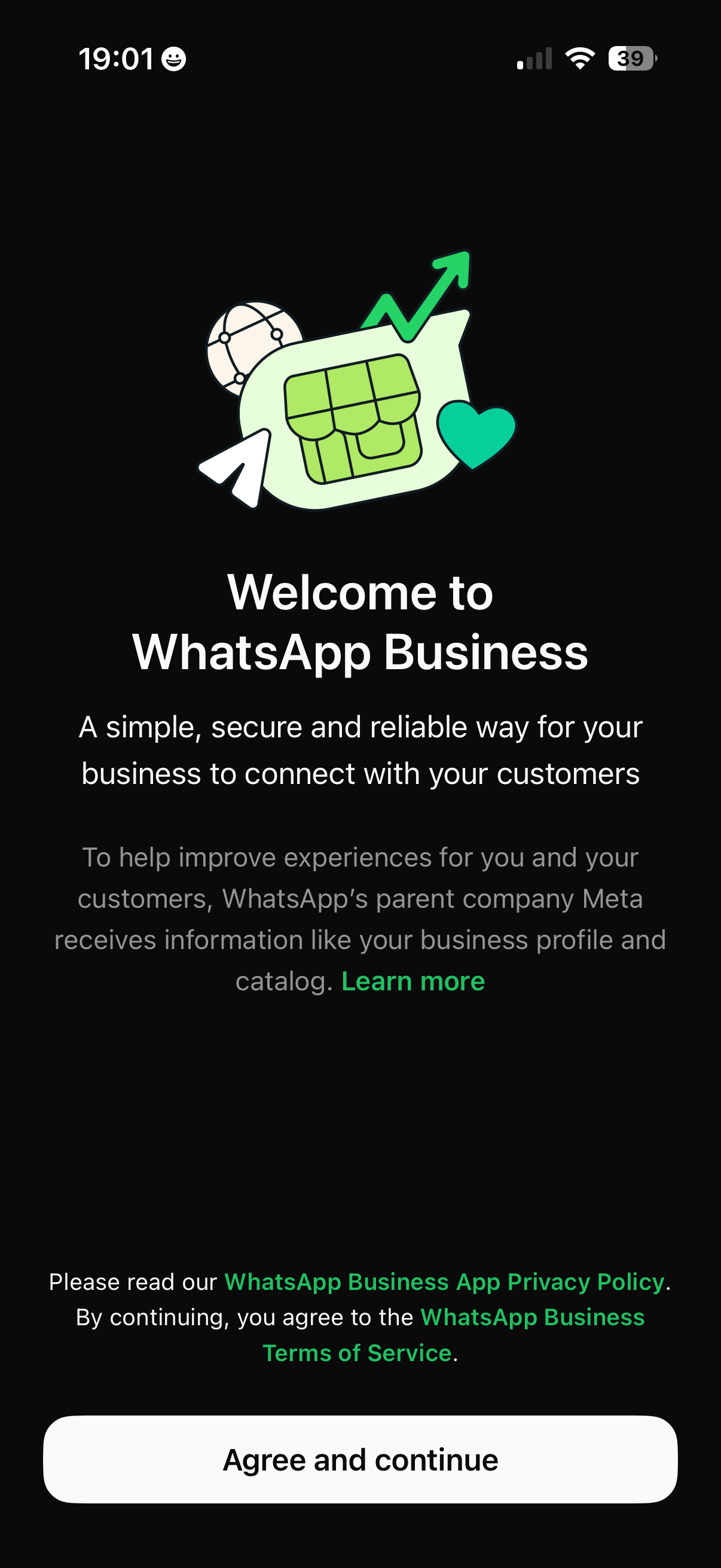
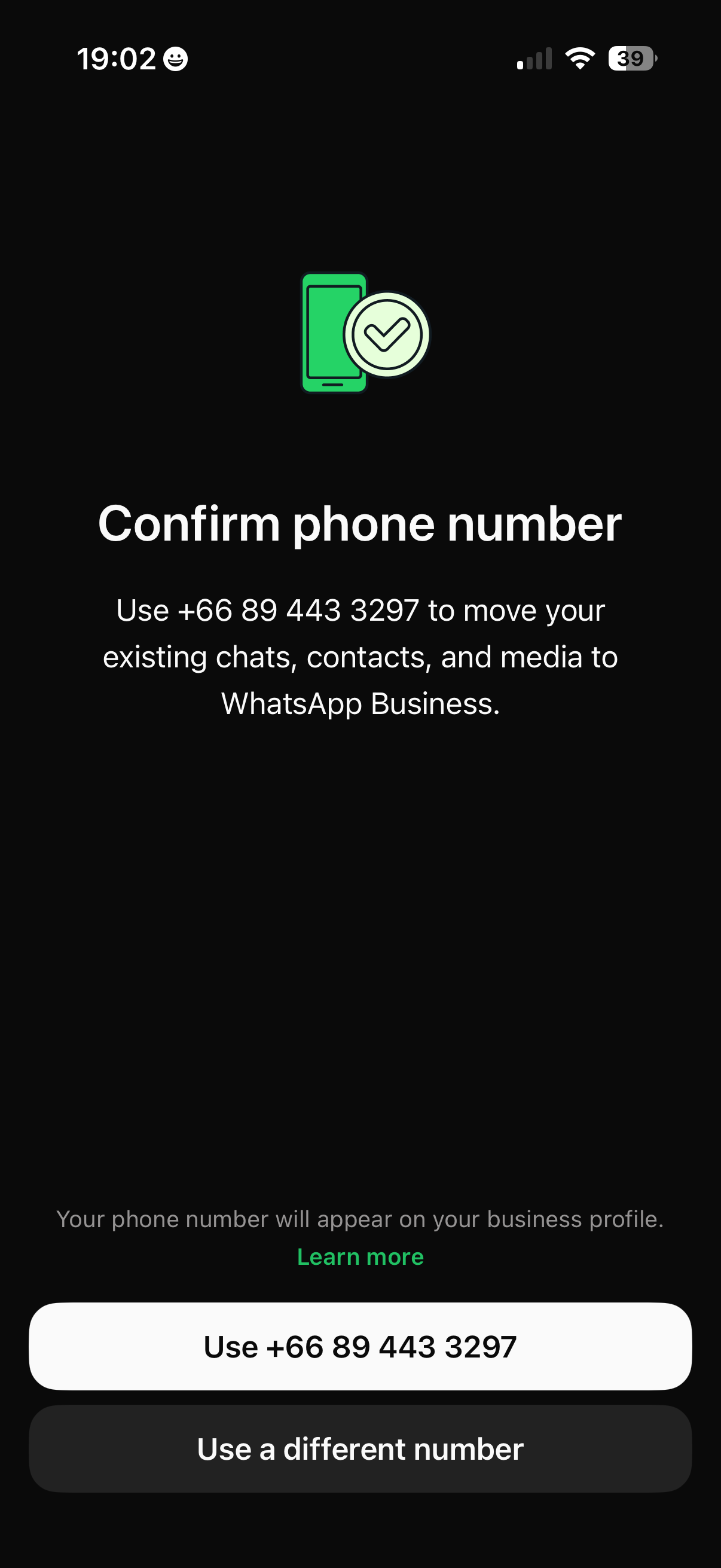
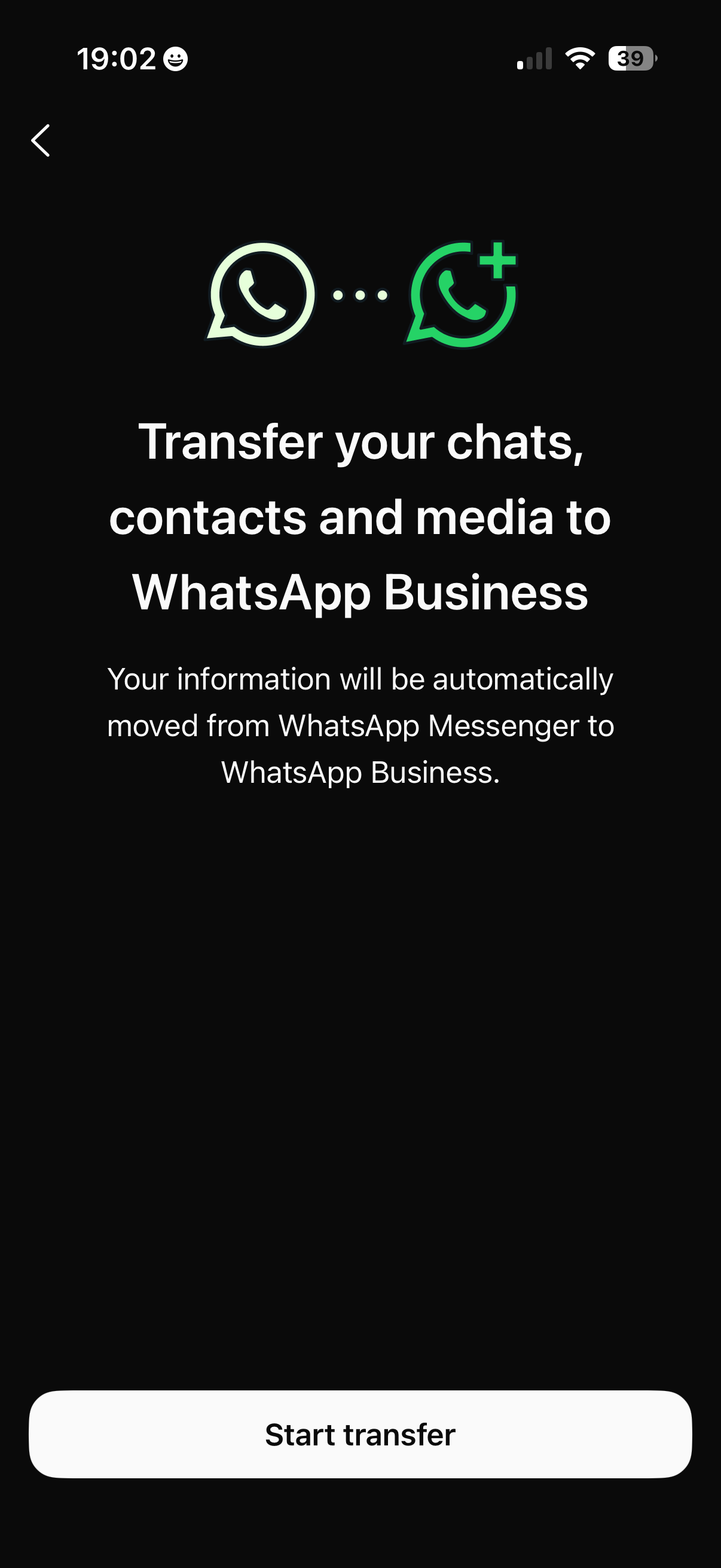
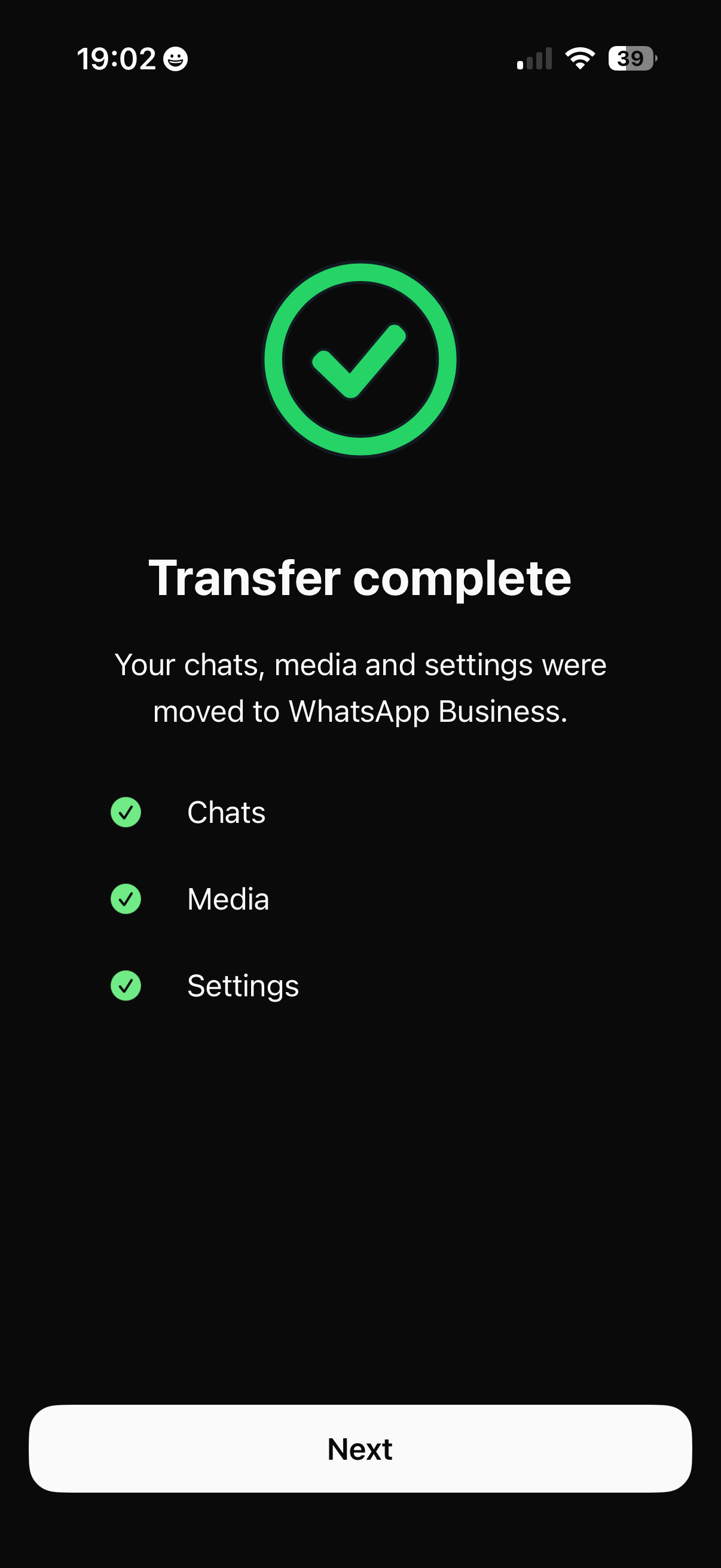
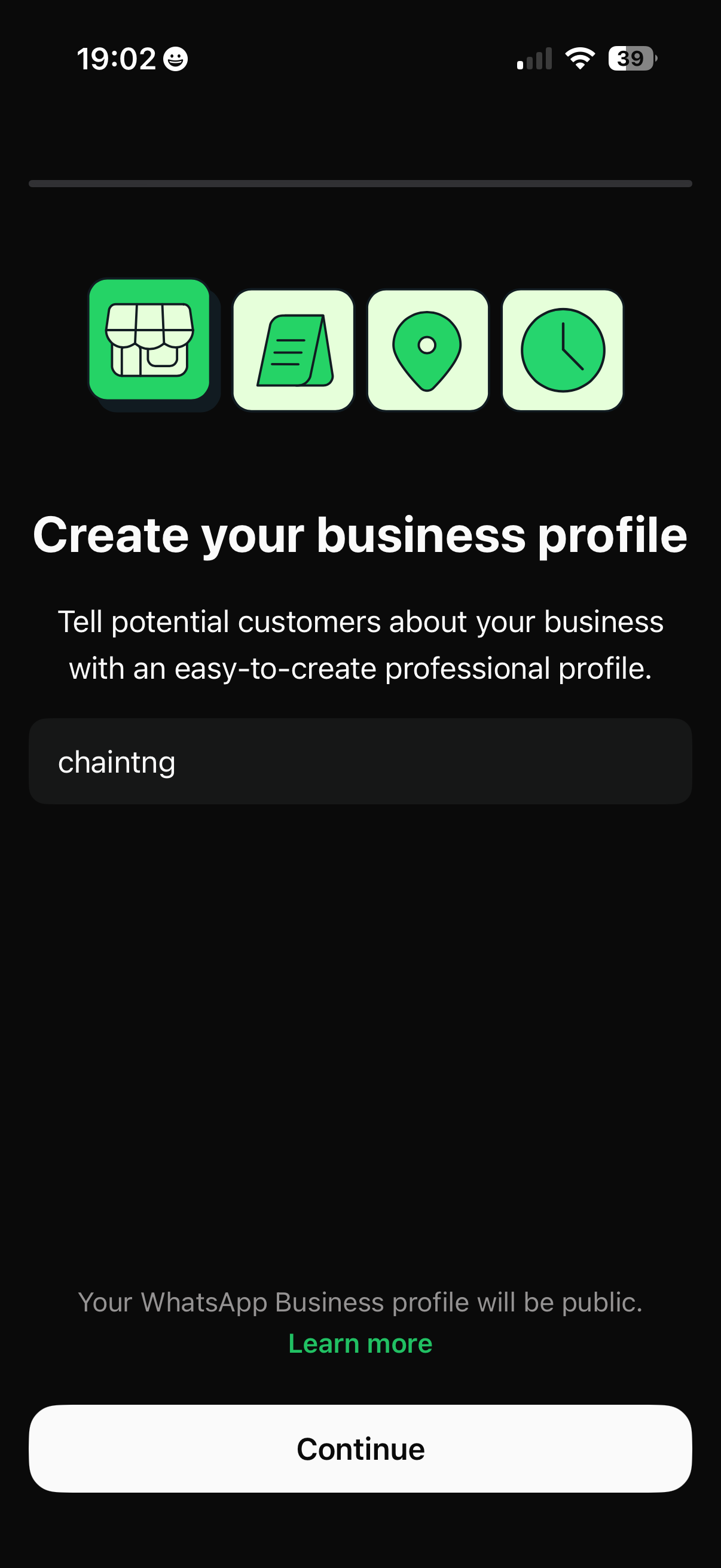
If you currently use the regular WhatsApp app with this number, install WhatsApp Business first. During its in-app setup, choose your existing number and follow the prompts to move it to WhatsApp Business.
Your message history stays with the number. You can move between WhatsApp and WhatsApp Business later if needed.
2. Open the WhatsApp connection in KaoJai.ai
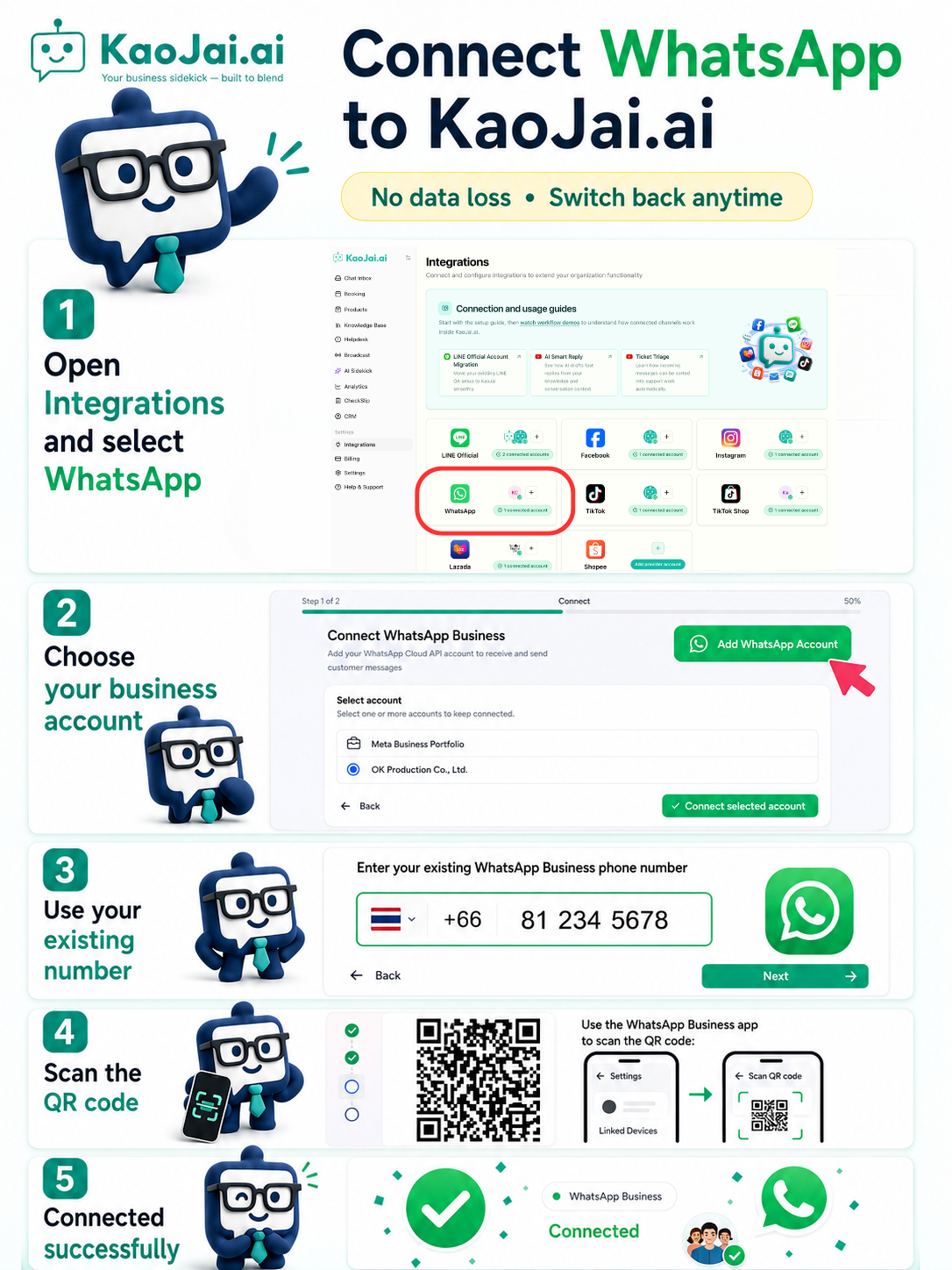
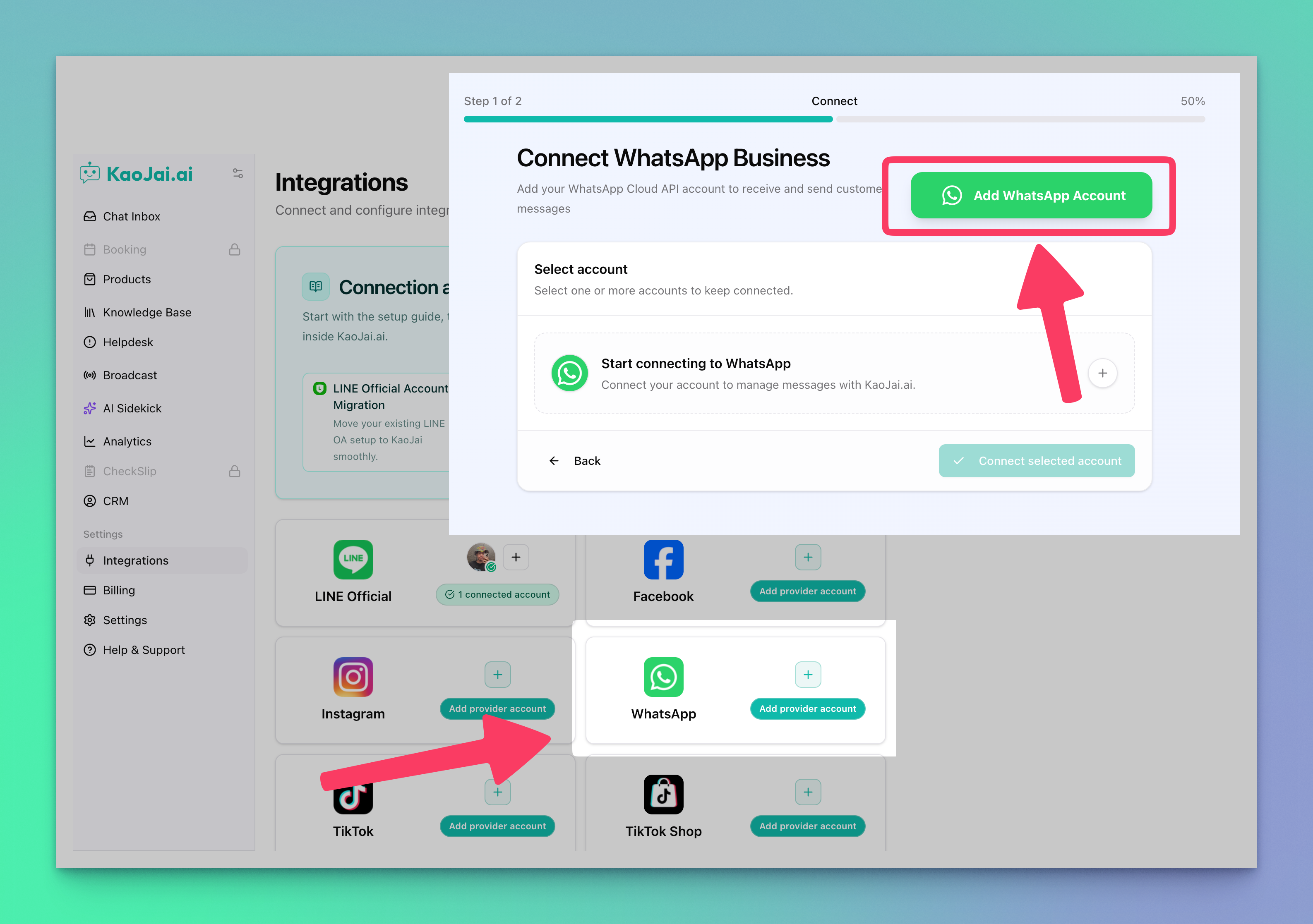
- Sign in to KaoJai.ai Admin → Settings → Integrations**.
- Find WhatsApp and select Add provider account.
- In the connection wizard, select Add WhatsApp Account.
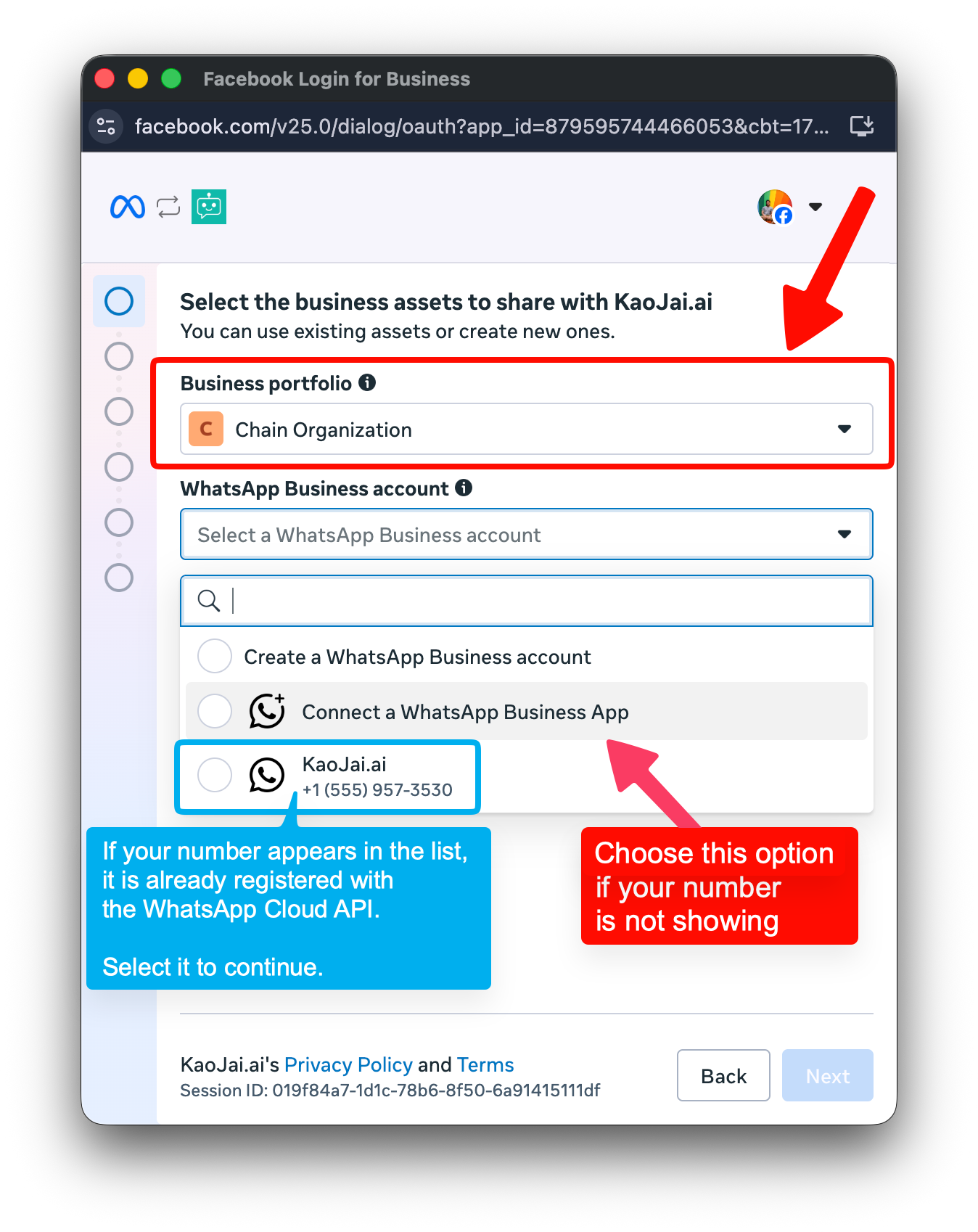
3. Choose your Meta Business Portfolio
The Meta setup opens in the connection wizard. Select the Business Portfolio that owns the WhatsApp account, or create one if your business does not have one yet.
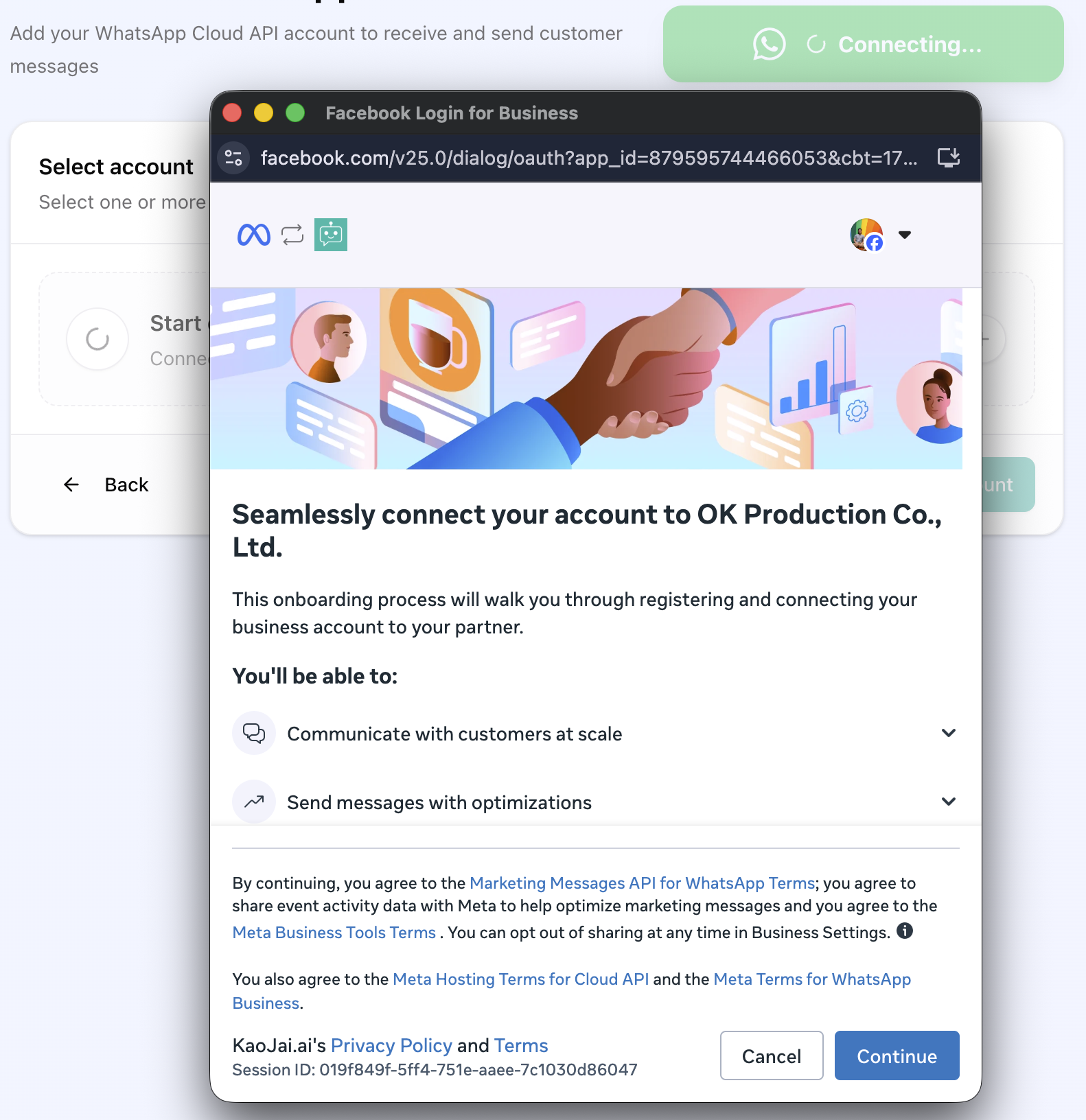
Then choose Connect a WhatsApp business account.
4. Enter the phone number and show the QR code
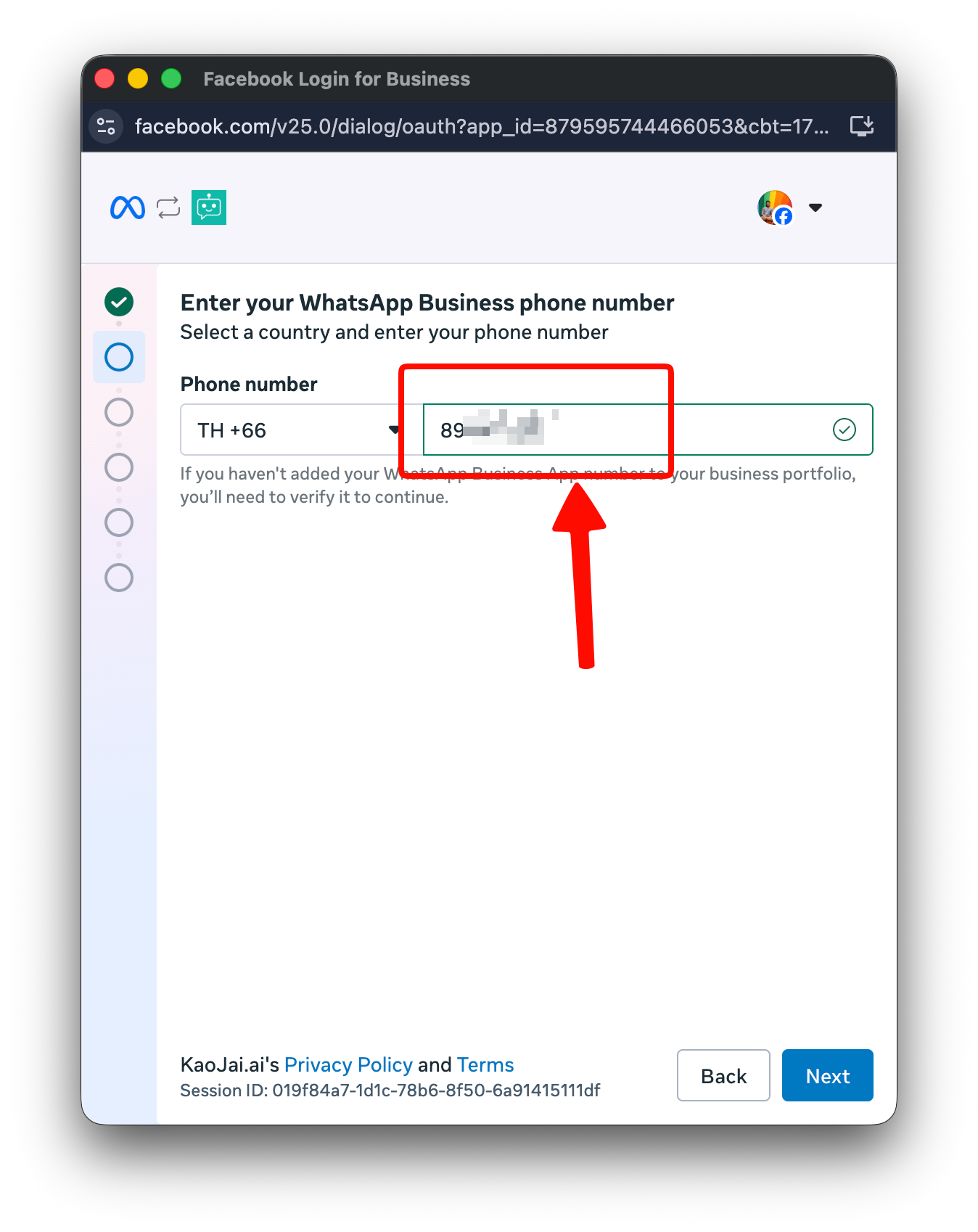
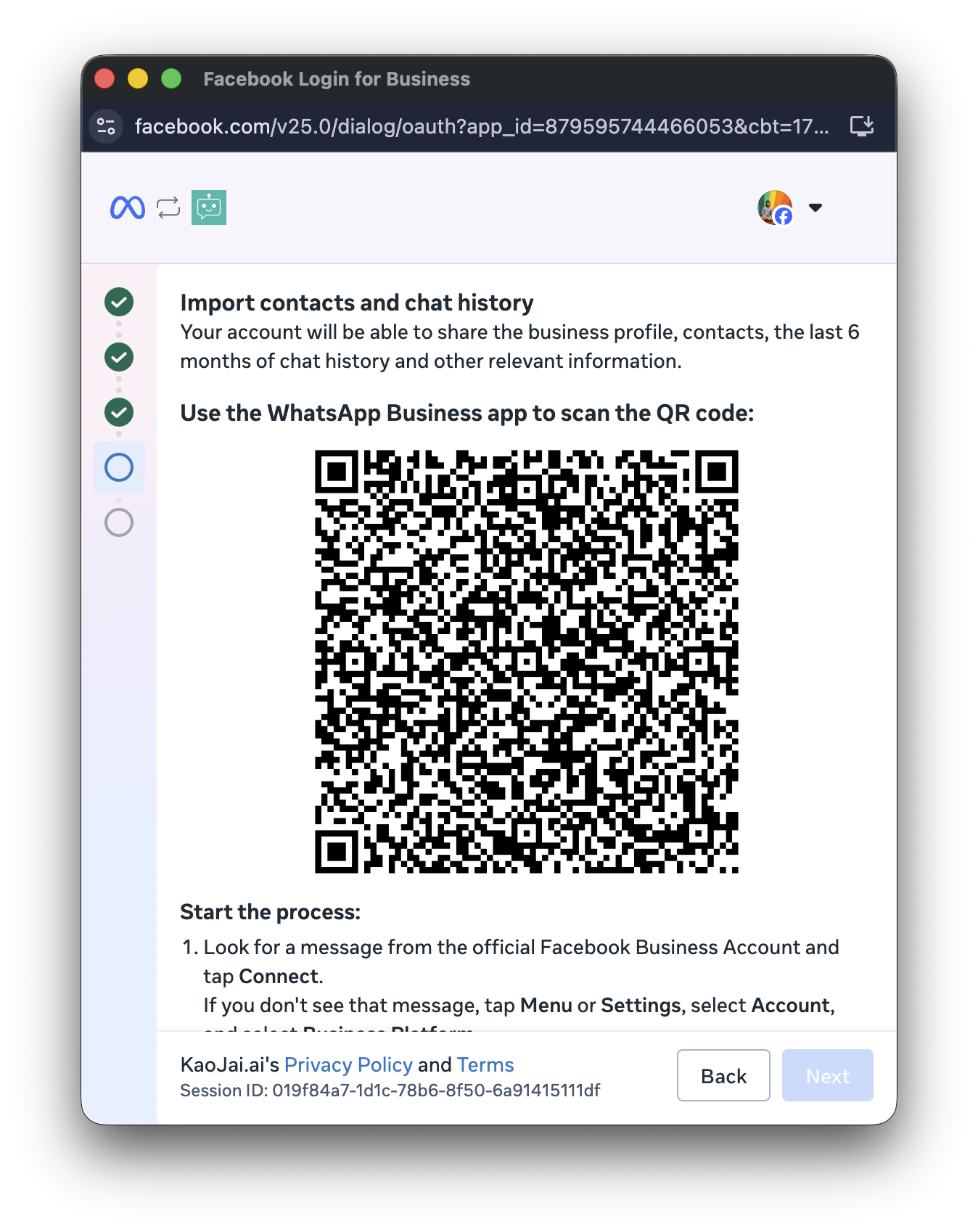
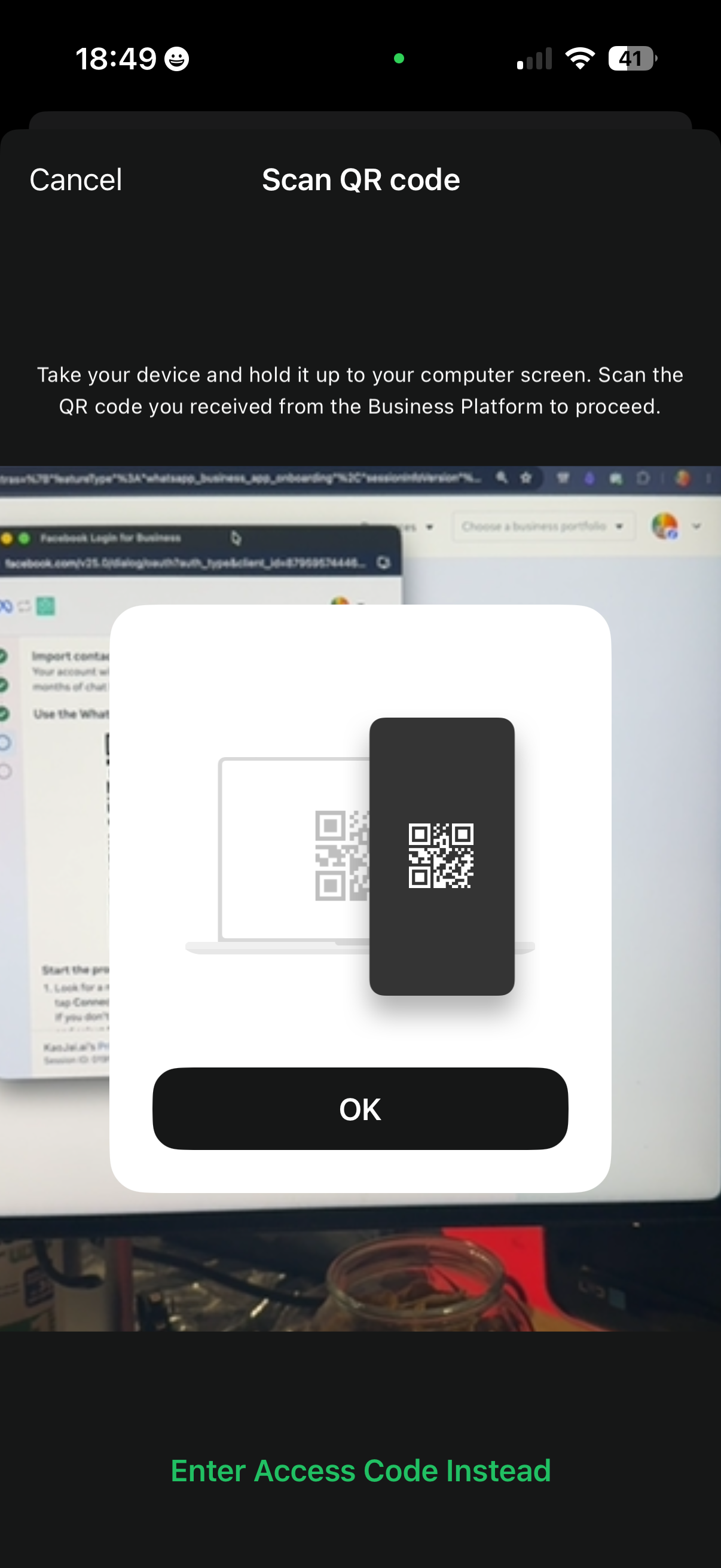
Enter the WhatsApp Business phone number you want to connect, then continue. Meta displays a QR code on your computer.
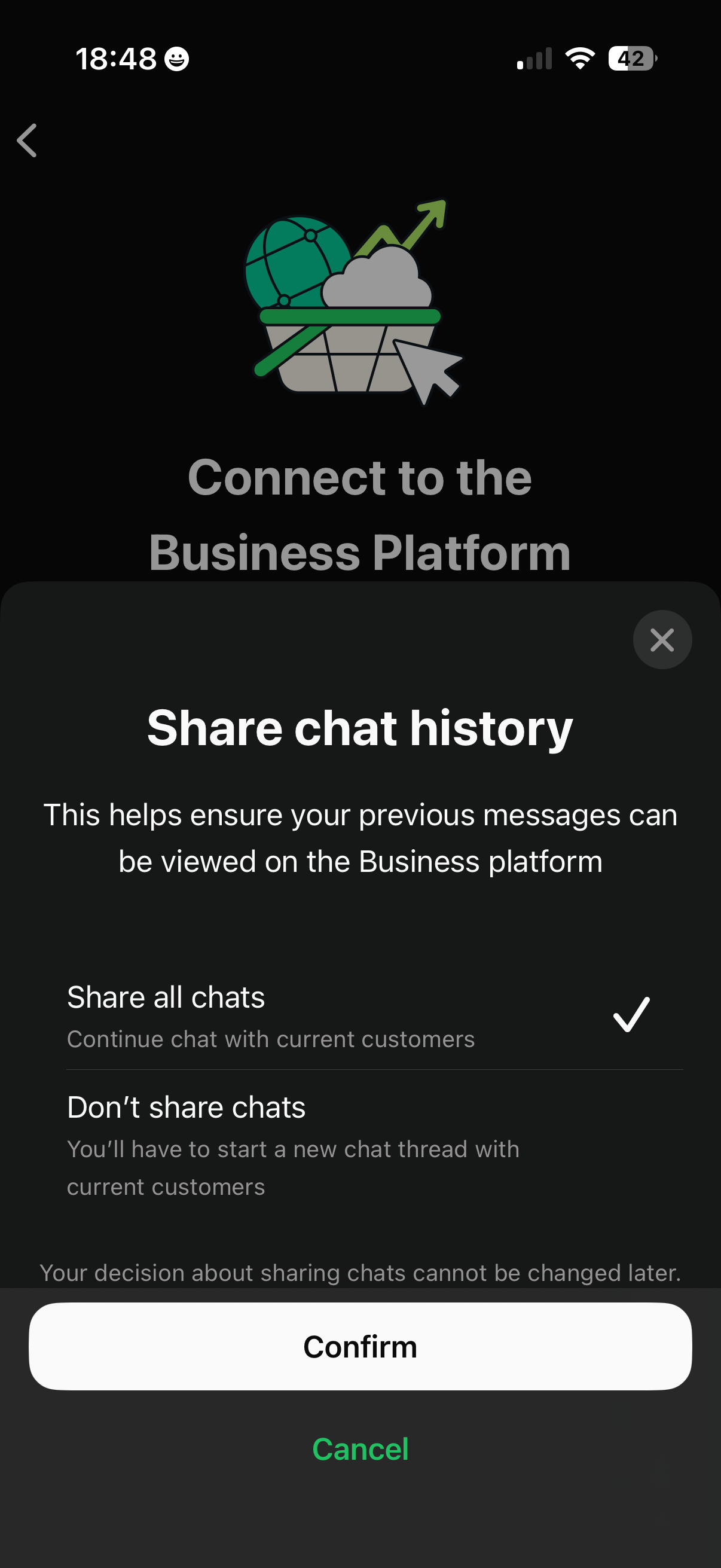
5. Confirm the connection in WhatsApp Business
On the phone that has WhatsApp Business:
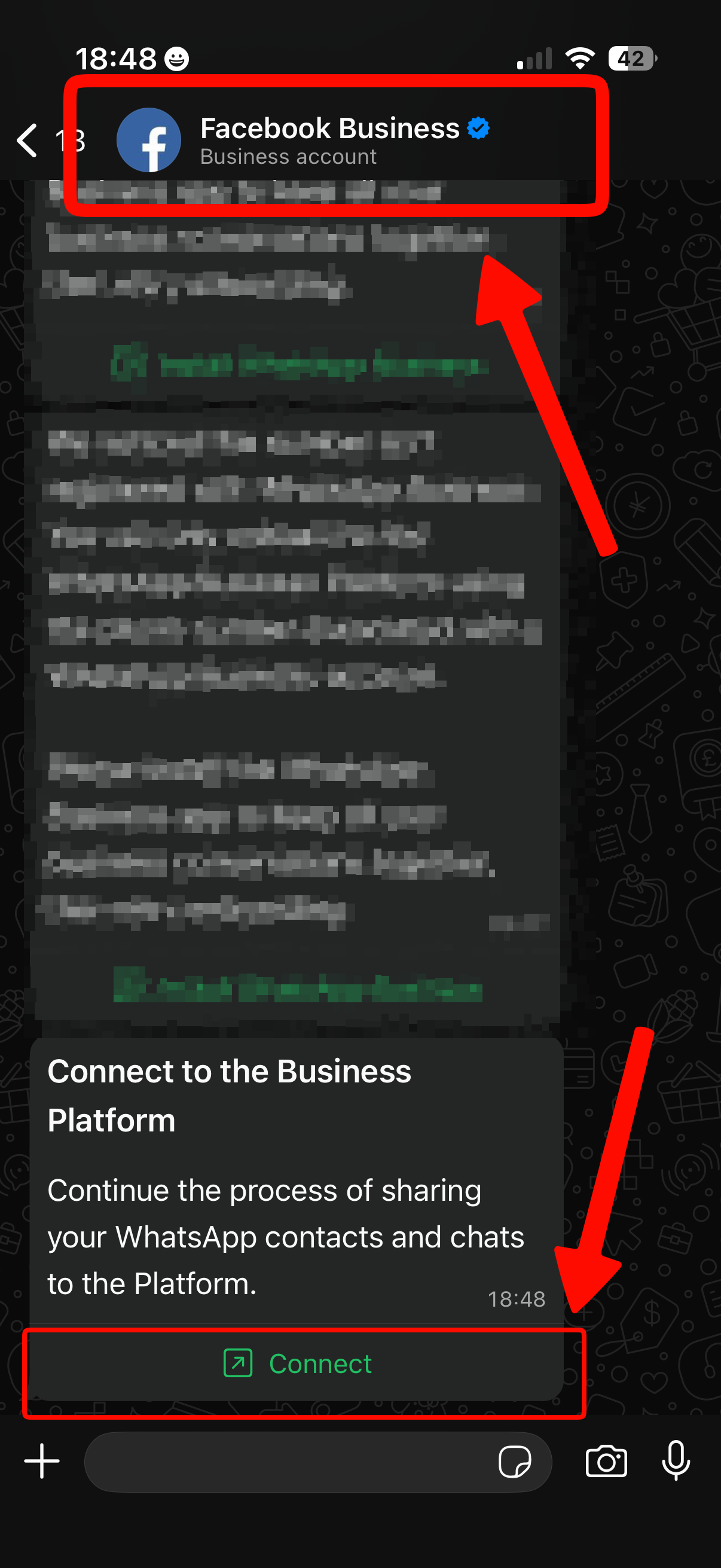
- Open the message from Facebook in WhatsApp Business.
- Select Connect.
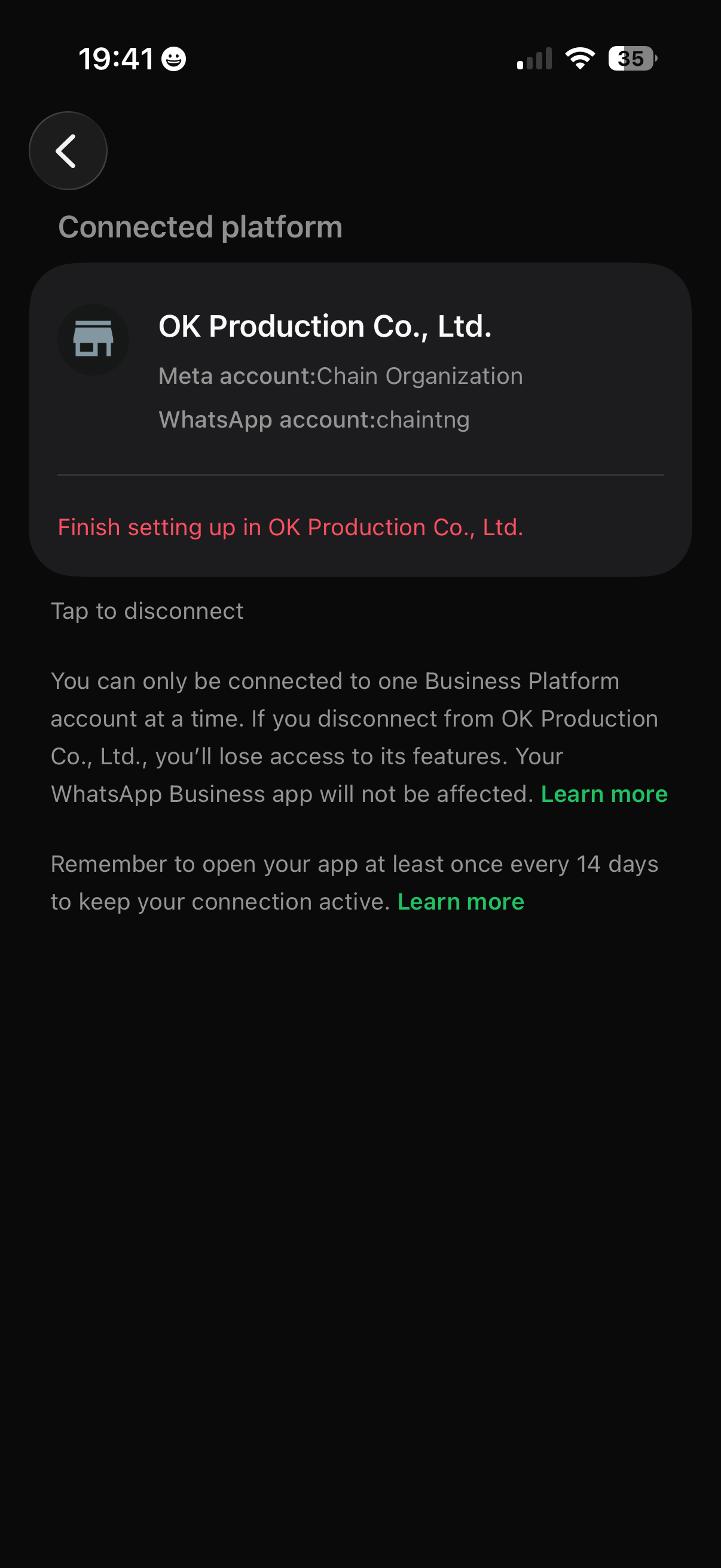
- Follow the prompts and scan the QR code on your computer.
6. Finish the setup on your computer
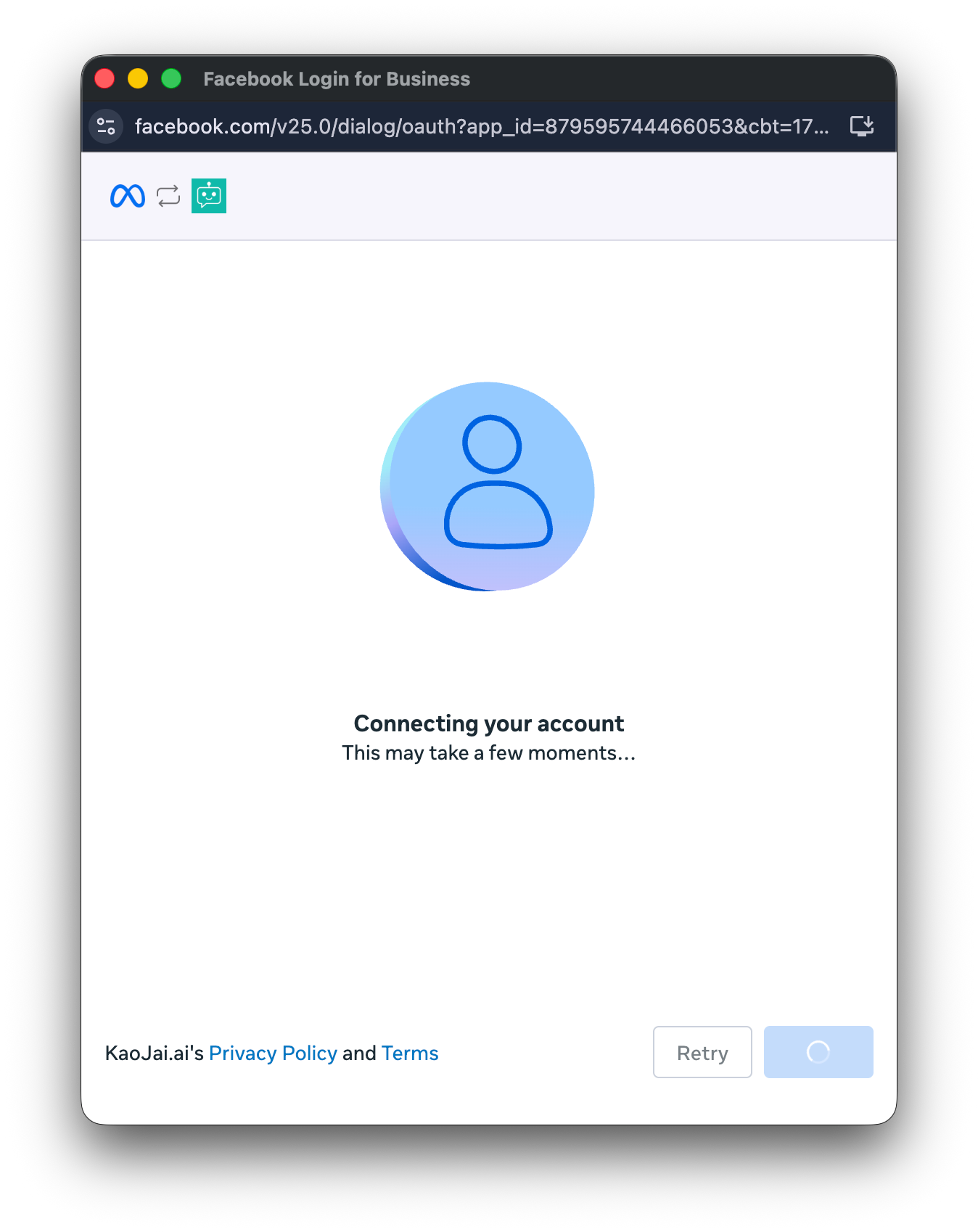
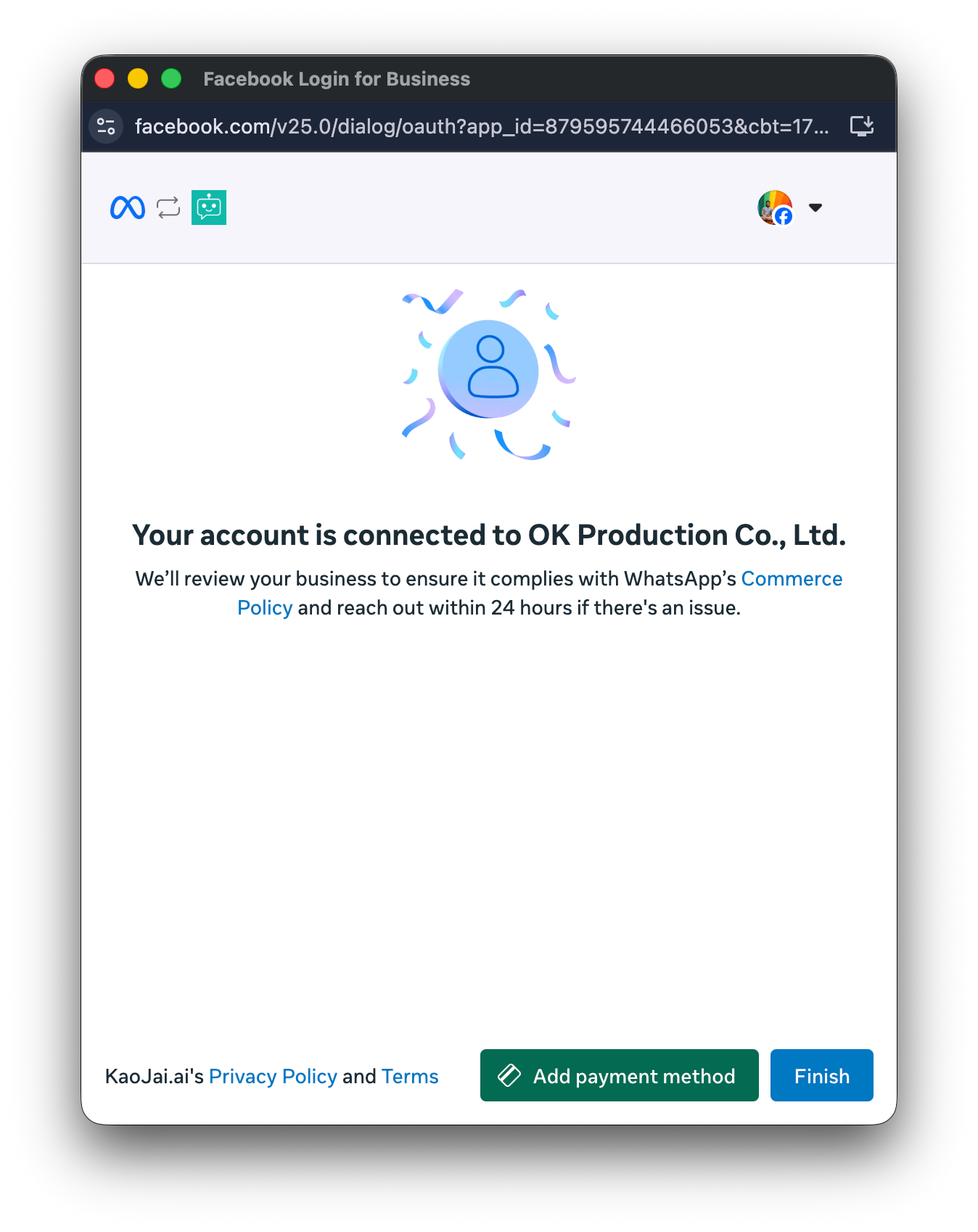
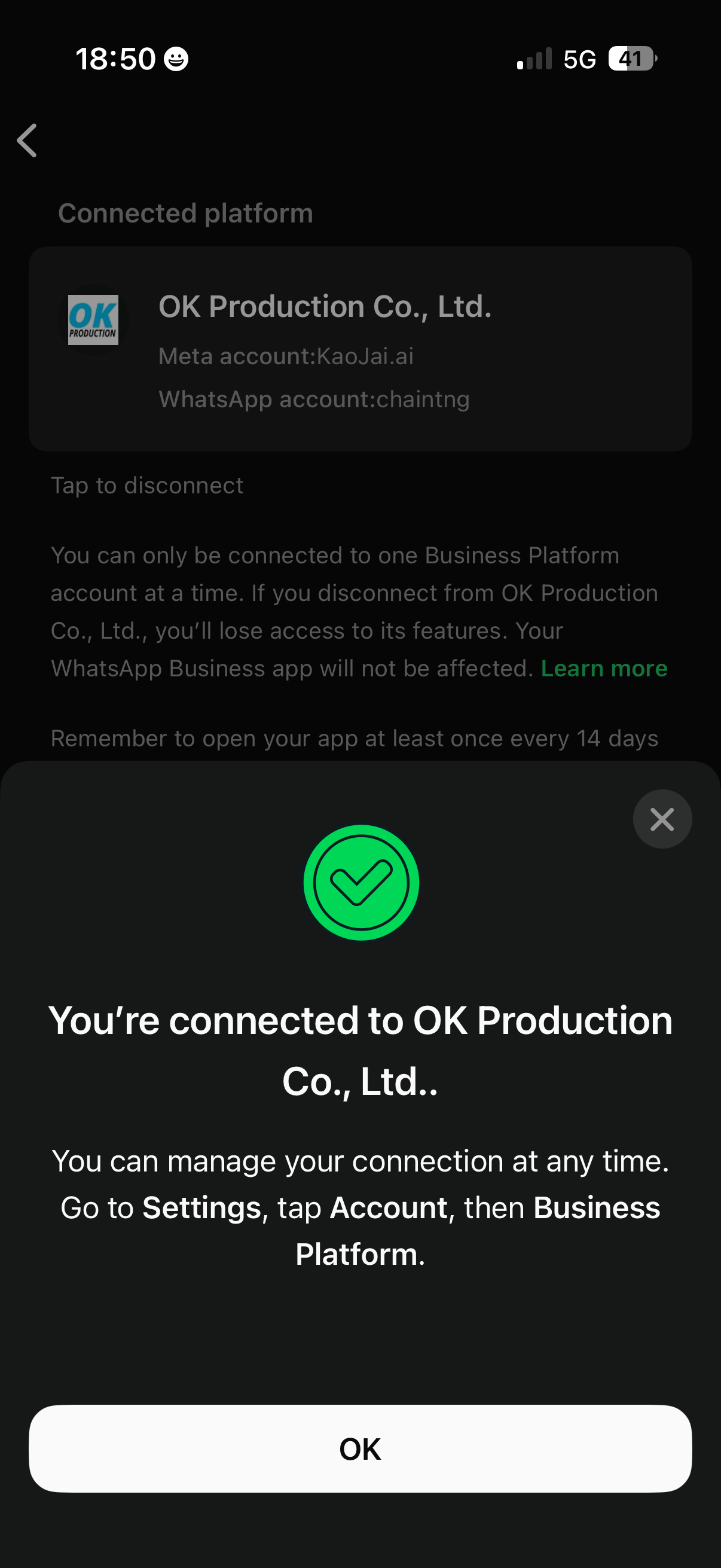
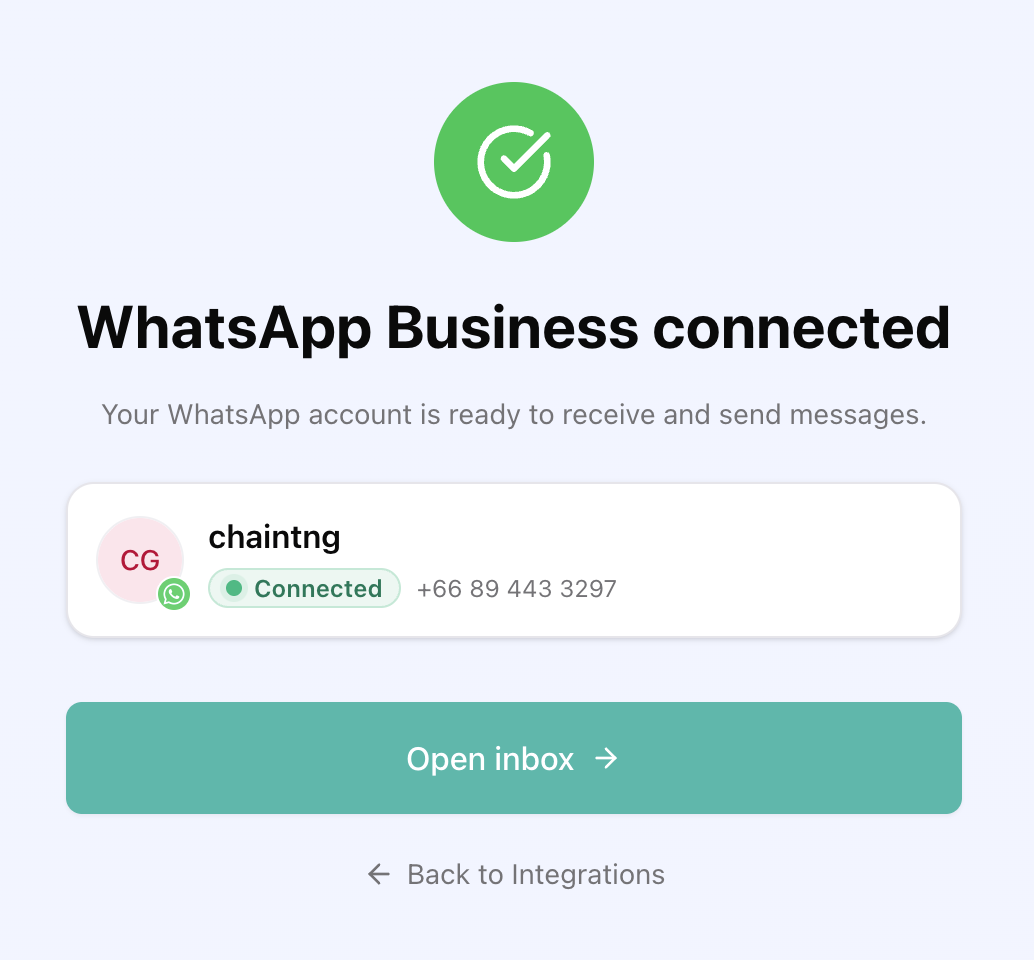
Return to the KaoJai.ai connection wizard and complete the remaining Meta prompts. Once the wizard confirms the connection, the WhatsApp account is ready to use in KaoJai.ai.
Need help?
If the account cannot be selected, the QR code does not appear, or the connection does not complete, contact KaoJai Help with the step where you are stuck. Do not send QR codes, verification codes, or account credentials in the message.